

Viewing logs
View and download system and app logs for troubleshooting
If something isn't working as expected, logs can help you figure out what's going on. You'll find them in Settings > Troubleshoot.
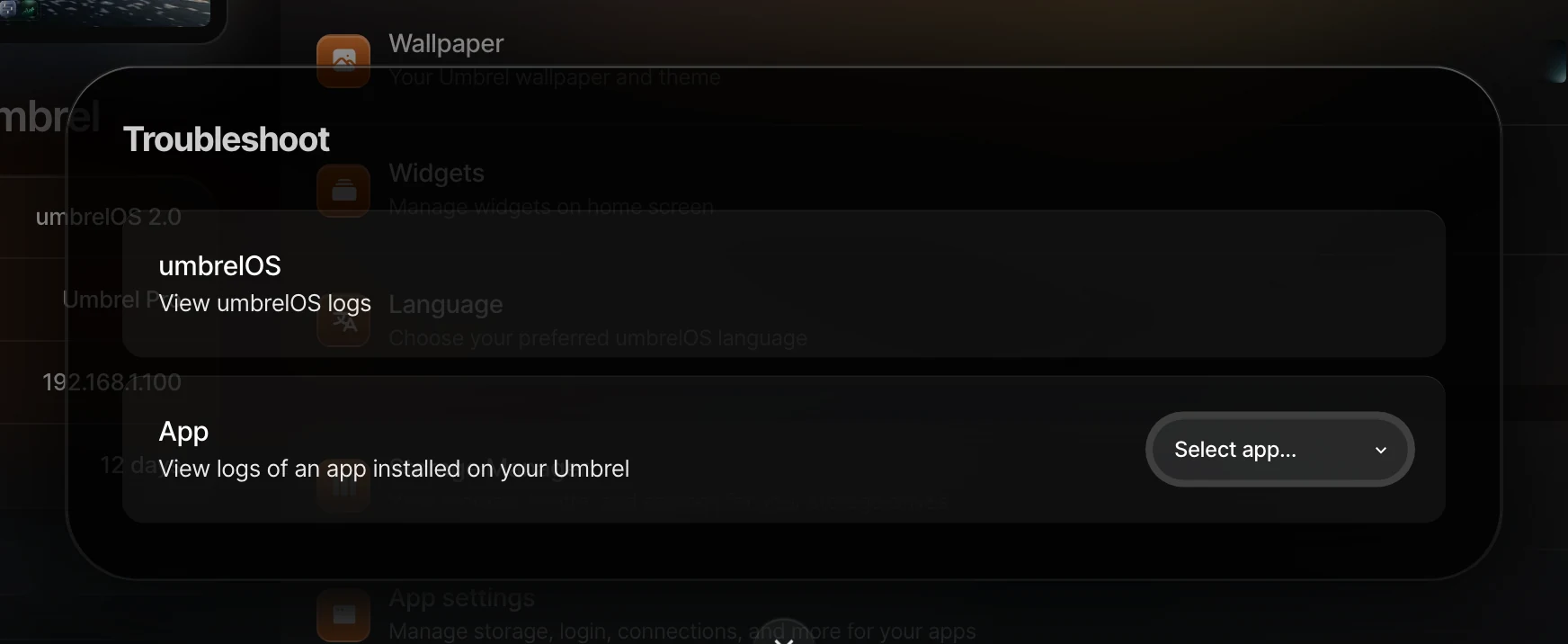
umbrelOS logs
Select umbrelOS to view system-level logs. These cover the core operating system, including startup, updates, networking, and background services. This is where to look if your Umbrel itself is having issues.
App logs
Select App and choose an app from the list to view its logs. This is where to look if a specific app is crashing, not starting, or behaving unexpectedly. You can also get to an app's logs by right-clicking the app icon on your home screen and selecting Troubleshoot.
If in doubt, download both. It's the quickest way to give support everything they need. For help figuring out whether the issue is app-related or system-related, see Troubleshooting apps.
Getting help
You can download logs from the Troubleshoot page to share with support. Who to reach out to depends on the issue:
- For umbrelOS issues, reach out to us with your umbrelOS logs and we'll help you diagnose the problem.
- For app issues, see Troubleshooting apps for help figuring out who to contact for the best support.
Using the terminal
For more advanced log inspection, you can use the built-in Terminal or SSH to run any Linux commands you need, such as journalctl for system logs, docker logs for app container logs, or ping for network diagnostics.