Umbrel for Mac
Add your Umbrel's shared folders to Finder with the Umbrel Mac app
Umbrel for Mac is a small menu bar app that finds your Umbrel on your network and adds your shared folders to Finder, so you can drag files to and from your Umbrel like any other drive. It also opens umbrelOS in your browser with one click, and keeps your folders connected over Tailscale when you're away from home.
What you'll need
- A Mac running macOS 14 Sonoma or later, with Apple silicon or Intel.
- An Umbrel running umbrelOS 2.0 or later.
- Your Umbrel account name and password. If you're a member rather than the owner, the owner needs to turn on Allow file sharing (SMB) for you in Settings > Users.
Download and install
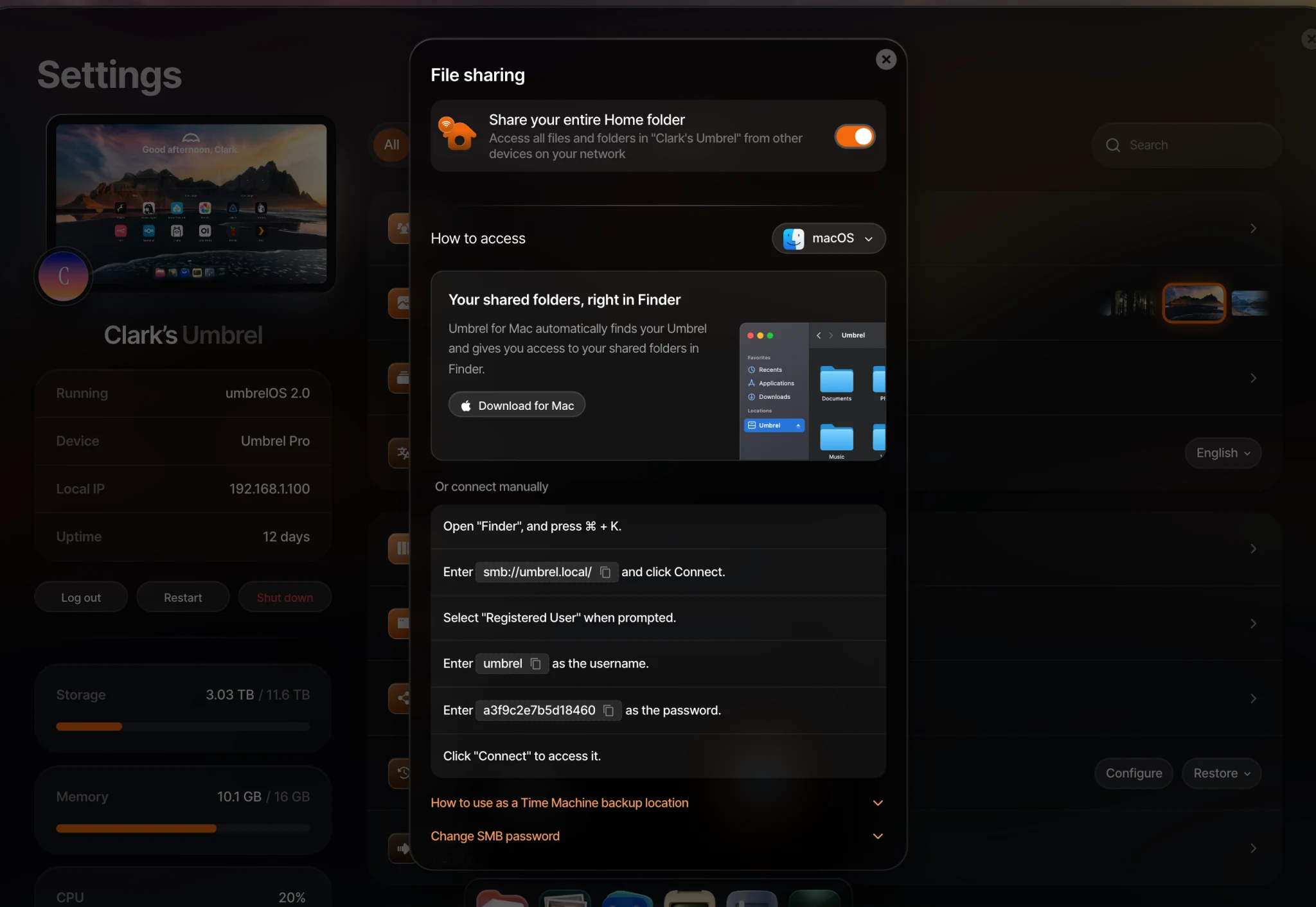
- Download the app from link.umbrel.com/macos-app. You can also find a Download for Mac button in umbrelOS under Settings > File sharing, in the instructions for macOS.
- Open the downloaded file and drag Umbrel into your Applications folder.
- Open Umbrel from Applications. An Umbrel icon appears in your menu bar. The app doesn't show in the Dock.
The app turns on Launch at Login the first time you open it, so it's always ready. You can turn this off by right-clicking the menu bar icon.
Connect to your Umbrel
- Click the Umbrel icon in the menu bar. The app searches your network for Umbrels.
- Choose your Umbrel.
- If your Umbrel has more than one user, choose your name.
- Enter your umbrelOS password, and your 2FA code if you have two-factor authentication turned on.
Your shared folders appear in Finder under Locations. You don't need to enter a separate file sharing username or password. The app handles that for you.
If you haven't shared any folders yet, the app offers to Share your entire Home folder. You can also choose what to share in umbrelOS under Settings > File sharing. See Accessing your files from other devices.
If the app can't find your Umbrel
Click Can't find your Umbrel? Connect by address and enter your Umbrel's IP address or hostname. You can find its IP address in umbrelOS under Settings, next to Local IP. If you're away from home, use its Tailscale IP address or MagicDNS name. Tailscale must already be set up on your Mac and your Umbrel.
Using the app
Click the menu bar icon to:
- See whether your Umbrel is connected, and whether it's connected over your local network or Tailscale.
- Open umbrelOS in your browser with Open Umbrel.
- See your shared folders and reconnect any that dropped.
- Disconnect your shared folders.
Right-click the menu bar icon for About Umbrel, Check for Updates..., Launch at Login, and Quit Umbrel.
The app checks your connection every minute, after your Mac wakes from sleep, and when your network changes, and reconnects any shared folders that dropped. Quitting the app doesn't disconnect your folders from Finder.
If the menu bar icon changes to a broken umbrella, the app can't reach your Umbrel.
Using it away from home
If Tailscale is set up on both your Mac and your Umbrel, the app keeps your shared folders connected through Tailscale when you're away. See Remote access to set up Tailscale.
When Tailscale is running, the app may use it even at home. The status then shows Connected · Tailscale. This is normal.
Updates
The app checks for updates on its own and lets you know when one is ready. Click Install Update to install it. You can also check manually by right-clicking the menu bar icon and choosing Check for Updates....
If you change your file sharing password
If you change your file sharing password in umbrelOS, your Umbrel disconnects devices that were using the old one. The Mac app notices within about a minute and reconnects your folders with the new password on its own.
Security
The app stores its login securely in your Mac's Keychain. Your umbrelOS password is never saved. It appears as Umbrel for Mac in your Umbrel's active logins, where you can log it out at any time.
Troubleshooting
- "Session expired." Your login was removed or expired. Click the menu bar icon and enter your password again.
- A folder shows "Reconnect". Click it to reconnect. If it keeps dropping, check that your Umbrel is on and your Mac is on the same network or connected to Tailscale.
- "Some shared folders couldn't be disconnected." Close any files you have open from your Umbrel, then try again.
- "This Umbrel needs to be updated before it can connect to the app." Update umbrelOS to version 2.0 or later.
- "Couldn't verify this Umbrel." This can happen after your Umbrel is reset, reinstalled, or restored from a backup. Use Forget Device in the app, then connect again.
- You're a member and see no folders. Ask the owner to turn on Allow file sharing (SMB) for you in Settings > Users.