Sharing your Umbrel with other users
Add accounts for your family or housemates and choose which apps and folders they can use
Your Umbrel can have more than one user. Everyone gets their own account, home screen, and private Home folder, and you choose exactly which apps and folders to share with each person.
Owners and members
- Owner. The account created when the Umbrel was first set up. There's only one owner, and it can't be changed or deleted. The owner manages the Umbrel: installing and updating apps, updating umbrelOS, backups, storage, network settings, and users.
- Members. Everyone the owner adds. Members can use the apps and folders the owner shares with them, and have their own private Home folder.
If you set up your Umbrel before umbrelOS 2.0, your existing account is now the owner account. Nothing about it changes.
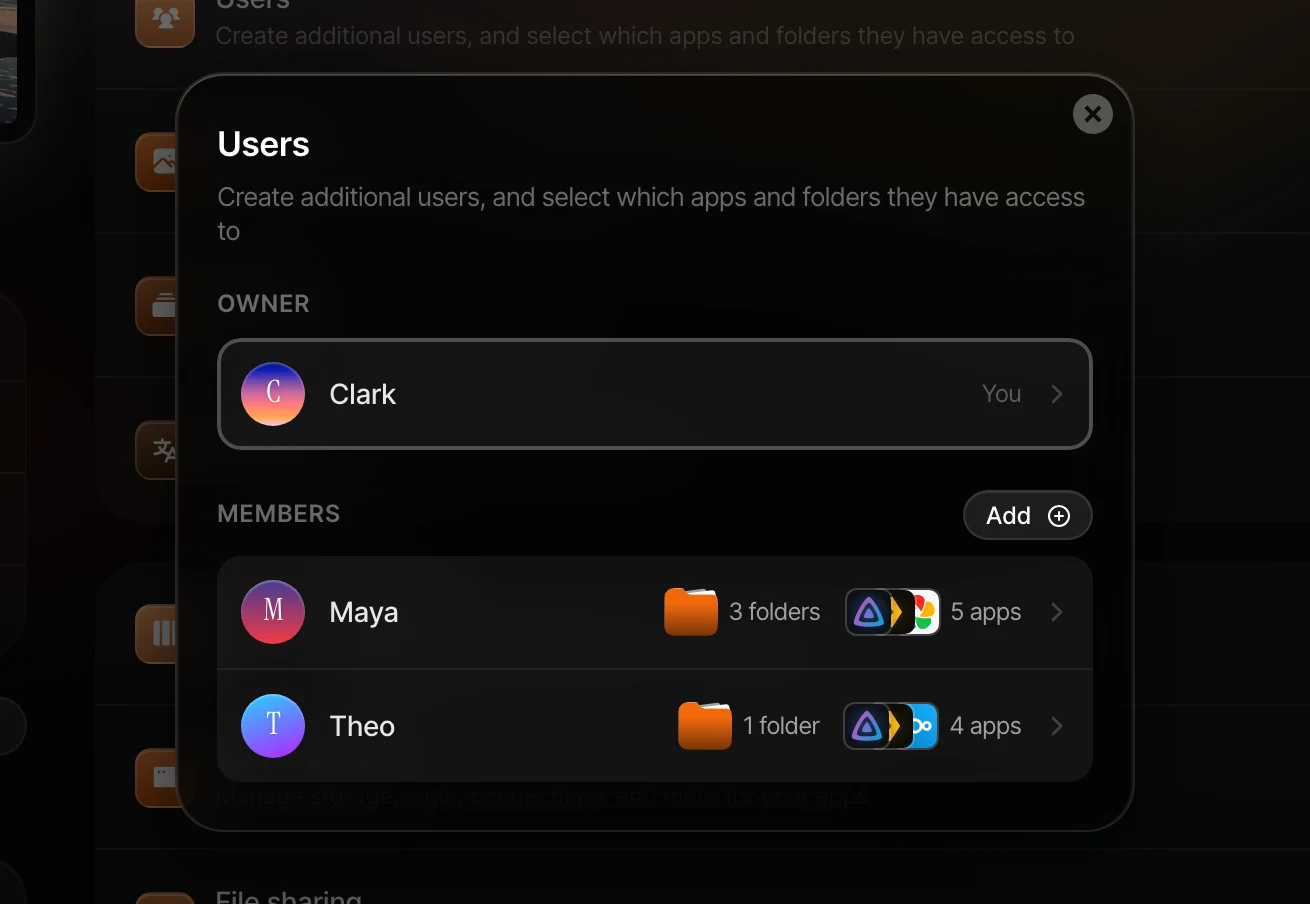
Add a user
- Go to Settings > Users.
- Next to Members, click Add.
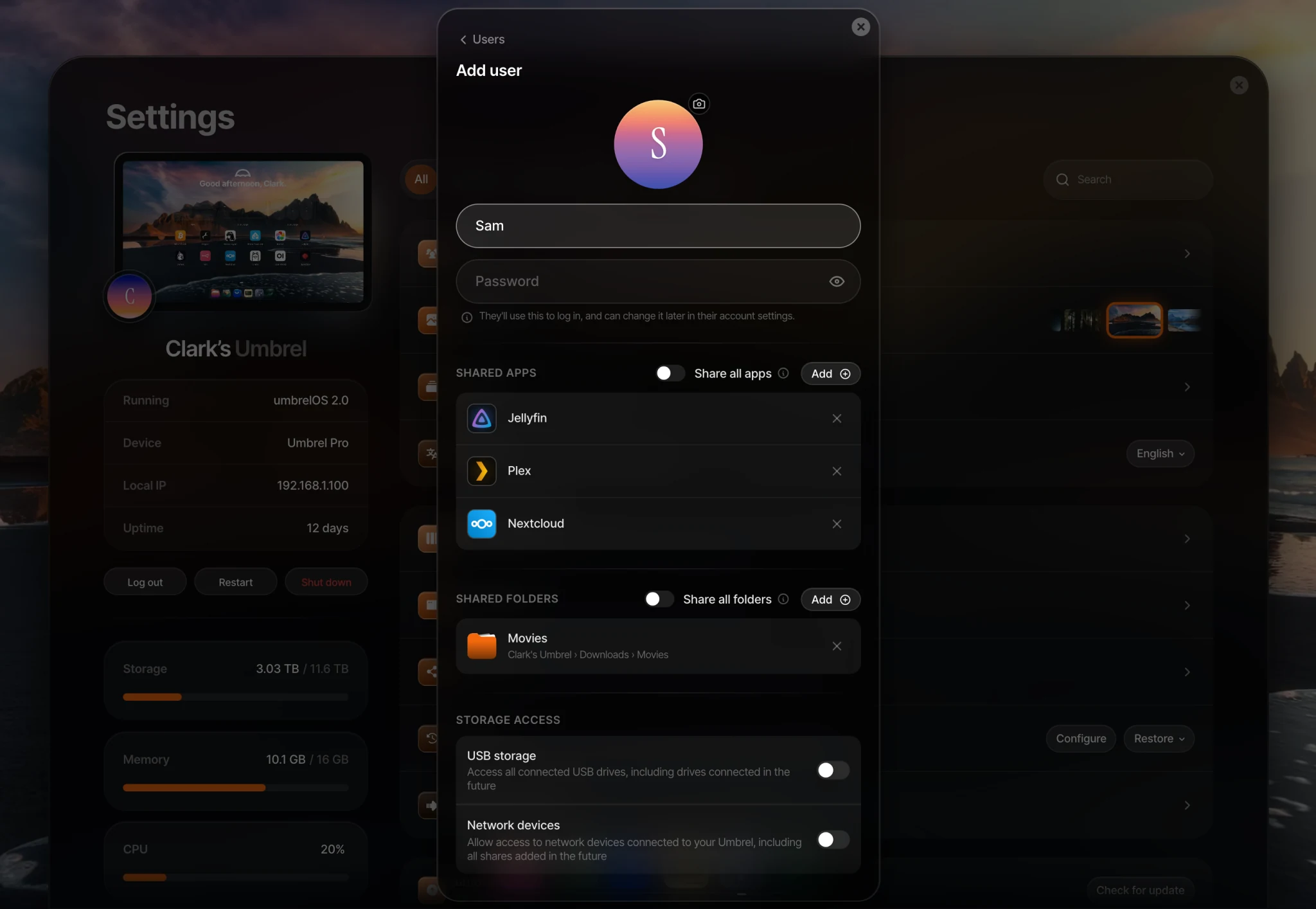
- Enter their name and a password (at least 6 characters). You can also add a profile picture.
- Choose what to share with them (you can change this later):
- Shared apps: pick specific apps, or turn on Share all apps to include every app, including ones you install in the future.
- Shared folders: pick specific folders from your Home folder, or turn on Share all folders to share your entire Home folder.
- Storage access: turn on USB storage or Network devices to give them access to all connected USB drives or network devices, including ones added later.
- Allow file sharing (SMB): lets them share folders from their own Home folder with their devices over your network.
- Click Create user.
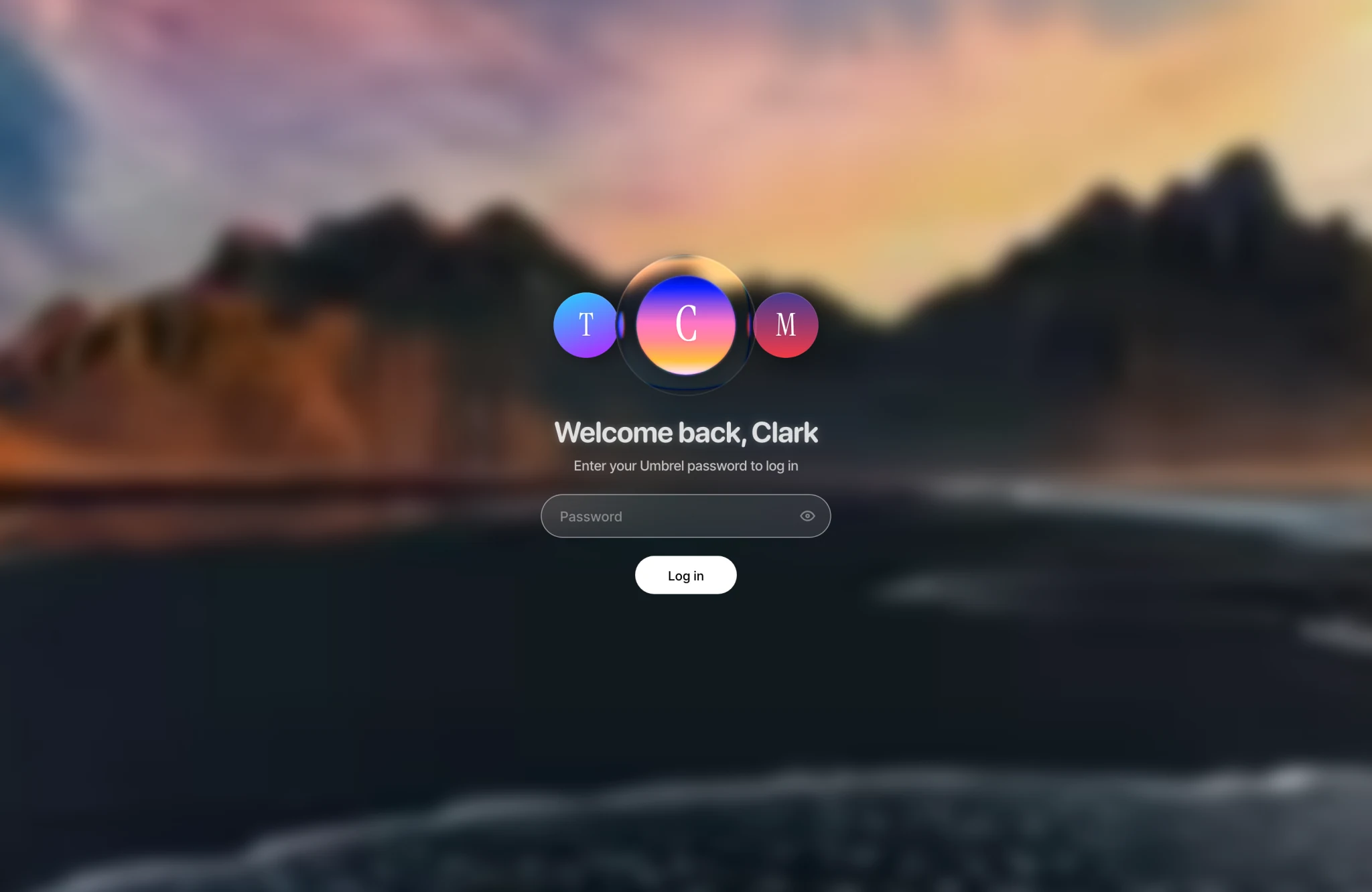
umbrelOS then shows a message you can copy and send them, with the address of your Umbrel and their password. They open that address on your home Wi-Fi, choose their name on the login screen, and log in. They can change their password later in their own settings.
Each person's name must be unique.
What members get
- Their own home screen with their own wallpaper, widgets, and language.
- A private Home folder in Files, with its own Trash. Nobody else can see it in Files, including the owner.
- Their own Photos library, built from their own Home folder, and iPhone photo backup to their own Home folder.
- Their own Cloud downloads.
- Their own password, two-factor authentication, and active logins.
- The apps and folders the owner shares with them.
What only the owner can do
Members can't:
- Install, update, uninstall, start, stop, or change the settings of apps. If a shared app is stopped or not working, members see a message asking them to contact the owner.
- Update umbrelOS, restart or shut down the Umbrel, or factory reset it.
- Change Wi-Fi, network, or Tor settings.
- Set up backups, use Rewind, or use Storage Manager or Migration Assistant.
- Use Machines, the terminal, SSH, or AI agents (MCP).
- Add or manage users.
Share apps
You can share an app in two ways:
-
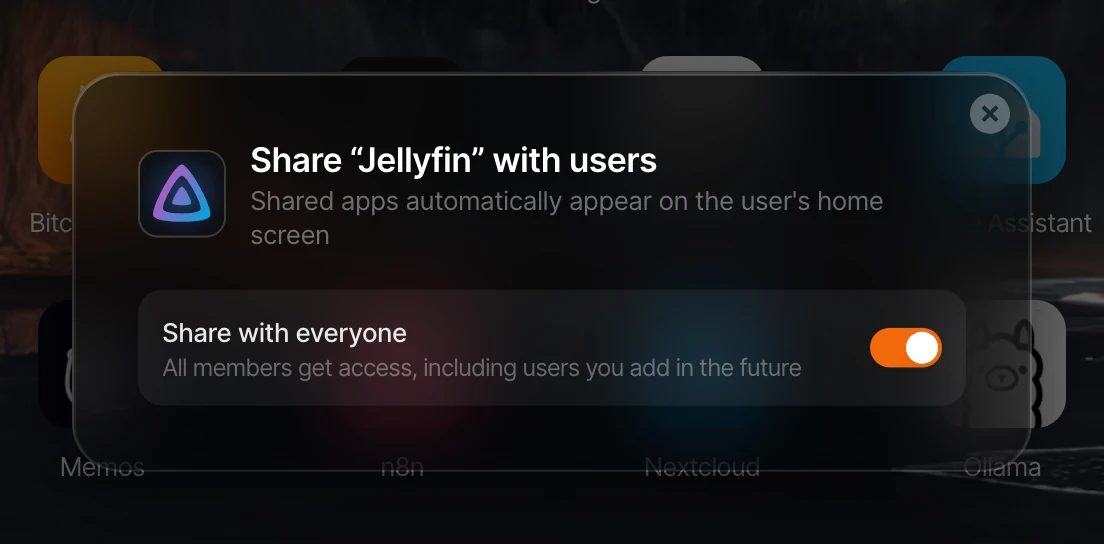
Right-click the app on your home screen and choose Share with users.... Choose Share with everyone to share with all members, including users you add in the future, or pick specific people.
-
Go to Settings > Users, click a member, and add apps under Shared apps.
Shared apps appear on the member's home screen automatically. When they open one, they log in with their own Umbrel account and password.
Everyone shares the same copy of the app, with the same data. If an app has its own accounts, like Nextcloud or Jellyfin, you'll still need to create an account for each person inside the app.
Apps that have Require Umbrel login turned off in their app settings can be opened by anyone on your network, even if you haven't shared them. The same goes for apps that manage their own login.
Share folders
You can share a folder in two ways:
- In Files, right-click a folder and choose Share with users.... Choose Share with everyone or pick specific people.
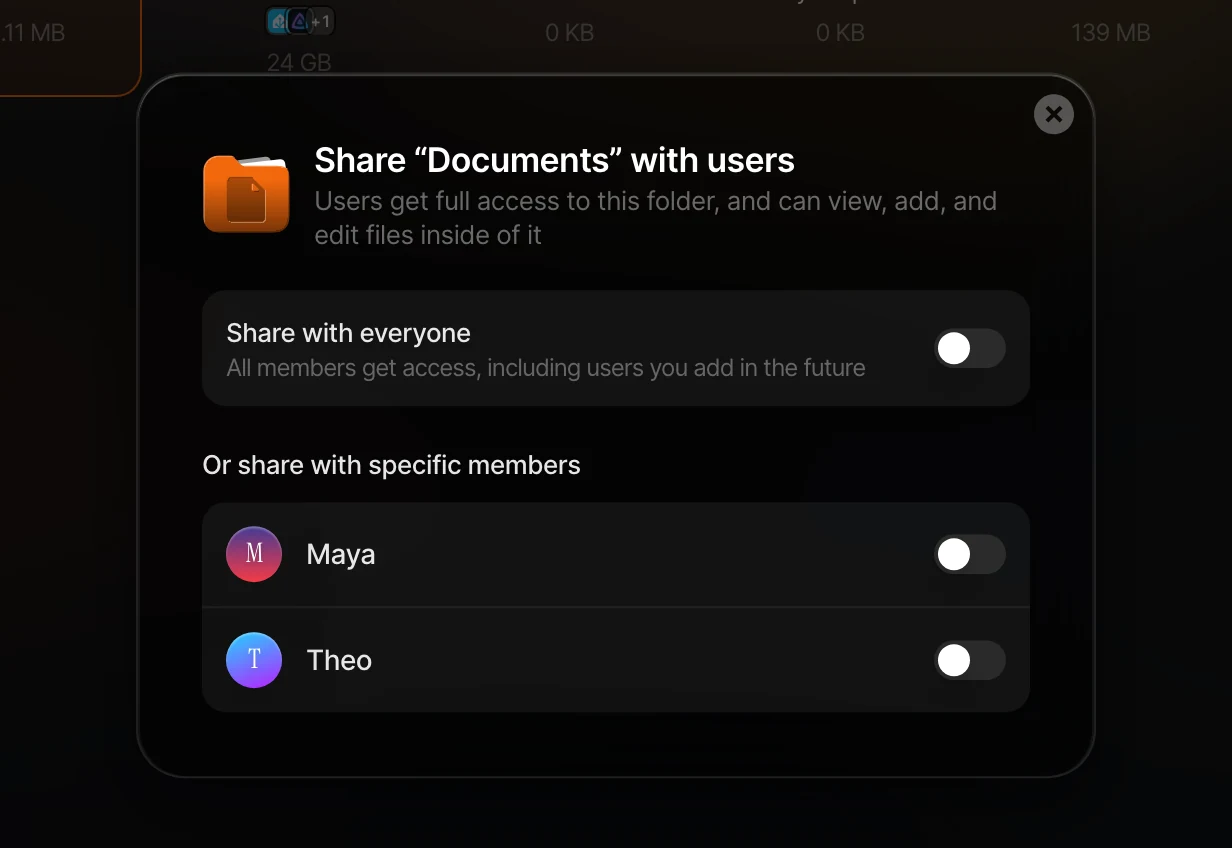
- Go to Settings > Users, click a member, and add folders under Shared folders.
Members get full access to shared folders. They can view, add, and edit files inside them. Shared folders appear in their Files sidebar under Shared with you, labeled with your name.
You can share folders from your Home folder and the Apps folder. Share all folders shares your entire Home folder, but not your apps or your USB and network drives. Share those separately with Storage access.
When a member deletes something in a folder you shared with them, it's deleted permanently instead of going to Trash. Keep backups turned on.
Reset a member's password
If a member forgets their password or loses their authenticator app:
- Go to Settings > Users and click their name.
- Choose Reset password, enter a new password, and click Set password.
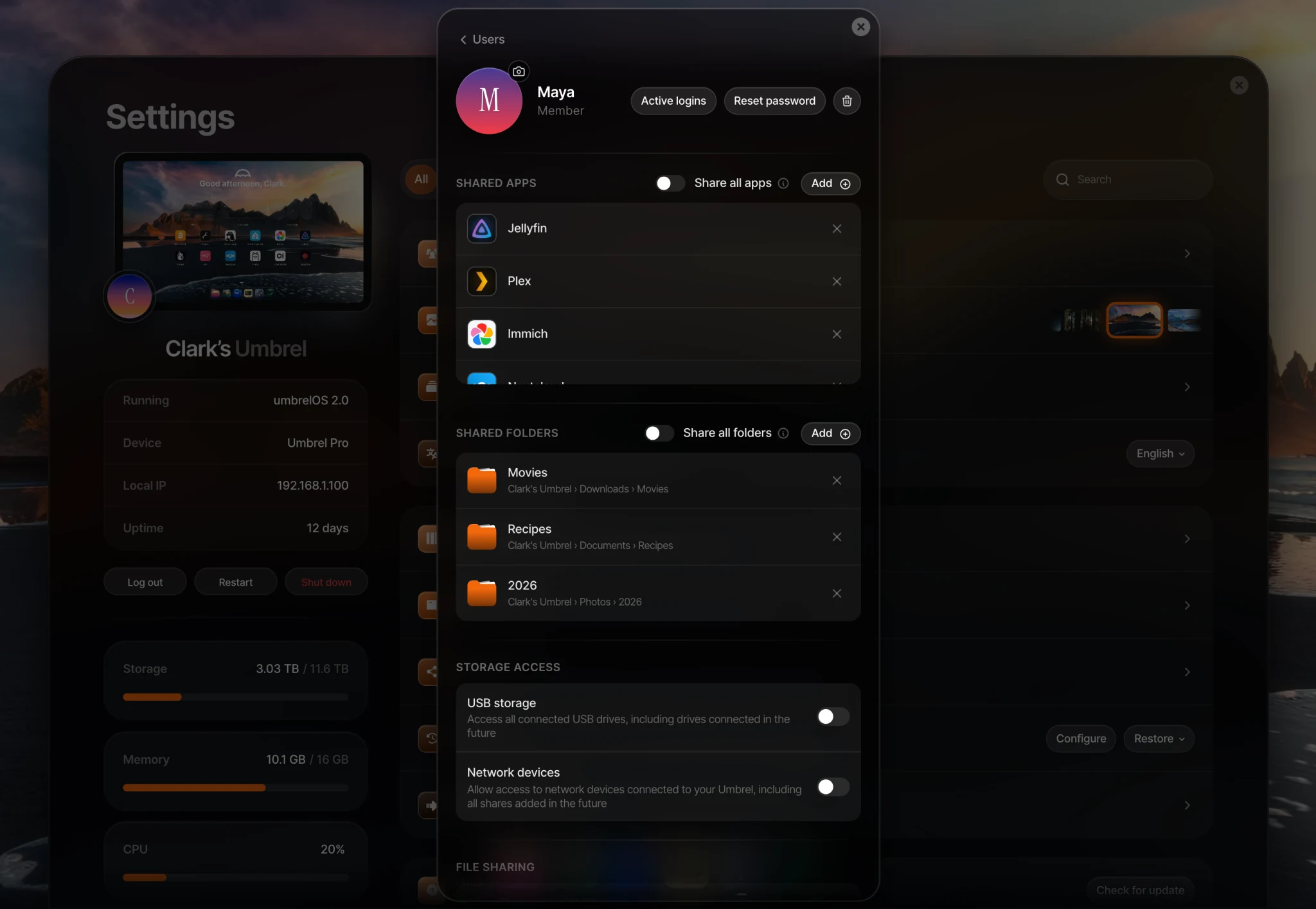
This sets a new password and turns off 2FA for them. Any devices they're already logged in on stay logged in until you log them out from Active logins on the same page.
The owner's own password can't be reset this way. See Personalizing your Umbrel for how to change it.
Remove a user
- Go to Settings > Users and click their name.
- Choose Delete user and confirm.
This permanently deletes their account and all of their files, including their Home folder, Photos, and iPhone backups. Apps and folders you shared with them stay available to everyone else. This can't be undone, so ask them to copy anything they want to keep first.
Backups
Your backups include every member's account and Home folder. Restoring a backup restores all accounts as they were when the backup was taken.