
Connecting AI agents (MCP)
Let AI agents like Claude Code, Codex, Hermes, and OpenClaw manage your Umbrel, with only the access you allow
umbrelOS has a built-in MCP server. MCP (Model Context Protocol) is a standard way for AI agents to use tools, so once you connect an agent, you can ask it to do things on your Umbrel for you. For example, you could ask it to install an app, organize a folder, check why an app isn't working, or use one of your Machines.
Agents can only use the apps, folders, and machines you give them access to, and you can change or revoke access at any time.
MCP is in beta. Agents can make real changes to your Umbrel, so only give access to agents you trust and control yourself.
Only the owner account can set up MCP. Agents act as the owner.
Turn on MCP and connect an agent
-
Go to Settings > AI agents (MCP).
-
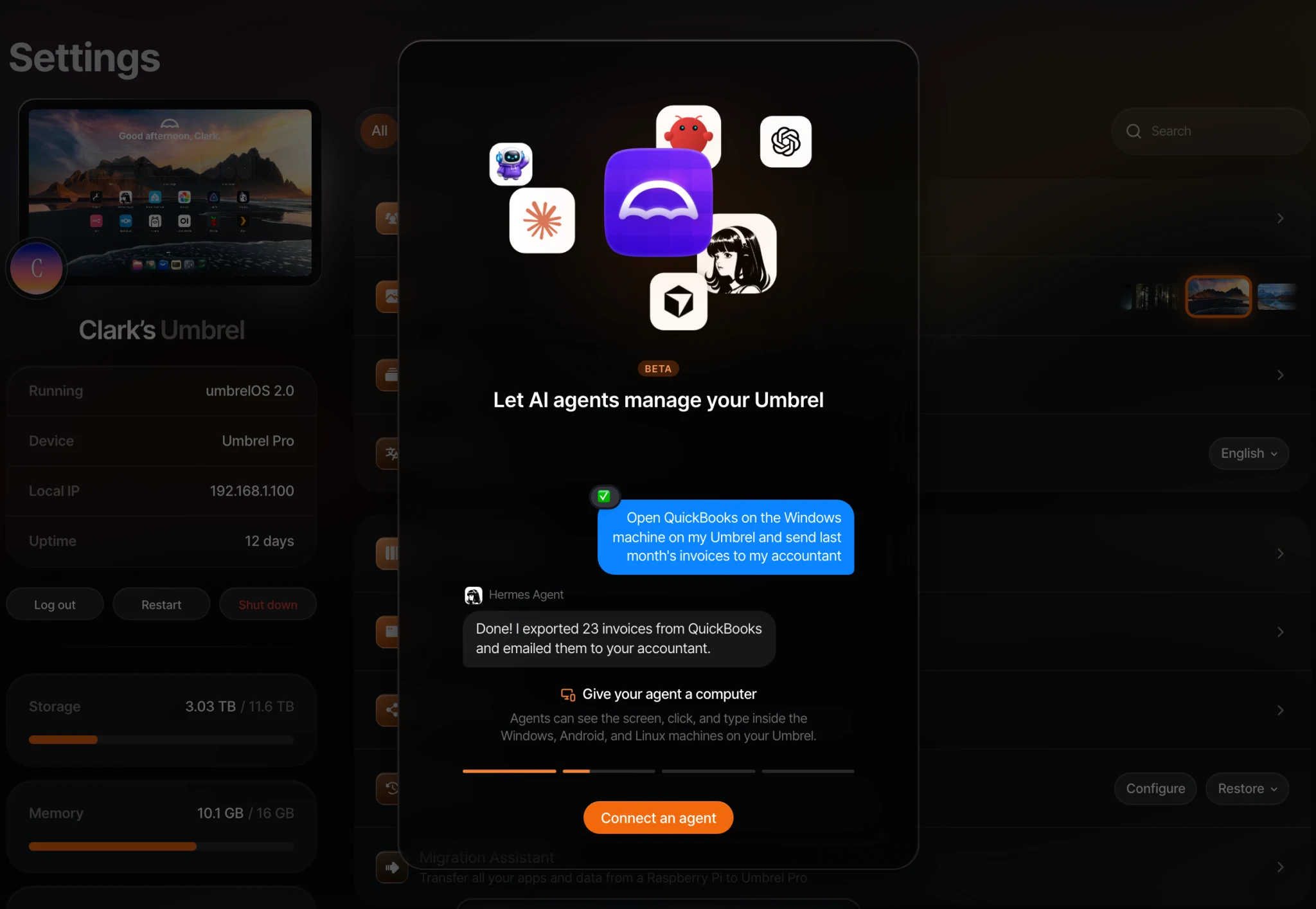
Click Connect an agent. This turns on the MCP server.
-
Choose your agent. umbrelOS has setup steps for Claude Code, Codex, Cursor, Hermes Agent, and OpenClaw. For anything else, choose Any other AI agent.
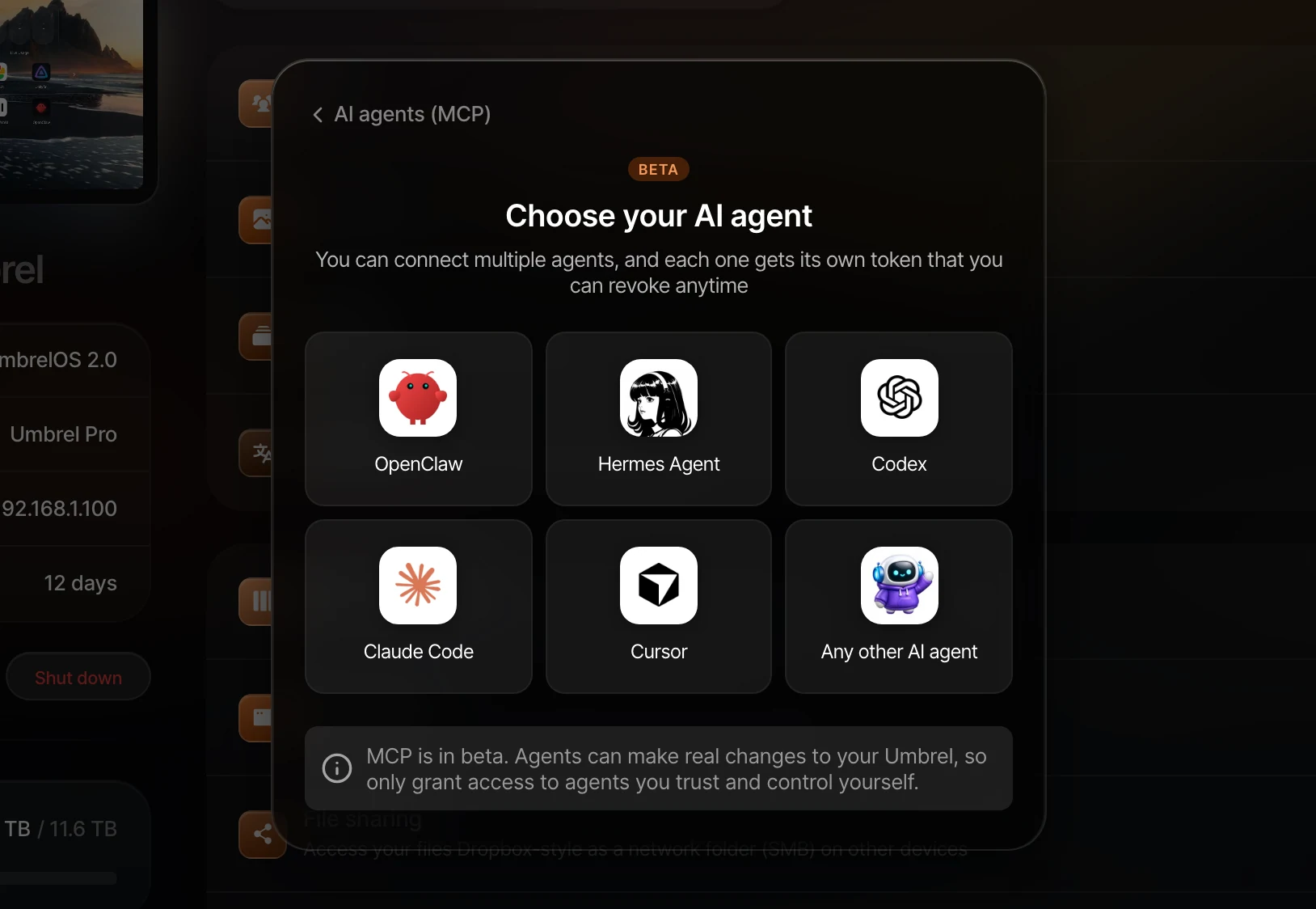
-
Follow the steps shown. Each agent gets its own token, and the steps include it. For example:
- Claude Code and OpenClaw: run the command shown in your terminal.
- Codex: add the lines shown to
~/.codex/config.toml. - Cursor: click Add to Cursor, or add the lines shown to
~/.cursor/mcp.json. - Hermes Agent: add the lines shown to
~/.hermes/config.yaml. - Any other AI agent: point your MCP client at the endpoint shown, with the authorization header.
You can also copy the ready-made message under Or just send your agent this message and paste it into your agent.
-
umbrelOS waits for your agent to connect and shows Connected when it says hello.
Copy the token while it's shown. For security, umbrelOS only shows each token once. If you lose it, connect the agent again to get a new token.
The endpoint looks like http://umbrel.local/mcp, using the same address you use to open umbrelOS. It uses plain HTTP, even if you open umbrelOS over HTTPS, because agents don't trust your Umbrel's own certificate.
Agents running as apps on your Umbrel
If you've installed OpenClaw or Hermes Agent from the App Store, click Connecting the [agent] app running on this Umbrel? for the right setup steps. For OpenClaw, you run the command in its terminal from Settings > Advanced settings > Terminal > OpenClaw. For Hermes Agent, you add the lines to its config.yaml file in Files, under Apps > Hermes Agent > data > hermes.
Connecting from outside your home
The MCP server works on your local network. To use it from an agent running somewhere else, install Tailscale on your Umbrel and on the computer running your agent, then use http://<your Umbrel's Tailscale IP>/mcp as the endpoint.
Choose what agents can access
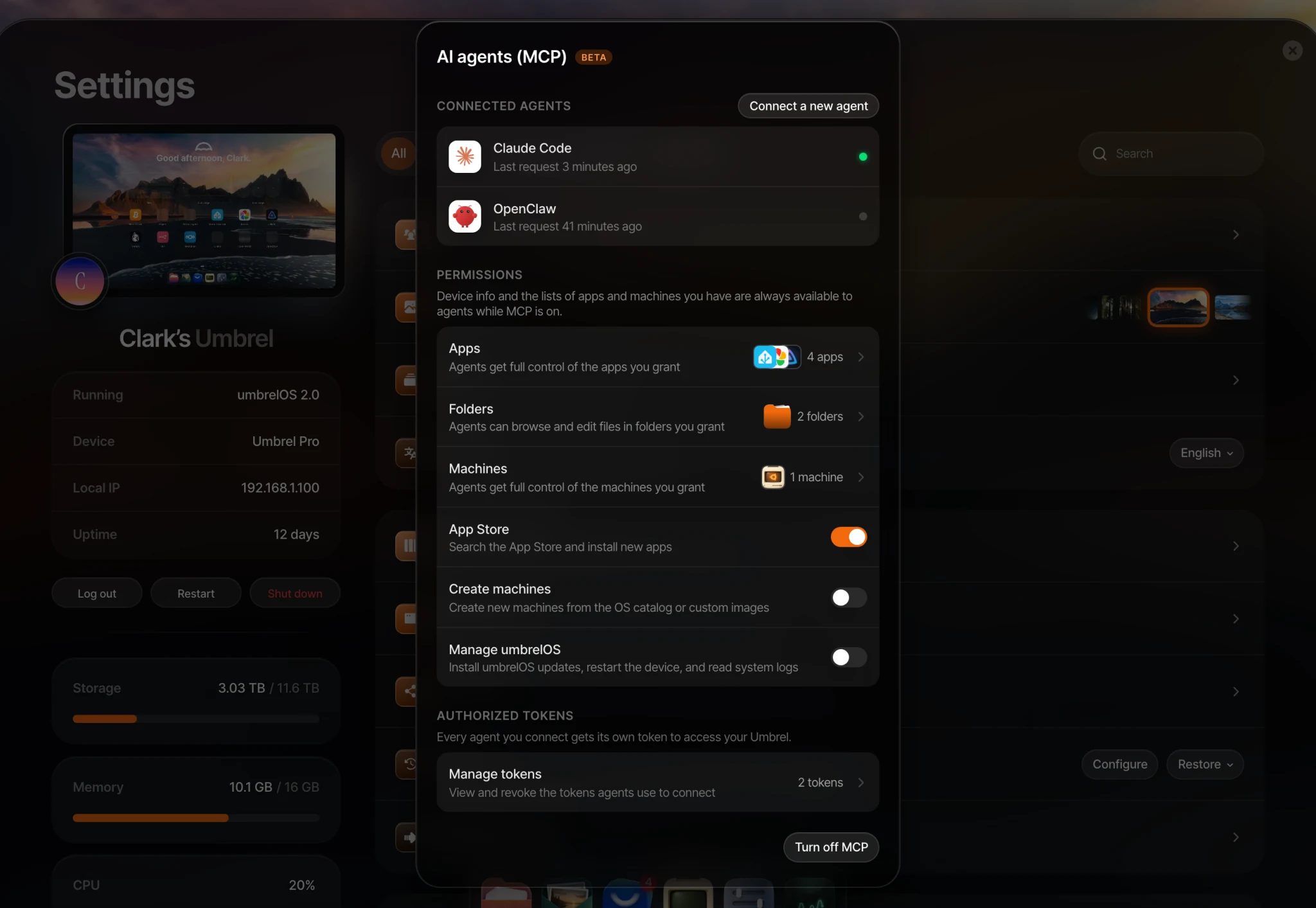
Under Permissions, choose what agents can do. By default they can't access anything except basic information. Permissions are shared by all your connected agents.
- Apps: pick specific apps, or All apps. Agents get full control of the apps you grant, including their data, settings, and logs, and can restart, update, or uninstall them.
- App Store: lets agents search the App Store and install new apps. Apps an agent installs are added to its access automatically.
- Folders: pick specific folders, or All folders. Agents can browse and edit files in those folders. Anything they delete goes to Trash, and they never overwrite existing files. You can grant folders in your Home folder, on USB drives, and on network devices. Under Storage access, you can also grant all USB storage or Network storage.
- Manage umbrelOS: lets agents install umbrelOS updates, restart your Umbrel, and read system logs.
- Machines: pick specific machines, or All machines. Agents get full control of the machines you grant, including their screen, keyboard, and mouse, and can restart or delete them. Create machines lets agents create new machines.
While MCP is on, agents can always see basic information about your Umbrel and the list of your apps and machines.
Agents can't shut down or factory reset your Umbrel, manage backups or users, or change Wi-Fi or network settings.
Manage your agents
- Authorized tokens lists every connected agent with its last request. Click Manage tokens and Revoke token to disconnect an agent. It loses access immediately. You can connect up to 20 agents.
- Turn off MCP stops all agents from connecting. Your tokens and permissions stay saved, so your agents work again when you turn MCP back on.
If you restore your Umbrel from a backup, MCP is turned off and all tokens and permissions are removed. Connect your agents again afterwards.
Troubleshooting
- The agent says it doesn't have access. Grant the app, folder, or machine it needs under Permissions in Settings > AI agents (MCP).
- The agent can't connect. Check that MCP is turned on, that the agent is on the same network as your Umbrel (or connected through Tailscale), and that you copied the full token. If the token was revoked or lost, connect the agent again.
- "You can connect up to 20 agents." Revoke tokens for agents you no longer use.