What's new in umbrelOS 2.0
Photos, the iPhone and Mac apps, multiple users, Machines, AI agents, and everything else new in umbrelOS 2.0
umbrelOS 2.0 is the biggest update to umbrelOS yet. It was released on September 22, 2026. This page lists the new features and what to know if you're updating from an earlier version.
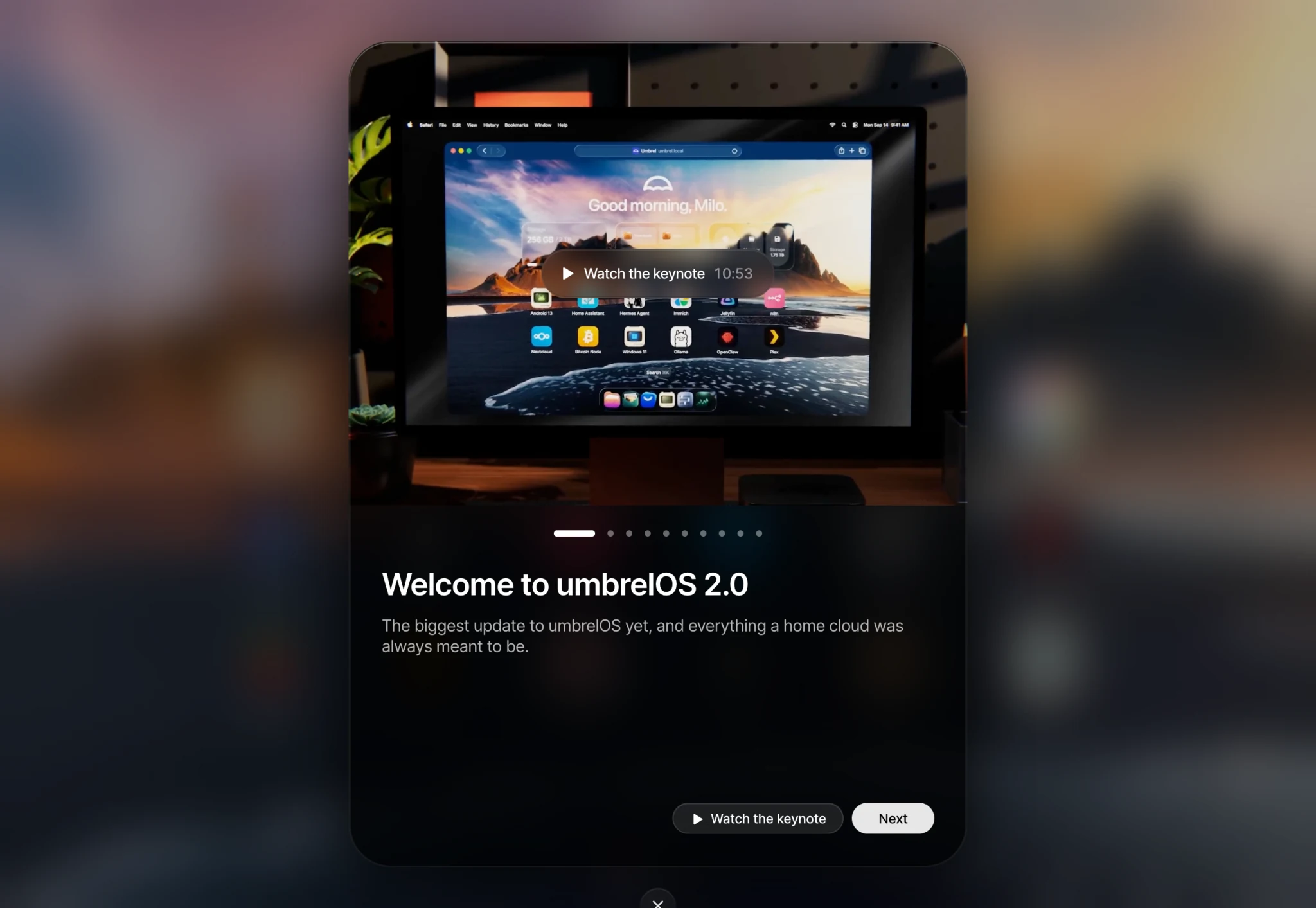
You can watch the umbrelOS 2.0 keynote for a tour. After updating, umbrelOS also shows a short Welcome to umbrelOS 2.0 tour of what's new.
New features
- A redesigned umbrelOS. Every part of umbrelOS has a new look, including the home screen, dock, Settings, Files, and App Store.
- Photos. Every photo and video in your Home folder shows up in the new Photos app automatically, in one timeline with albums, favorites, and search.
- Umbrel for iPhone. Your iPhone's camera roll backs up to your Umbrel on its own.
- Umbrel for Mac. A menu bar app that finds your Umbrel automatically and adds it as a drive in Finder.
- Multiple users. Everyone in your home gets their own account, home screen, and private Home folder. You choose which apps and folders to share with each person.
- Machines. Run Windows, Ubuntu, Debian, Android, and more right inside your Umbrel, with the full desktop in your browser.
- AI agents. A built-in MCP server lets AI agents like Claude Code, Codex, Hermes, and OpenClaw install apps, change app settings, organize files, or troubleshoot for you, with only the access you allow.
- Storage Manager on more devices. On any device with more than one internal SSD or hard drive slot, you can combine your drives into one space or turn on FailSafe to protect against a drive failing. NAS devices with both hard drive and SSD slots can also use SSDs to speed up hard drives.
- Cloud. Download your files from Dropbox, OneDrive, iCloud Drive, and more, once or kept up to date automatically.
- GPU acceleration. umbrelOS detects NVIDIA, AMD, and Intel GPUs, including Thunderbolt eGPUs, and lets apps like Ollama and Jellyfin use them.
- App settings. Give any app access to folders on USB drives and network devices, move apps to a USB drive, and control whether each app asks for your Umbrel login.
- HTTPS. Open your Umbrel at https://umbrel.local, alongside http://umbrel.local.
- Raspberry Pi improvements. USB drives now work as external storage on Raspberry Pi, and the Raspberry Pi 4 is supported again alongside the Pi 5.
Updating from umbrelOS 1.x
The owner can update from Settings > Software update. See Updating umbrelOS.
- If you're on umbrelOS 1.5 or older, you'll be offered umbrelOS 1.7.4 first. Install it, then check for updates again to get 2.0.
- Your apps, files, and settings all carry over. Your account becomes the owner account, with the same password and 2FA.
- You'll need to log in again after the update.
- The first start after updating can take a little longer than usual while umbrelOS prepares search and Photos. With a large photo library, Photos may take a while to finish.
- After updating, you can't go back to umbrelOS 1.x without erasing your Umbrel, so we recommend backing up first.
If your device has more than one internal drive slot
If you run umbrelOS on your own hardware with more than one internal drive slot, and you set it up on umbrelOS 1.x, you'll need a fresh install of umbrelOS 2.0 to use your additional internal drives with Storage Manager. On umbrelOS 1.x, umbrelOS and your data share one internal drive, and it can't be combined with other drives.
To move over, back up your Umbrel, install umbrelOS 2.0 on a separate boot drive, set up your storage, then restore your backup.
This doesn't apply to Umbrel Home, Umbrel Pro, or Raspberry Pi.
Where things moved
A few settings are in new places in umbrelOS 2.0:
- Your name, password, 2FA, and active logins. If you're the owner, these are in Settings > Users, under your own account. See Personalizing your Umbrel.
- Widgets. Right-click your home screen and choose Edit widgets, or go to Settings > Widgets. There's no longer a widgets button in the dock.
- Checking for updates. Settings > Software update.
- Default credentials for an app. Right-click the app, choose Settings, then Default credentials.
- File sharing. Settings > File sharing.