

Setting up Umbrel Pro
Unbox, install your SSDs, and set up your Umbrel Pro
Umbrel Pro makes storage simple. You can add or swap SSDs anytime, with no tools needed. You can have it up and running in just a few minutes.
What's in the box
- Umbrel Pro
- Ethernet cable
- Power supply (adapter may vary by shipping country)
- Getting started guide
Install your SSDs
Umbrel Pro supports up to four M.2 NVMe SSDs of any capacity, for up to 32 TB in total with four 8 TB drives.
- Remove the magnetic bottom lid from your Umbrel Pro.
- Peel the protective film off the thermal pad on the inside of the lid.
- For each SSD, remove the thumb screw, slide the SSD into the slot at an angle, press it down until it rests on the screw pillar, and secure it with the thumb screw.
- Reattach the bottom lid.
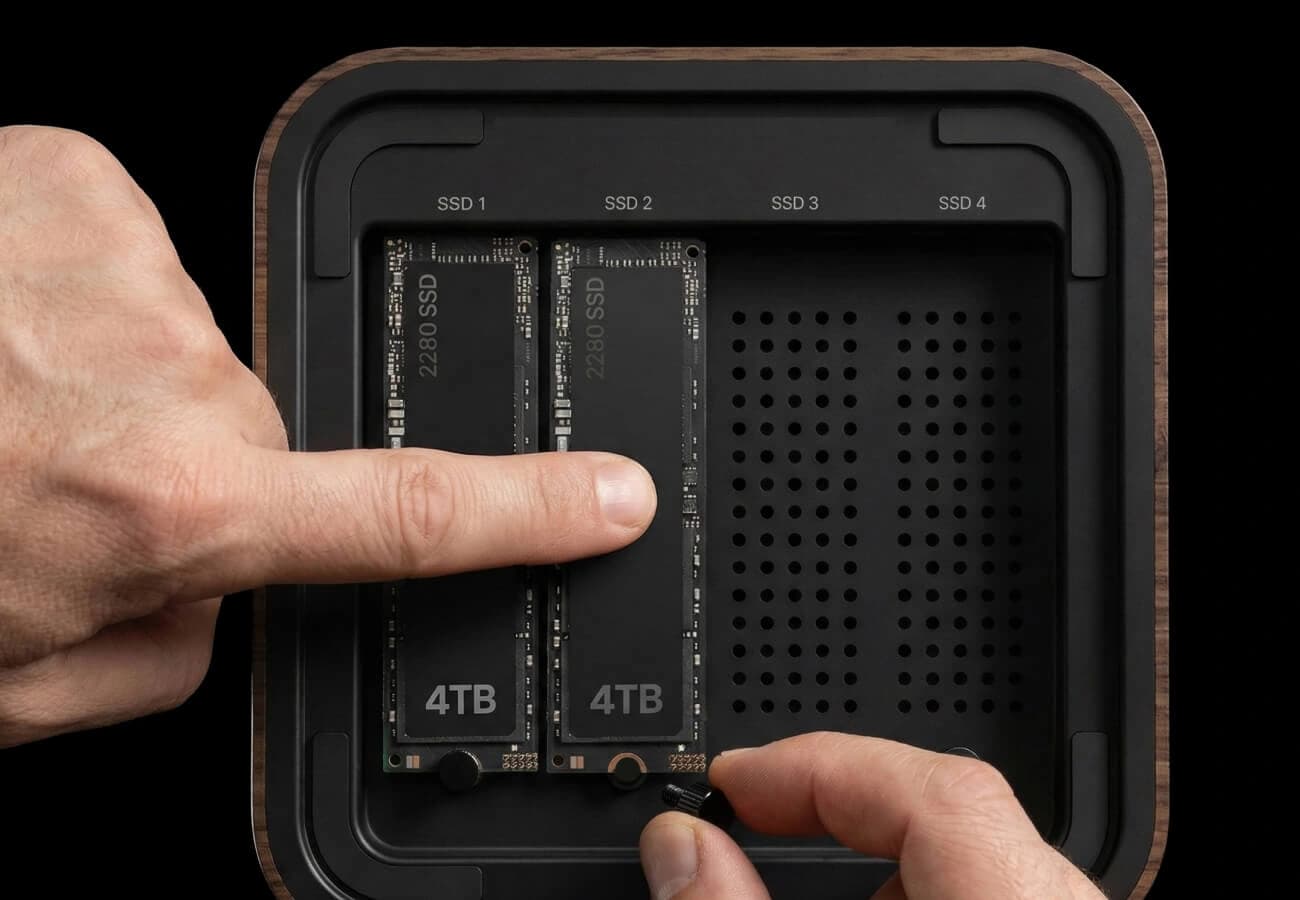
You don't need to fill all four slots. You can start with one or two drives and add more later.
Connect your Umbrel Pro
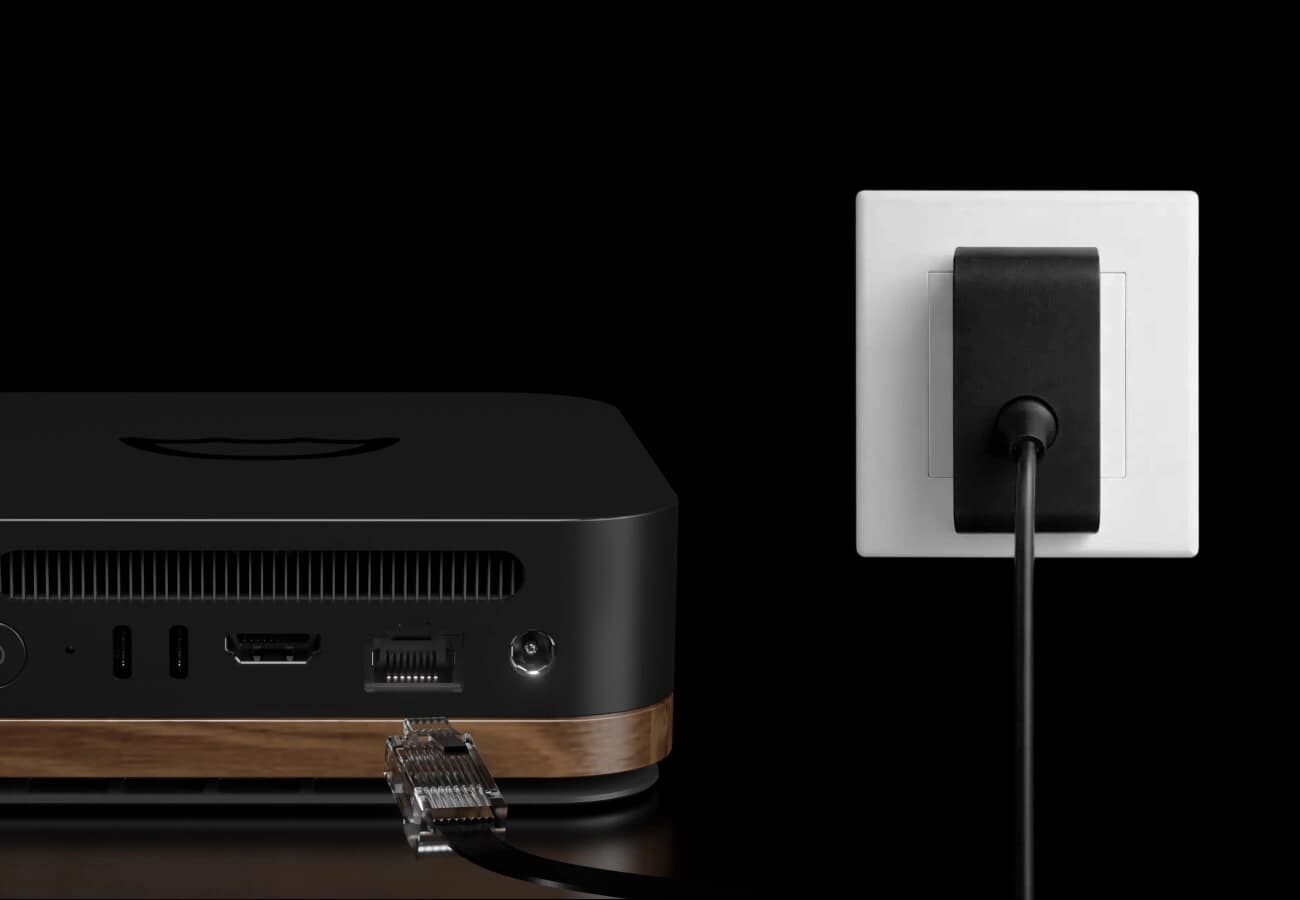
- First, connect the provided ethernet cable to your Umbrel Pro and a vacant port on your internet router.
- Then, connect the power supply to your Umbrel Pro. The device will power on automatically. There's no need to press the power button. You'll see the LED begin pulsing.
- Wait for the LED to turn solid white. This means your Umbrel Pro is ready.
Create your account
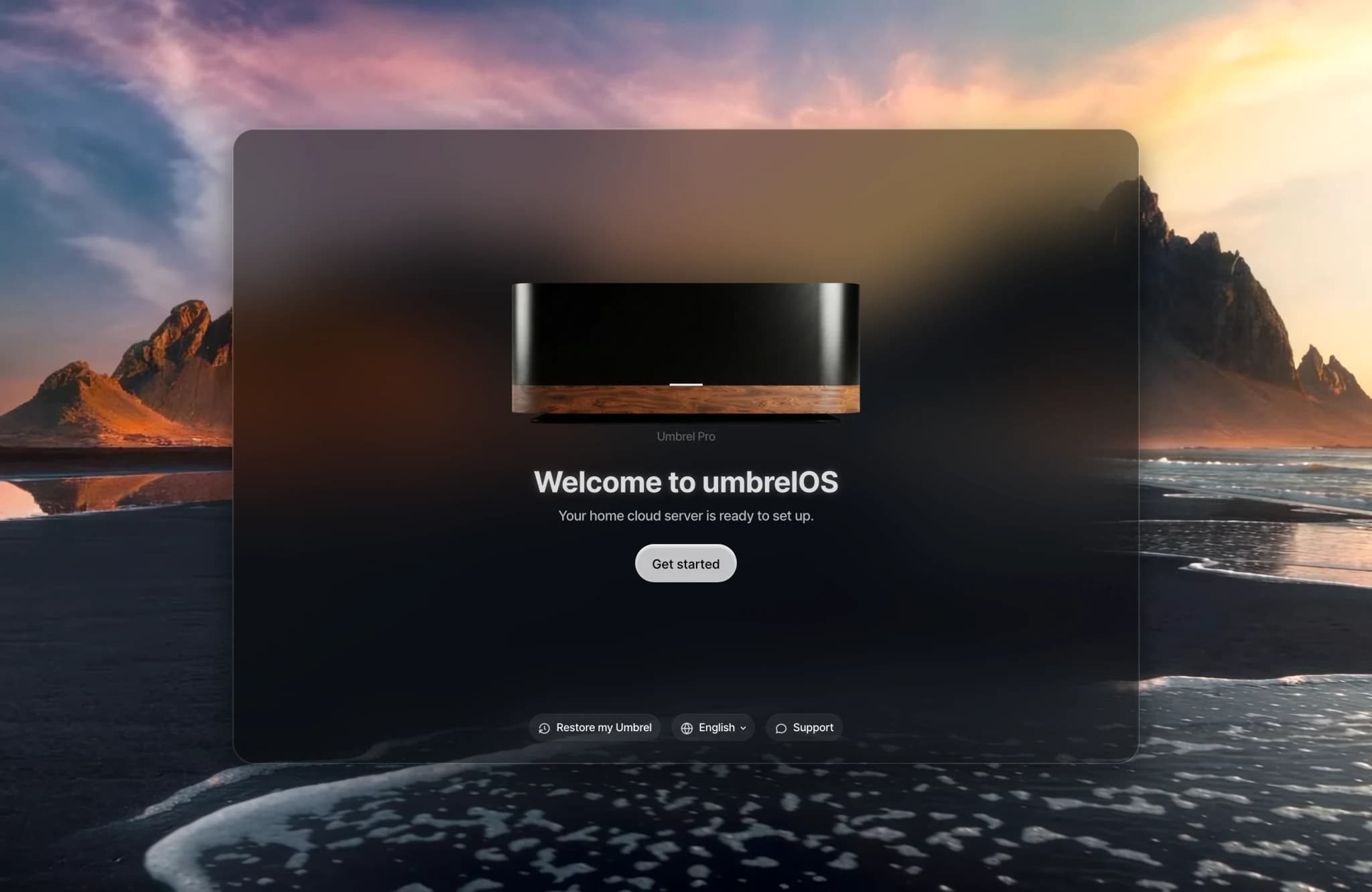
- On a computer or phone connected to the same network, open http://umbrel.local in your browser. You'll see the umbrelOS welcome screen with your Umbrel Pro.
- Click Get started.
- Choose a name and password for your account, then click Create.
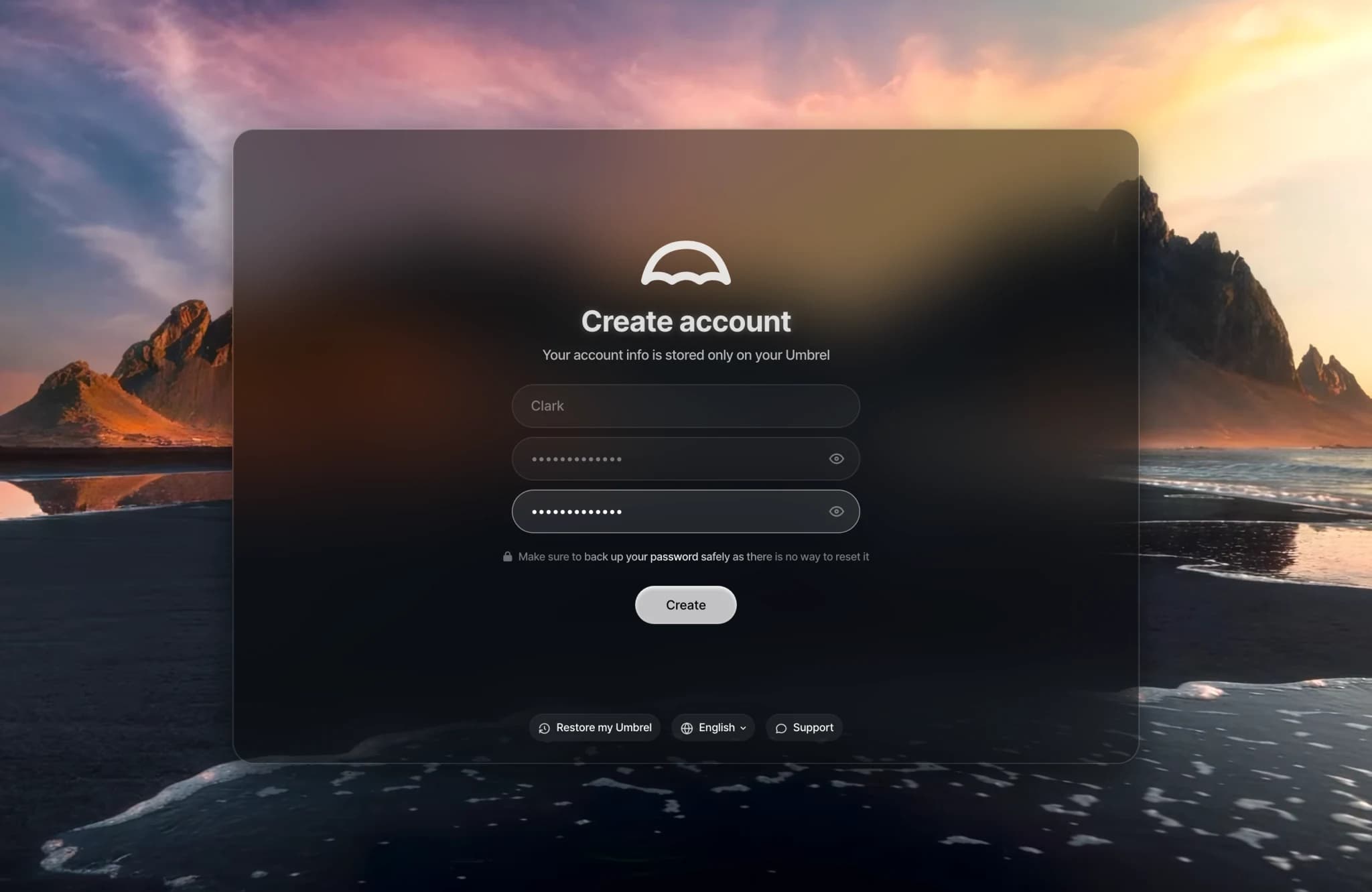
Your account is stored entirely on your Umbrel Pro and never leaves your device. This means there's no way to recover your password if you lose it, so we recommend saving it in a password manager.
Configure your storage
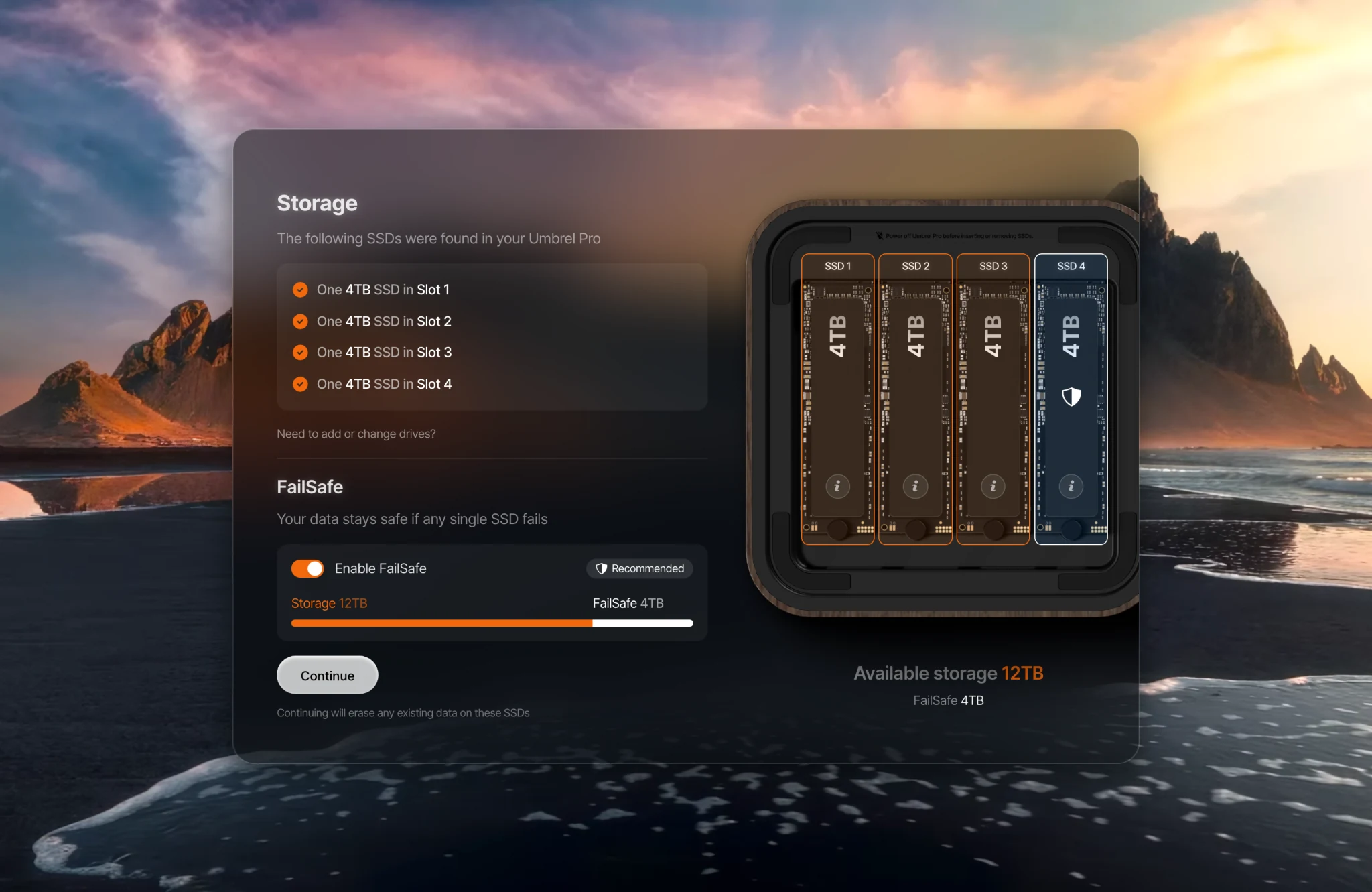
After creating your account, Umbrel Pro scans for your installed SSDs and shows which slot each one is in, then walks you through storage configuration.
- FailSafe mode (available with 2 or more drives) protects your data if a drive fails, similar to RAID. Recommended for most users. For maximum storage and zero unusable space, use SSDs of the same size. With mixed sizes, FailSafe is limited by your smallest SSD.
- Full Storage mode uses the full capacity of all drives with no redundancy.
Turn Enable FailSafe on or off, then click Continue. Your Umbrel Pro will configure the drives and restart. This may take a moment. Continuing erases any existing data on the SSDs.
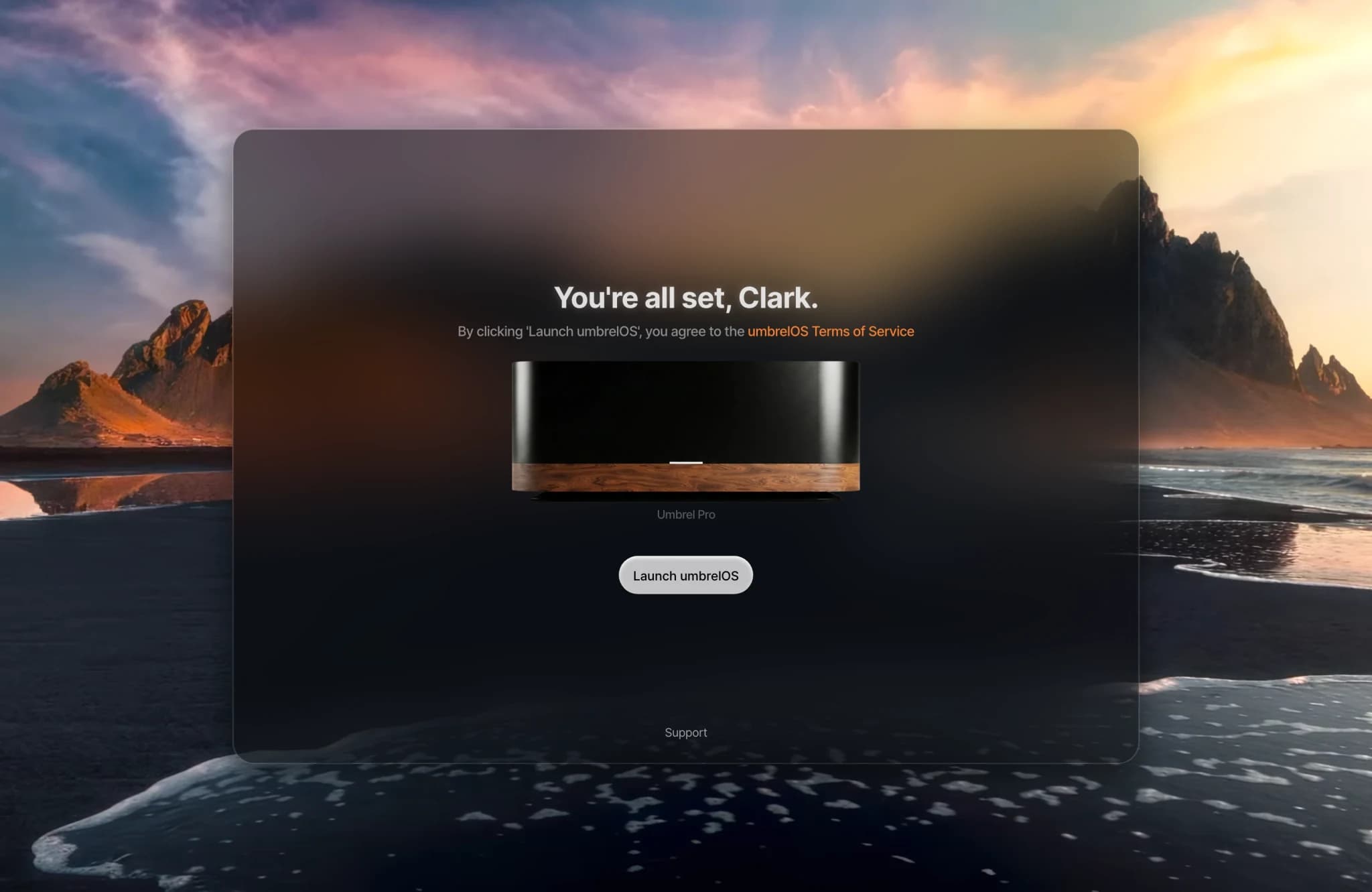
Once it's done, you'll see You're all set. Click Launch umbrelOS to open your home screen.
Need help?
If you can't reach umbrel.local, see Network troubleshooting.