App settings
Choose which folders an app can use, move apps to an external drive, and manage login, credentials, and advanced options
Every app on your Umbrel has its own settings page. You can use it to choose which folders the app can access (including folders on USB drives and network devices), move the app's data to a USB drive, control whether the app asks for your Umbrel login, and more.
Only the owner account can change app settings.
Open an app's settings
- Right-click the app on your home screen and choose Settings, or
- Go to Settings > App settings and choose the app from the list.
The settings page shows the app's version, and an Update available button when there's an update. View in App Store opens the app's store page.
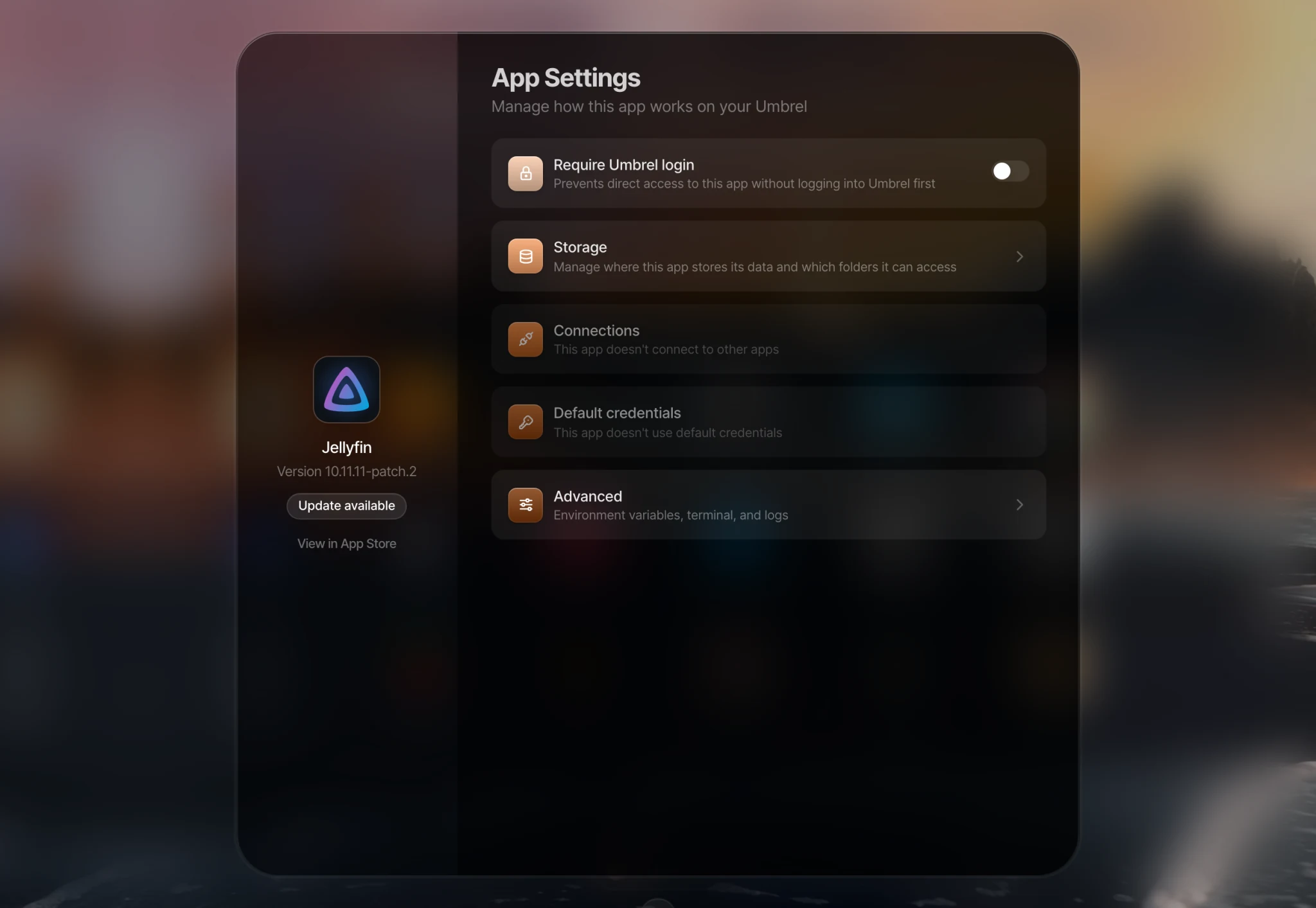
Require Umbrel login
The Require Umbrel login switch controls whether people have to log in to your Umbrel before they can open the app. Changes apply right away. The app doesn't need to restart.
- On (the default for most apps): anyone opening the app must log in with their Umbrel account, and 2FA if they use it. On an Umbrel with more than one user, members can only open apps that are shared with them.
- Off: anyone who can reach the app on your network can open it without logging in to Umbrel. Only turn this off if the app has its own secure login, or if you've decided you want open access.
Some apps come with Umbrel login turned off, usually because it can stop mobile apps, integrations, or remote access tools from connecting to them. You can turn it on, but those connections may stop working.
If you see This app manages its own login, the app handles sign-in itself and the switch isn't available.
Storage
The Storage section controls where the app keeps its data (App storage) and which of your folders it can use (Access to your folders).
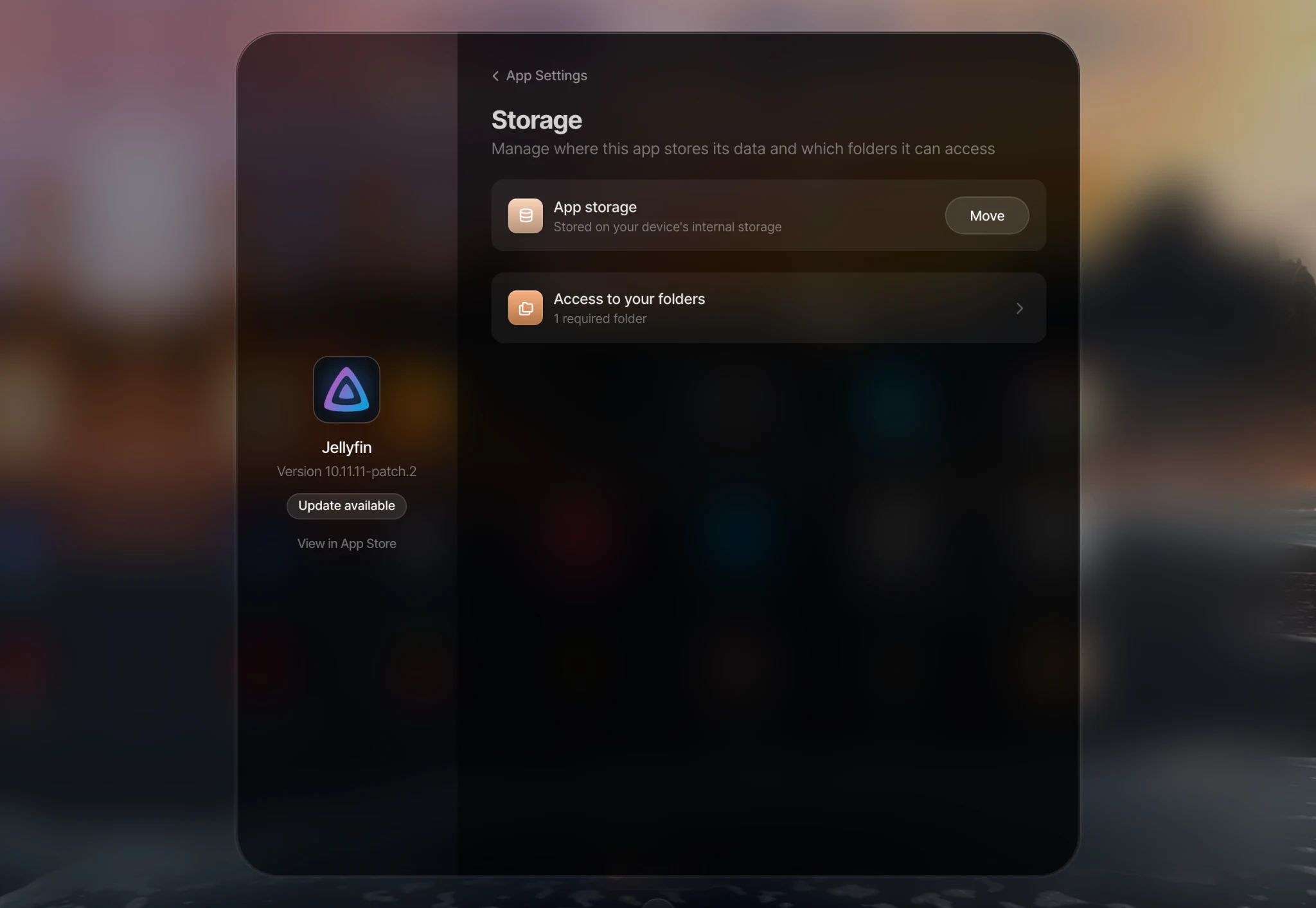
Access to your folders
Many apps need access to your files. A media server needs your movies and music, and a download manager needs somewhere to save downloads. Under Access to your folders you'll see:
- Required folders, which are part of how the app works. You can point each one at a different folder.
- Optional folders, which you can connect if you want the app to use them.
- Advanced, where you can add your own custom folders.
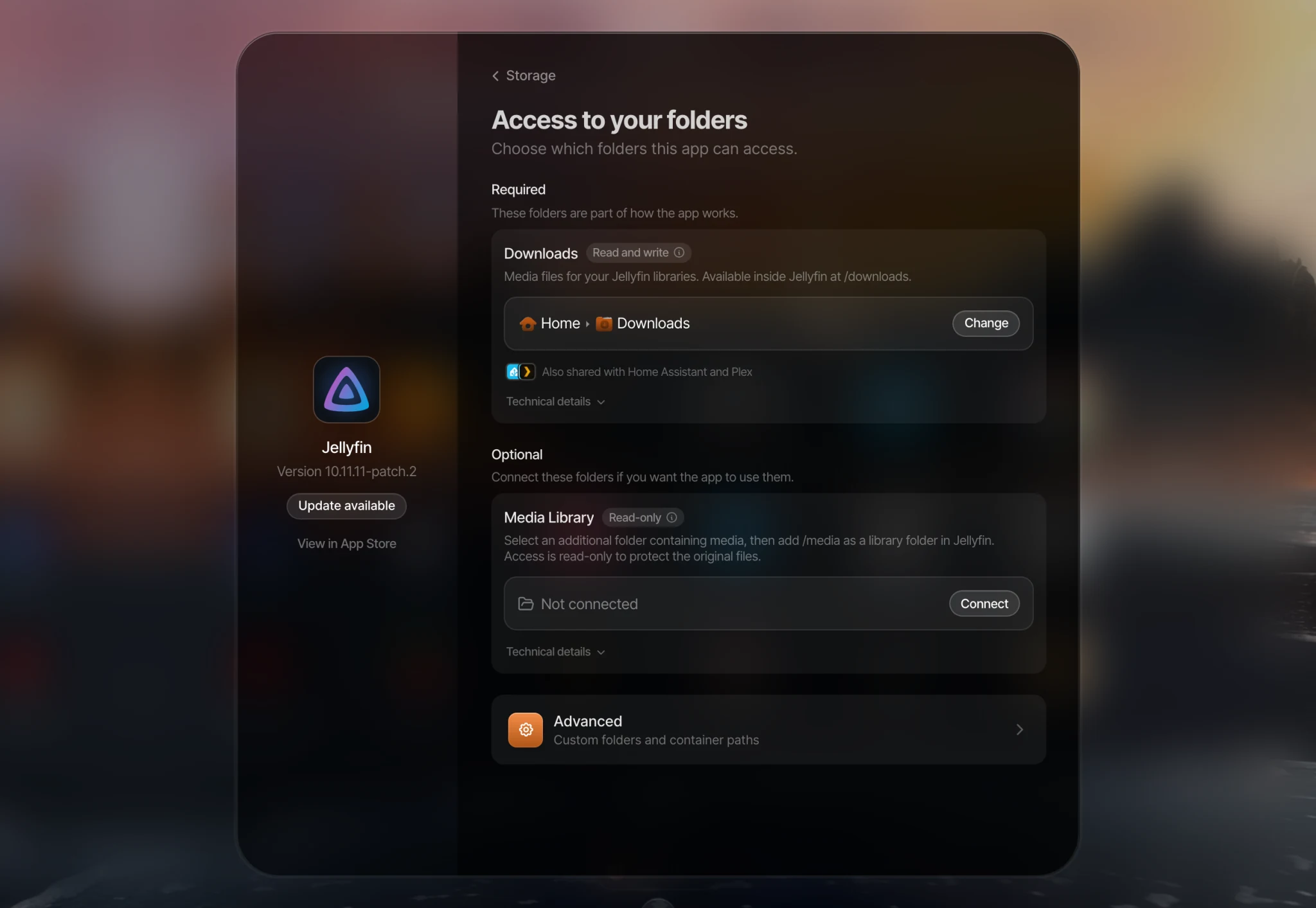
To change a folder, click it and choose a folder from your Home folder, a USB drive, or a network device. Your files stay where they are. Nothing is copied or moved. If another app uses the same folder, you'll see Also shared with and the other app's name.
Changing a folder replaces the folder the app used before, but doesn't move any existing files into the new one. Use Reset to app default to go back to the original folder.
When you uninstall an app, files in the folders you gave it access to are not deleted. Only the app's own data is removed.
In Files, folders that apps are using show the app's icon, and they can't be moved or deleted while an app uses them.
Custom folders (advanced)
Under Advanced > Add custom folder, you can give a specific part of the app access to any folder:
- Choose the App service (the part of the app that should see the folder).
- Choose the folder on your Umbrel.
- Enter the Path inside app service, like
/media. Use the exact path from the app's own documentation. - Choose Read-only if the app should only view the files, or Read and write if it should also be able to change and delete them.
A wrong path can stop the app from working. If that happens, remove the custom folder.
Move an app to a USB drive
If your Umbrel is running low on space, you can move an app's own data onto a USB drive. Not all apps support this. If an app doesn't, you'll see This app doesn't support moving its storage.
- Under App storage, click Move.
- Choose a location on your USB drive.
- Confirm the move.
Before you move an app, keep these in mind:
- The drive must be formatted as ext4. You can reformat a drive as ext4 in Files, but formatting erases everything on it.
- Apps can't be moved to a network device.
- Keep the drive connected. Unplugging it while the app is running can stop the app or damage its data. You can't eject the drive in Files while an app is running from it.
- Once moved, the app is no longer included in your umbrelOS backups, and nothing on a USB drive is backed up by umbrelOS.
- Uninstalling the app deletes its data from the drive.
To move it back, choose Move to internal storage.
If the drive is missing, the app can't start, and its icon shows a warning. Reconnect the drive. If the drive is gone for good, choose Start fresh. This creates new, empty app storage on your internal storage. Data at the old location isn't changed, but the app won't use it any more.
Connections
Connections lists the other apps this app depends on, like a Bitcoin node for a Lightning wallet. If you have more than one app that can fill the same role, you can choose which one it uses here.
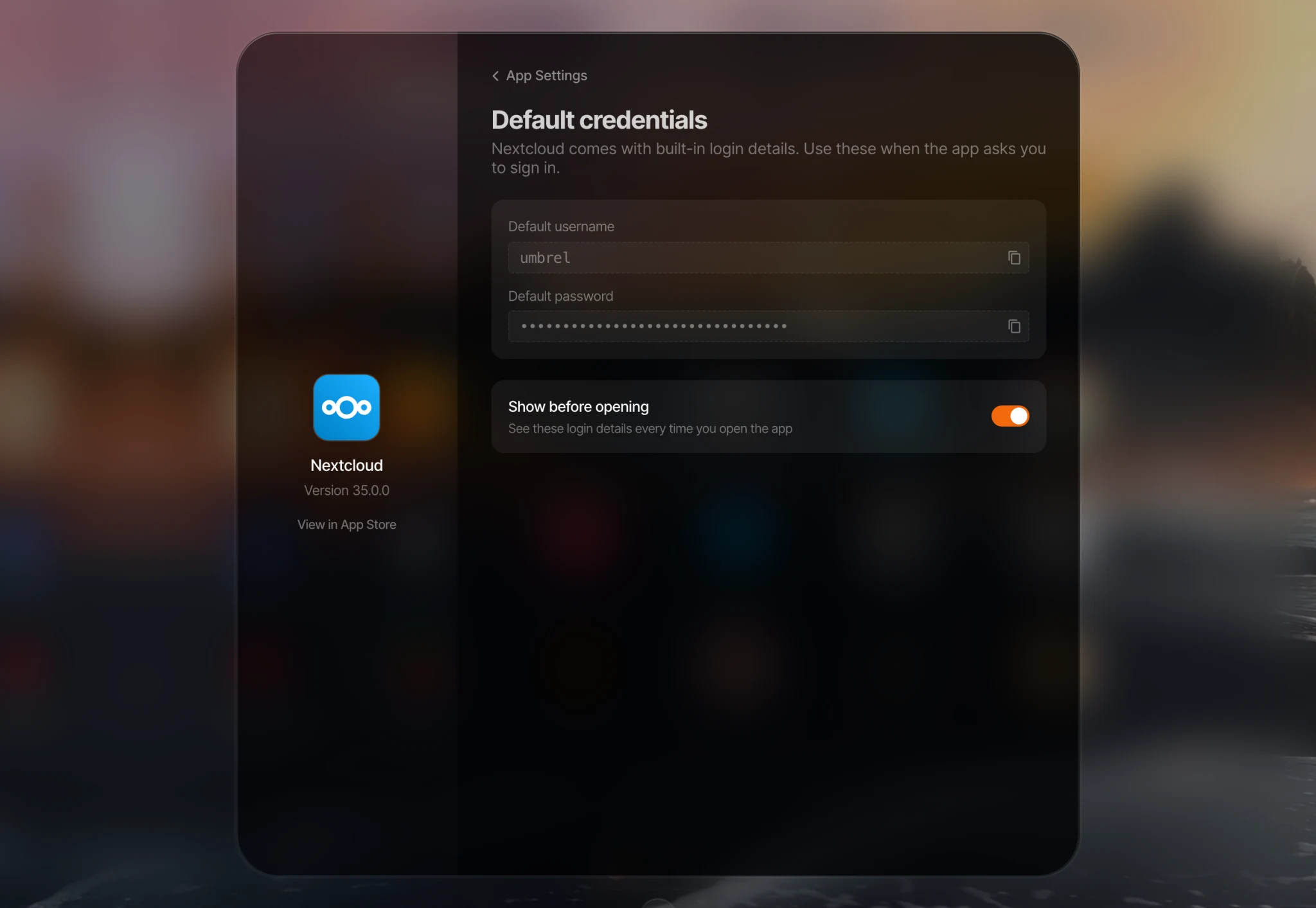
Default credentials
If the app comes with a default username and password, you'll find them under Default credentials. Turn on Show before opening to see them every time you open the app.
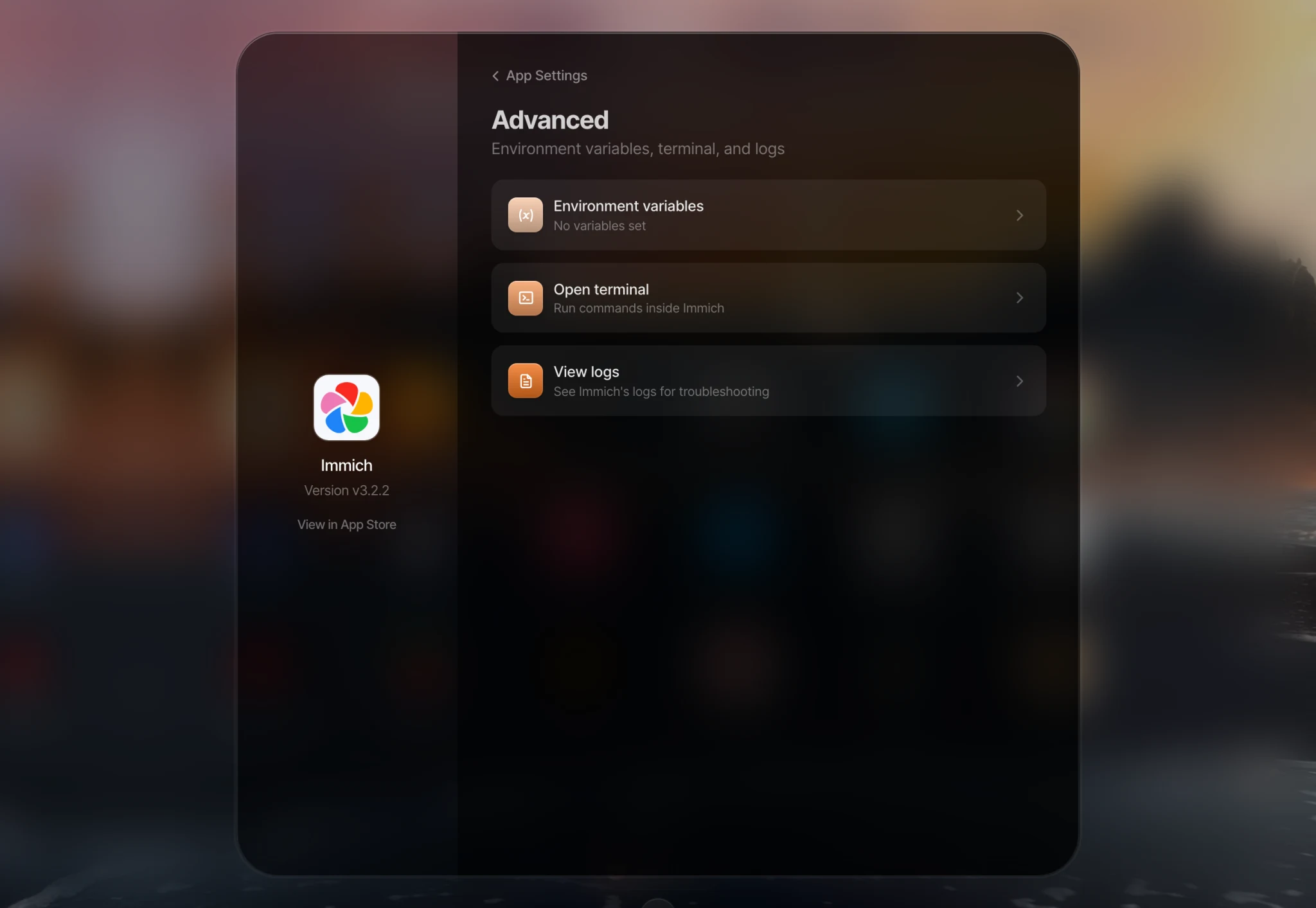
Advanced
- Environment variables change how the app works. Suggested by this app lists the variables the app supports, with their default values. You can change them, or add your own under Custom variables. Incorrect values can stop the app from working. Use the app's own documentation to know what to set.
- Open terminal opens a command line inside the app.
- View logs shows the app's logs, which help when troubleshooting.
Saving changes
Changes to storage, connections, and environment variables aren't applied straight away. When you're done, click Apply changes, or Apply and restart if the app is running. The app restarts to use the new settings. A stopped app stays stopped.
If you leave the page with changes you haven't applied, umbrelOS asks whether to keep editing or discard them.
After an app update, umbrelOS lets you know if the update changed any of the app's storage settings.