Updating an app
Keep your apps up to date on umbrelOS
umbrelOS never auto-updates your apps. You're always in control of when updates are applied.
How app updates work
App updates are contributed by developers and community members. Once an update is approved, it becomes available to all users through the App Store.
Check for updates
When updates are available, you'll see an indicator on the App Store icon in your dock.
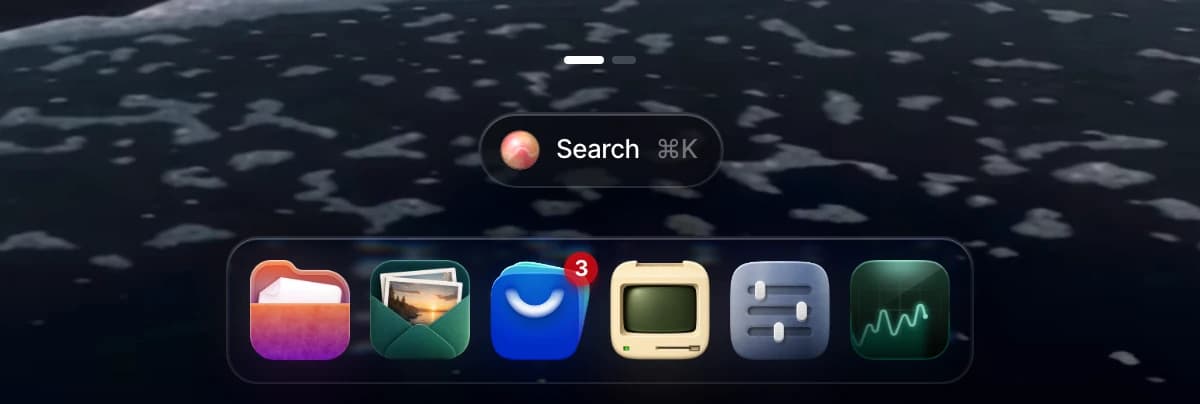
- Open the App Store from the dock.
- Click Updates in the top-right corner, or View on the updates banner at the top of the App Store. These only appear when updates are available.
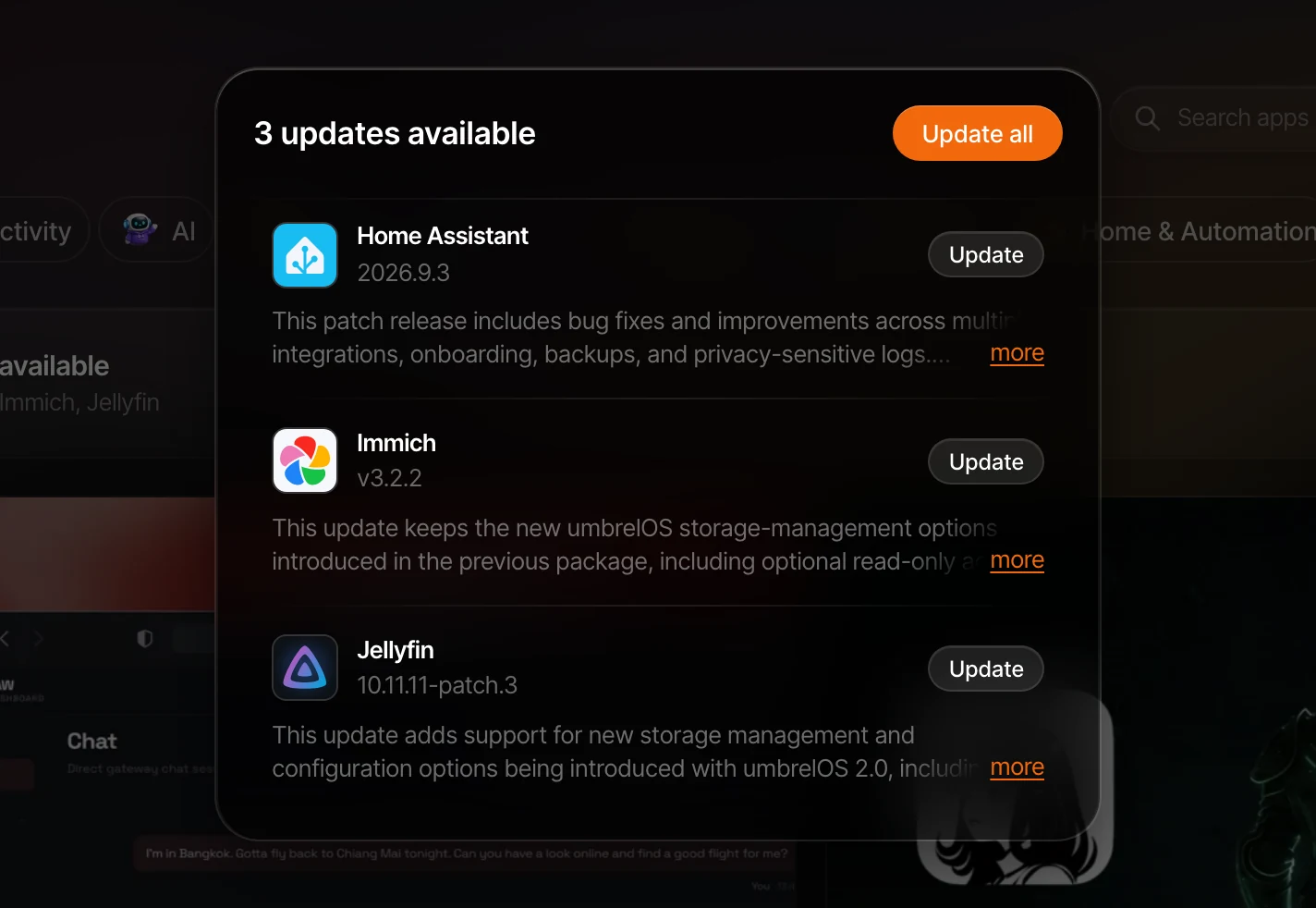
- You'll see all available updates along with their release notes. Click more to read the full notes for an app.
Update an app
From the updates screen, click Update next to the app you want to update. If multiple updates are available, you can click Update all to update everything at once.
App seems outdated?
If an app hasn't been updated in a while, it may be that a new version hasn't been submitted to the Umbrel App Store yet. You can check who maintains the app by opening its detail page in the App Store and looking for the Submitted by field. This is the person or team responsible for keeping the app up to date on umbrelOS. You can reach out to them or open an issue on the Umbrel App Store repository to request an update.