
Using the built-in Terminal
Run commands on your Umbrel or inside an app directly from the browser
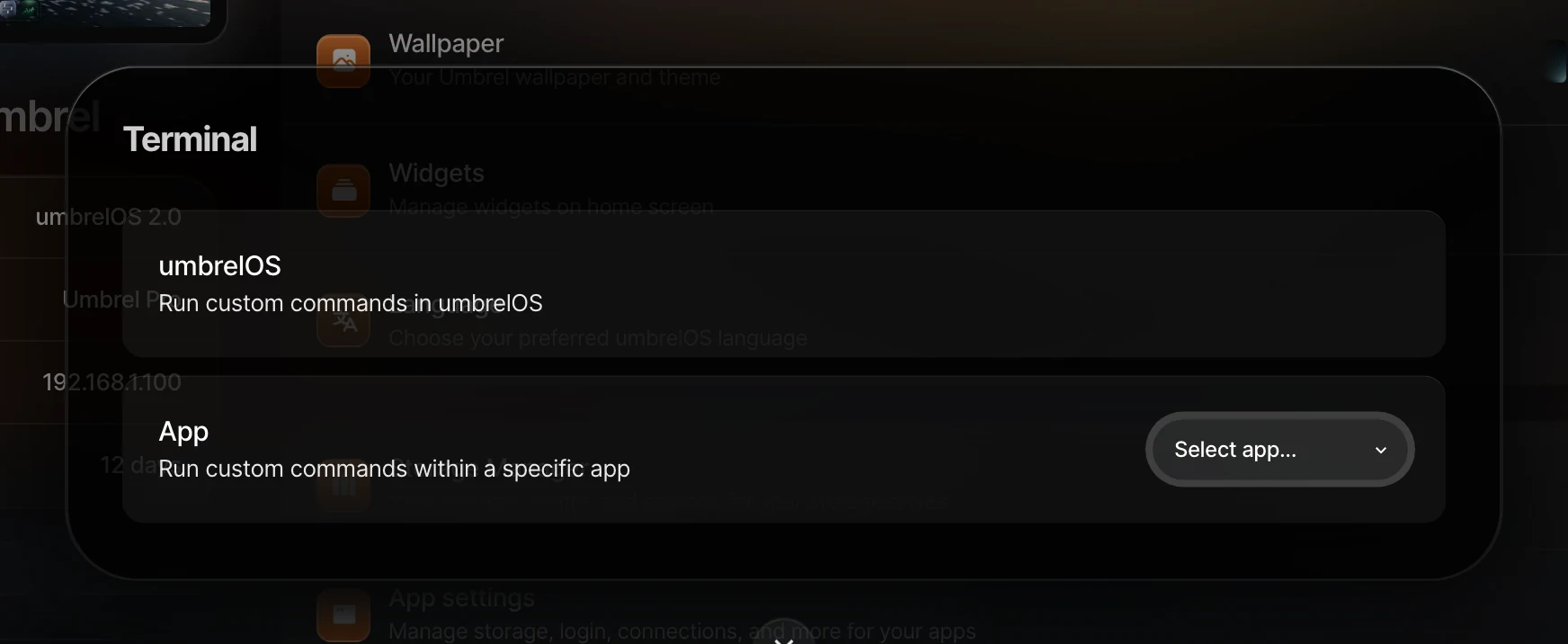
Most things on umbrelOS can be done through the UI, and we're working to make that everything. But if you ever need to run a command for troubleshooting or advanced configuration, there's a built-in terminal right in your browser. No SSH setup needed. You'll find it in Settings > Advanced settings > Terminal.
umbrelOS terminal
Select umbrelOS to open a terminal session on your Umbrel's operating system. This gives you a standard Linux command line where you can run commands, inspect logs, manage files, and troubleshoot issues.
App terminal
Select App to open a terminal session inside a specific app's container. Choose the app you want from the list. This is useful for running app-specific commands, checking configs, or debugging an app without affecting the rest of your system.
The app terminal connects you to the app's main container, but some apps run multiple services (like a database alongside the main app). If you need to access a specific container, you can use sudo docker exec from the umbrelOS terminal instead.
Tips
- On mobile or tablet, use the Paste button to paste commands into the terminal since touch devices don't support direct keyboard pasting.
- The terminal runs as the
umbreluser. Usesudofor commands that require elevated permissions. If prompted for a password, use your Umbrel login password. - Changes to the operating system (like packages installed with
apt) are not persisted across restarts. Your files and app data are preserved, but OS-level modifications will be reset. If you want to run services that aren't available in the App Store, consider adding a community app store or running custom Docker containers with Portainer.