



Using Photos
Browse, search, and organize every photo and video on your Umbrel
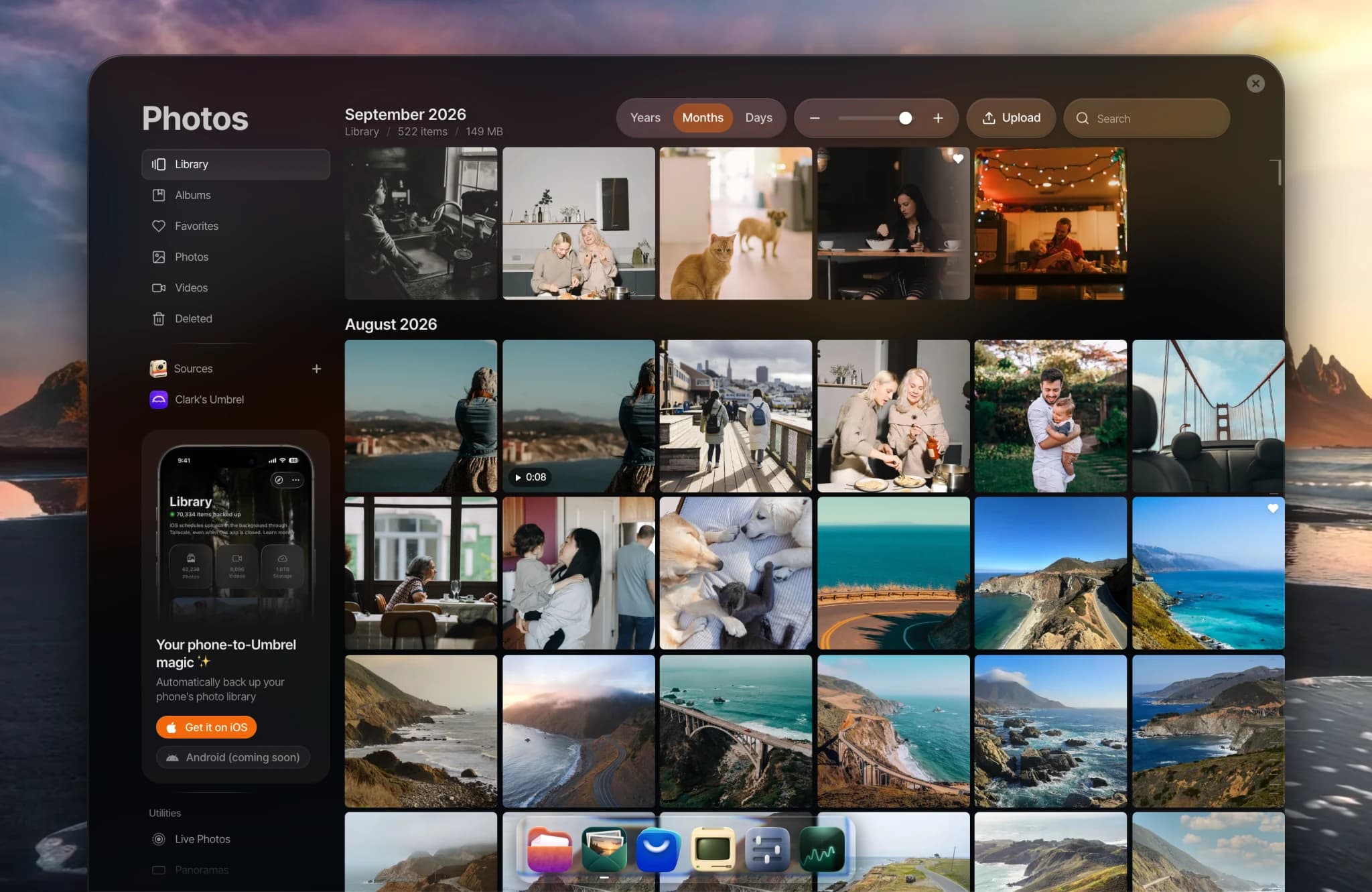
Photos is the built-in photo and video library in umbrelOS. It finds every photo and video in your Home folder and shows them in one timeline, along with anything backed up from your phone. Nothing is copied or moved. Your files stay where they are in Files.
Click Photos in the dock on your home screen to open it.
Where your photos come from
Photos shows:
- Every supported photo and video in your own Home folder in Files, including subfolders.
- Photos and videos backed up from your phone with Umbrel for iPhone or Umbrel for Android.
- Anything you upload directly into Photos.
Photos doesn't show files on USB drives, network devices, or in the Apps folder. If you'd like those in Photos, copy them into your Home folder. Adding external drives and network shares as sources is coming soon.
The first time you open Photos, it scans your files and prepares thumbnails. The sidebar shows Preparing media... with a percentage, and photos appear as they're ready. With a large library this can take a while, especially on smaller devices like a Raspberry Pi.
Moving from another photo service
To bring an existing library to your Umbrel, see:
If your Umbrel has more than one user
Each person has their own private Photos library, built from their own Home folder and their own iPhone backups. Favorites and albums are personal too. Other users can't see your photos in Photos. If you want to share photos with someone, share the folder with them in Files using Share with users....
Choose which folders Photos looks in
By default, Photos looks in every folder in your Home folder. To change that:
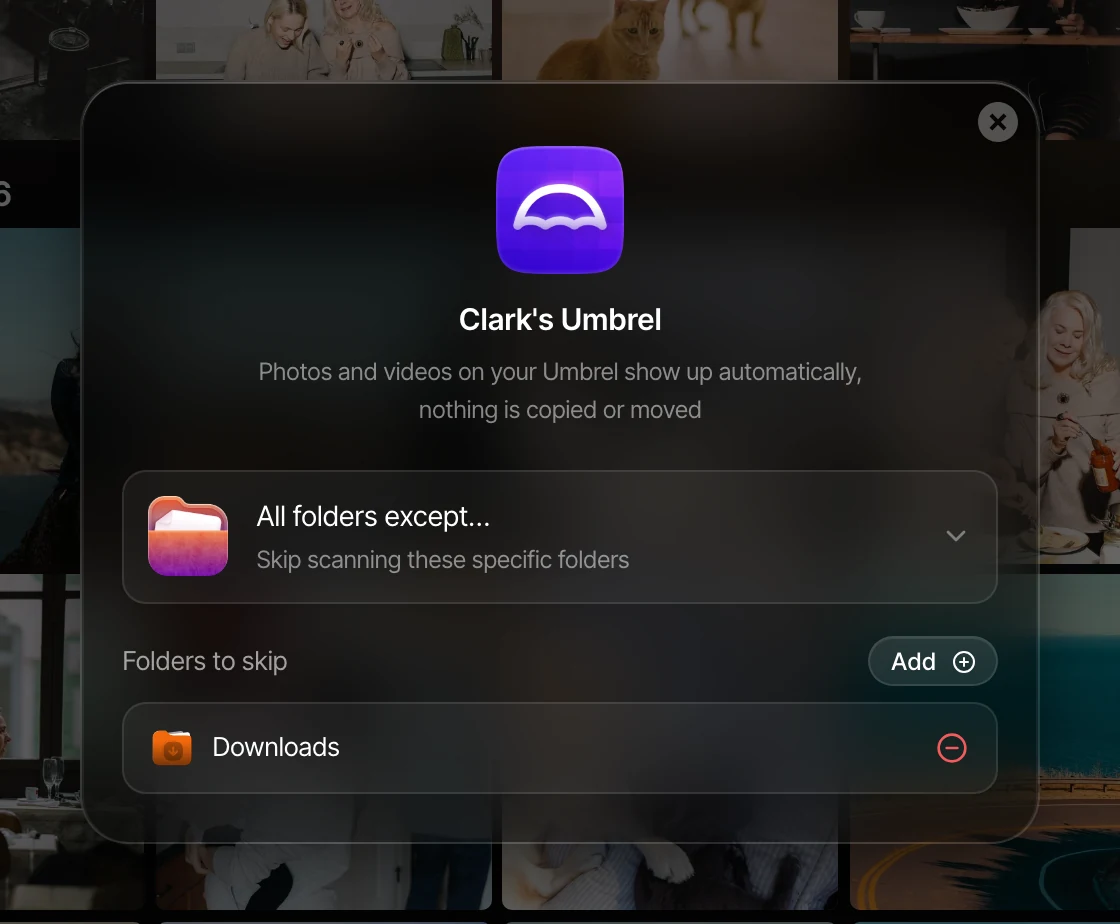
- Under Sources in the sidebar, right-click your Umbrel (it's shown with your name, like "Clark's Umbrel") and choose Manage, or hover over it and click •••. You can also use Add source > This Umbrel.
- Choose one of these:
- All folders scans everything in your Home folder.
- All folders except... lets you pick folders to skip, like a folder of app thumbnails or memes.
- Only these folders... scans only the folders you pick.
- Click Save.
These settings don't affect your iPhone backups, which always show in Photos.
Supported formats
- Photos: JPEG, PNG, GIF, WebP, AVIF, HEIC, HEIF, TIFF, and BMP.
- RAW photos: DNG, CR2, CR3, NEF, ARW, RAF, ORF, and RW2.
- Videos: MP4, MOV, M4V, MKV, WebM, AVI, 3GP, MTS, M2TS, MPG, WMV, and 360° video from GoPro (.360) and Insta360 (.insv).
Photos plays videos in your browser as they are, without converting them. If a video won't play, your browser may not support its format. This happens most often with HEVC video from iPhones in some browsers. Try Safari, or download the video.
Apple Live Photos show a LIVE badge. Open one and click Play Live Photo to see it move. Android motion photos show as regular photos.
Browse your library
The sidebar has:
- Library, your full timeline. Use the zoom control to switch between Days, Months, and Years, and Thumbnail size to change how many items fit on each row.
- Albums and Favorites.
- Photos and Videos, to see just one kind.
- Deleted, for items you've deleted.
- Under Utilities: Live Photos, Panoramas, Screenshots, and 360°. Photos sorts items into these automatically.
- Sources, showing where your photos come from.
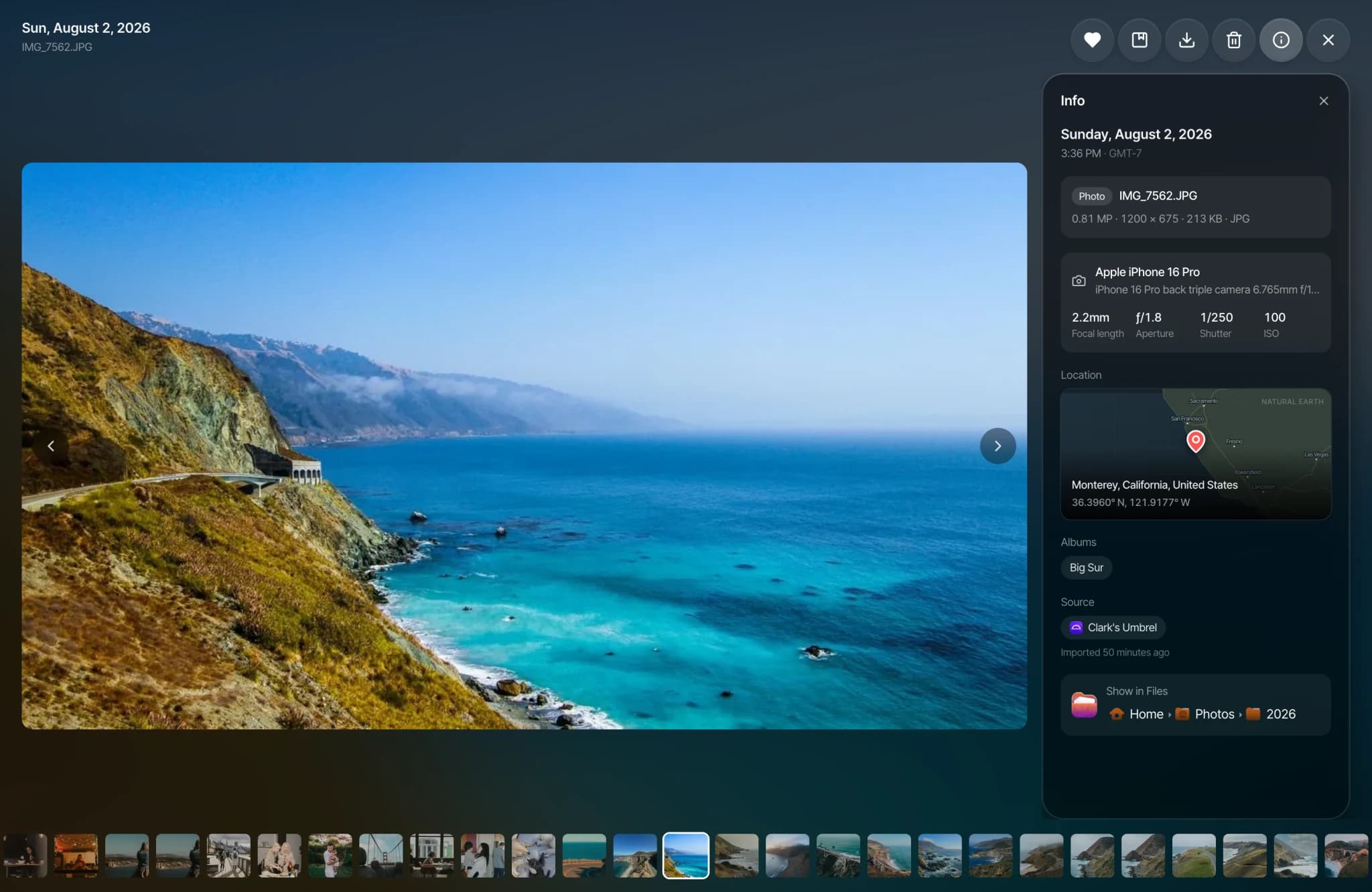
Click any photo or video to open it. Use the arrow keys to move between items, and press i to show details like the camera, aperture, shutter speed, ISO, and where it was taken. Location is shown on a small map that's drawn on your Umbrel, so it doesn't contact any online map service. Click Show in Files to jump to the file.
Search
Use the search bar ("Find any photo or video") to search by file name, camera make or model, or text in the photo's metadata. You can also filter by type, source, album, or date. Try something like "aug 2024" or "2019-2021". As you type, Photos suggests matches you can pick.
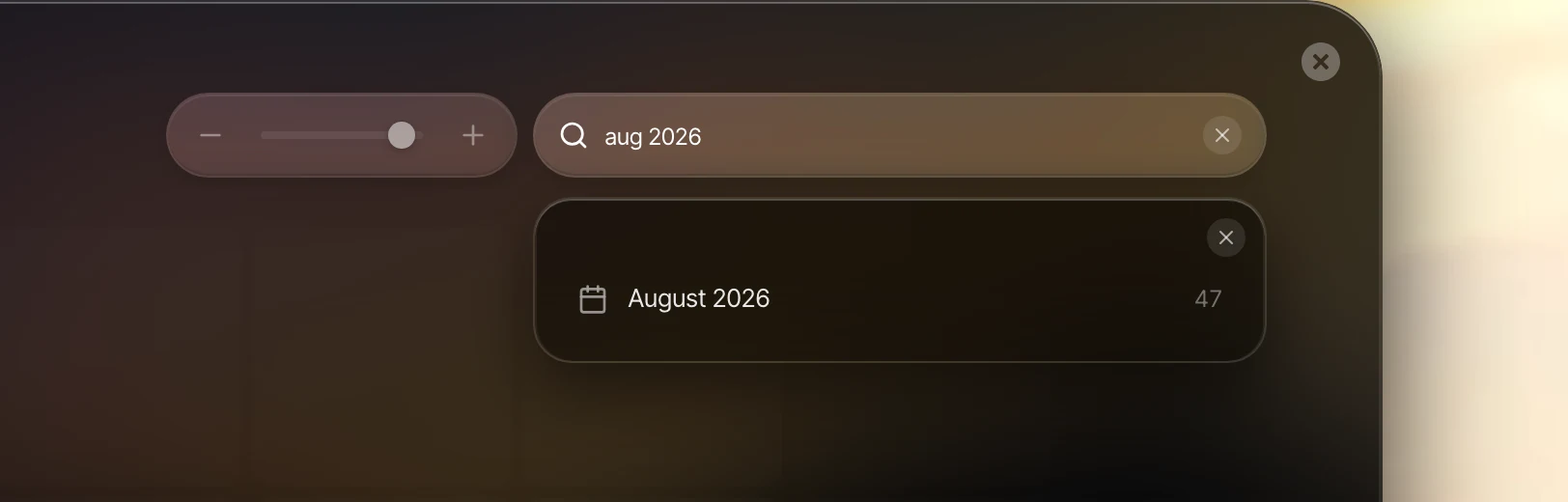
Searching for faces, places, or what's in a photo (like "dog on the beach") isn't available yet.
Favorites and albums
- Click the heart on any photo or video to add it to Favorites.
- To make an album, go to Albums and click Create album, or select some items and choose Add to album. You can rename an album, change its cover, and add or remove items at any time.
- Deleting an album doesn't delete the photos in it.
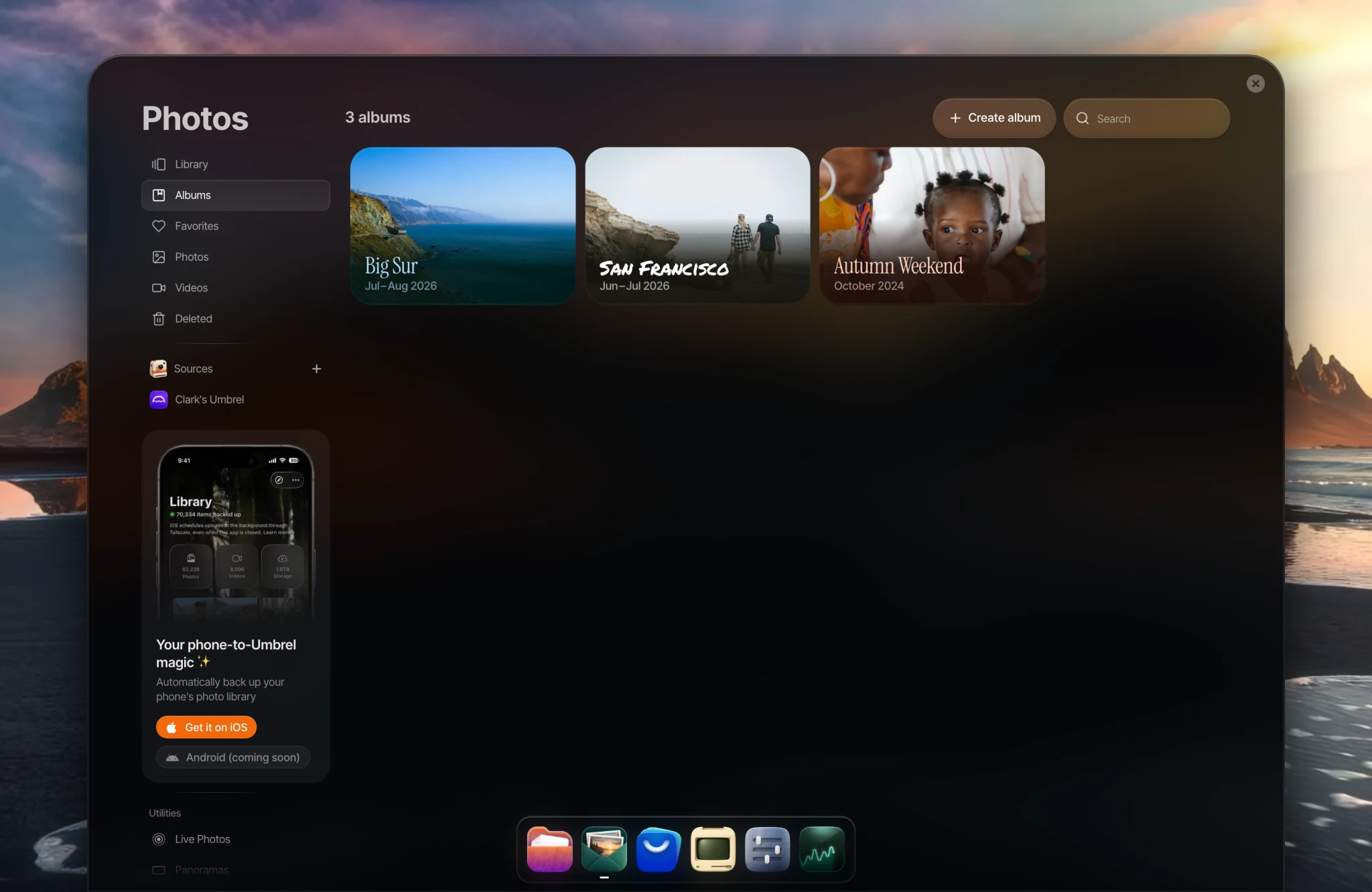
Favorites and albums follow the photo even if you move or rename the file in Files. If you edit a photo and save over the original, Photos treats it as a new photo and it drops out of its albums.
Upload photos
Click Upload, or drag photos and videos anywhere onto the Photos window. Uploads are saved to the Photos folder in your Home folder. Photos skips files that are already in your library. Photos only accepts photos and videos. Use Files for everything else.
Download photos
Open a photo and click Download to get the original file. If you select several items and download them, you get a zip file.
Delete photos
Deleting a photo or video in Photos moves the file to the Trash in Files. You'll find it under Deleted in Photos until you delete it permanently.
- To free up space, go to Deleted and click Delete all, or empty the Trash in Files.
- Delete all in Photos only removes photos and videos from Trash. Emptying the Trash in Files removes everything in it.
- Deleted items stay until you delete them. They aren't removed automatically after a set time.
- Restoring an item puts it back where it was in Files.
Duplicates
If the same photo is saved in more than one folder, Photos shows it only once. Both files still take up space in Files.
Troubleshooting
- A photo isn't showing up. Check that it's in your Home folder, in a supported format, and not in a folder you've excluded under your Umbrel's Manage settings in Sources. Photos can take a while to process new files in a large library.
- "Some media could not be prepared. Photos will keep retrying." A few files couldn't be processed, often because they're damaged or in an unusual format. Photos retries on its own. The rest of your library works as normal.
- Deleted photos are still taking up space. Deleting moves them to Trash. Empty it from Deleted > Delete all or from Trash in Files.