

Moving from Google Photos
Bring your Google Photos library to your Umbrel with Google Takeout
You can move your whole Google Photos library to your Umbrel with Google Takeout, Google's tool for exporting your data. Once the files are on your Umbrel, they show up in Photos on their own.
The easiest way is to have Google send the export straight to Dropbox or OneDrive, then download it to your Umbrel with Cloud. The files never have to pass through your computer. If you'd rather not use Dropbox or OneDrive, you can use a download link instead.
Exporting doesn't delete anything from Google Photos.
Before you start
- Free space on your Umbrel. You'll need about twice the size of your library for a while: once for the zip files and once for the photos inside them. You can delete the zip files at the end. Your Google Photos storage use is shown at one.google.com/storage.
- Free space in Dropbox or OneDrive. The export is saved there first. Free Dropbox and OneDrive plans only have a few gigabytes, so for a large library you may need more space for a month, or use the download link option.
- Storage saver photos. If you backed up in Storage saver quality, Google only has the smaller versions, so that's what the export contains.
Step 1: Export your library with Google Takeout
- Go to takeout.google.com and sign in with your Google account.
- Click Deselect all, then scroll down and select Google Photos. Leave All photo albums included as it is to export everything.
- Click Next step.
- Under Destination, choose Add to Dropbox or Add to OneDrive.
- Choose to export once, choose .zip, and choose the largest file size, 50 GB. Larger files mean fewer zip files to deal with later.
- Click Link accounts and create an export, and allow Google to add files to your Dropbox or OneDrive.
Google prepares the export in the background. This can take a few hours or a few days for a large library, and Google emails you when it's done. In Dropbox, the export is saved in Apps > Google Download Your Data.
Step 2: Download the export to your Umbrel
-
Open Files and click Cloud in the sidebar.
-
Click Connect a cloud (or Add cloud), choose Dropbox or OneDrive, and sign in. See Downloading files from the cloud if you need help.
-
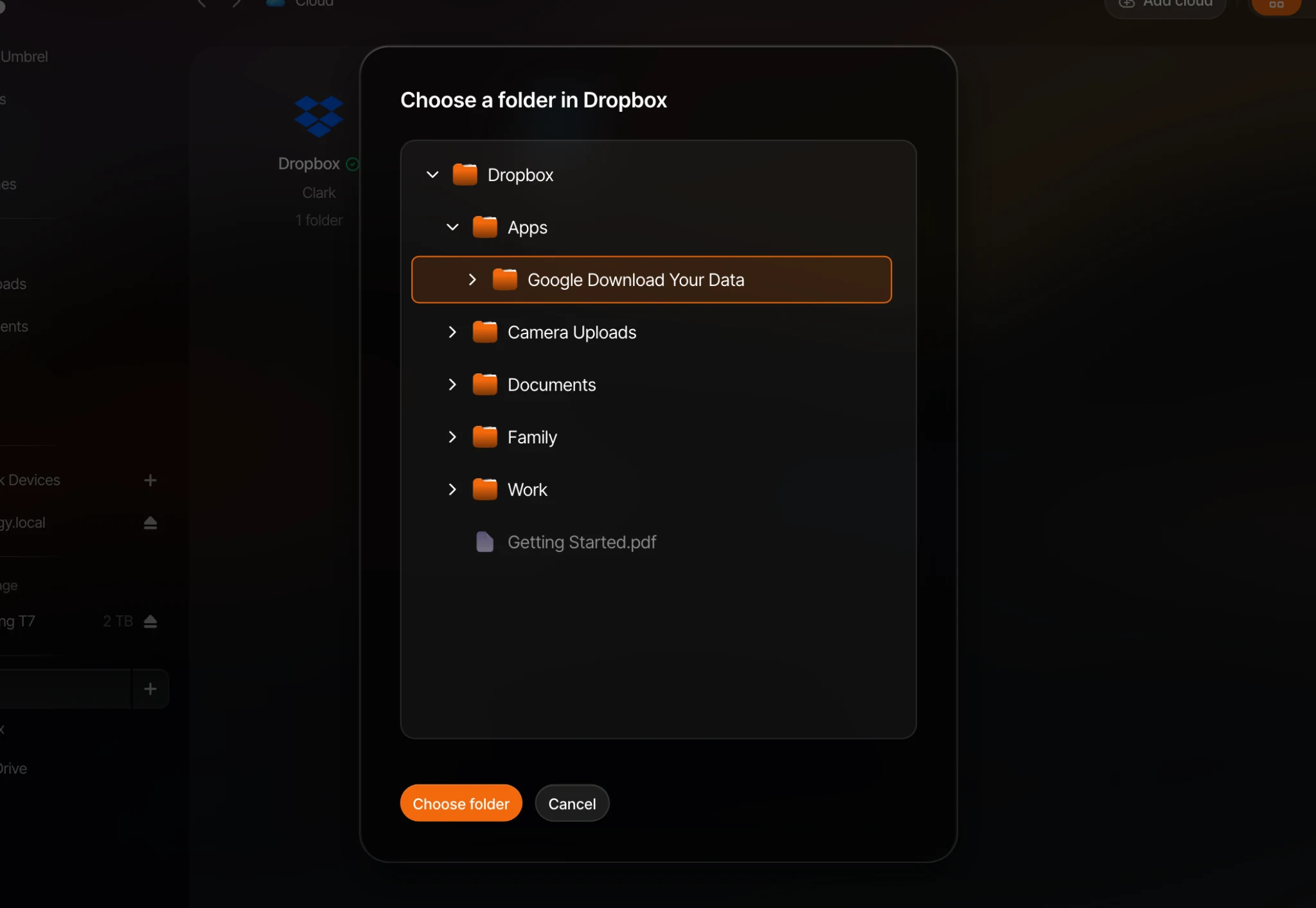
Choose Choose a folder, open Apps, select Google Download Your Data, and click Choose folder. In OneDrive, choose the folder Google created for your export.
-
Choose Download once and click Start download.
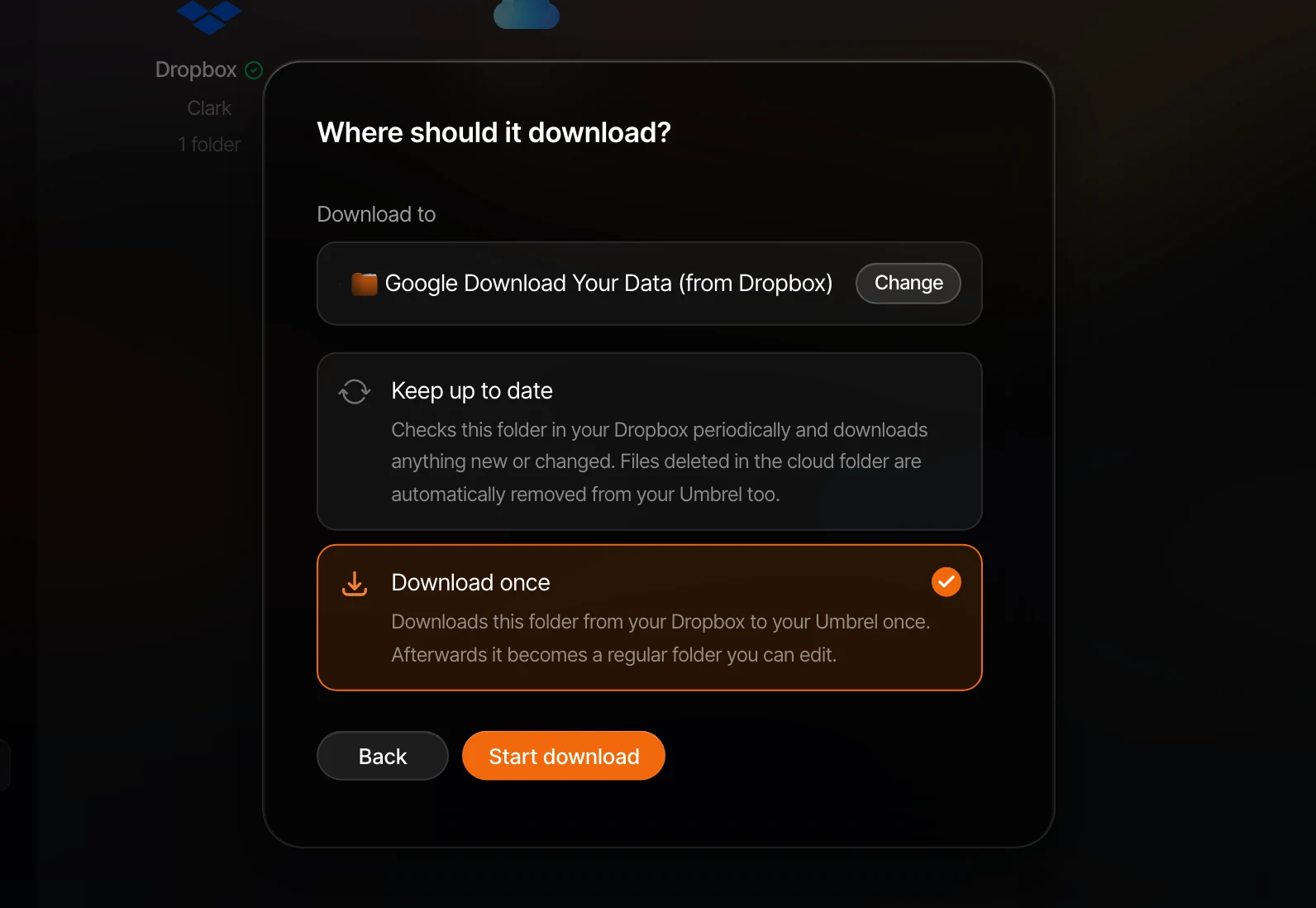
The export downloads to a new folder in your Home folder, named something like Google Download Your Data (from Dropbox). Files shows the progress while it runs.
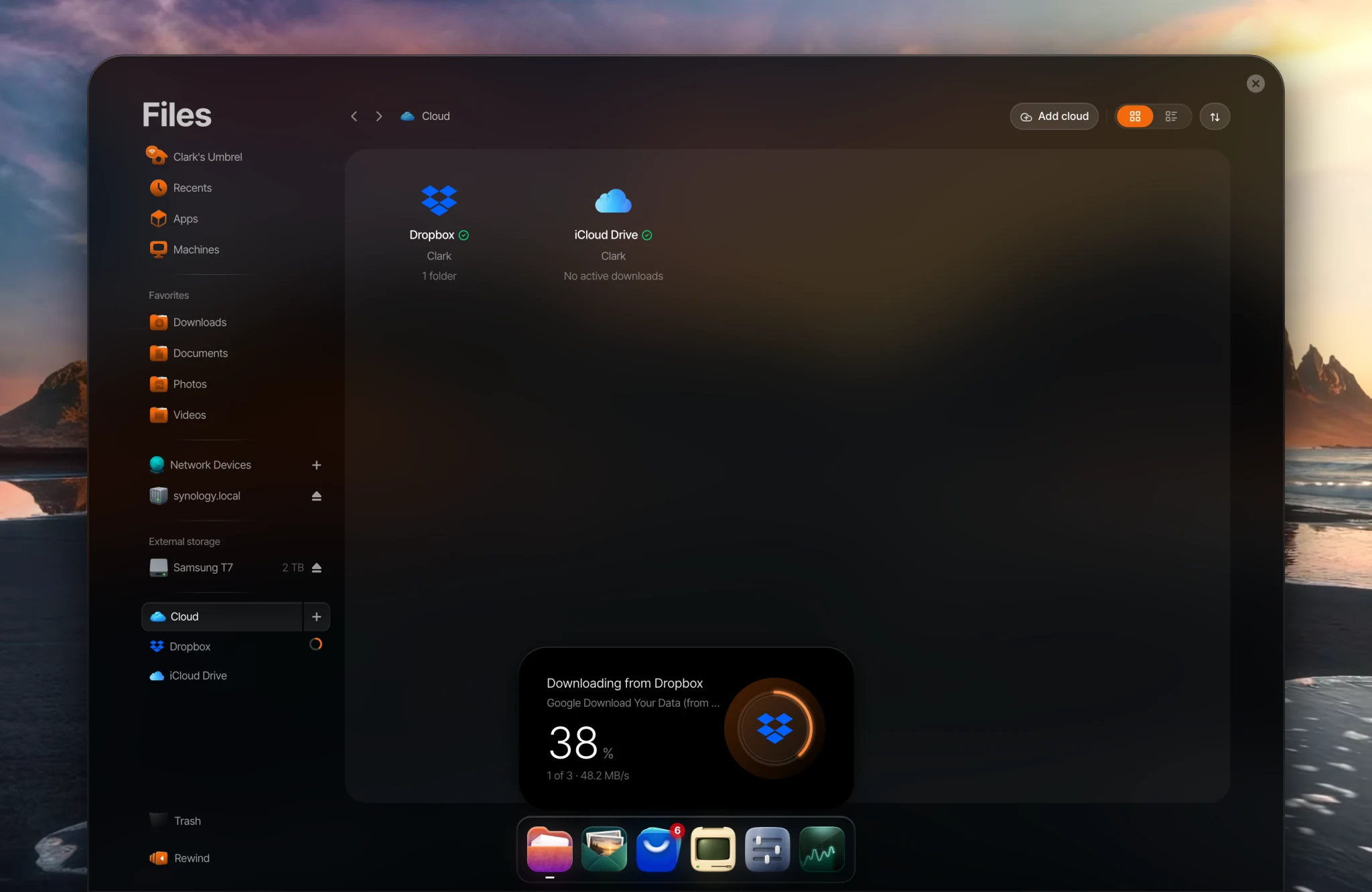
Step 3: Uncompress the zip files
Photos doesn't look inside zip files, so the last step is to uncompress them on your Umbrel.
-
Open the folder the export downloaded to.
-
Right-click each zip file and choose Uncompress. Each zip file becomes a folder with the same name.
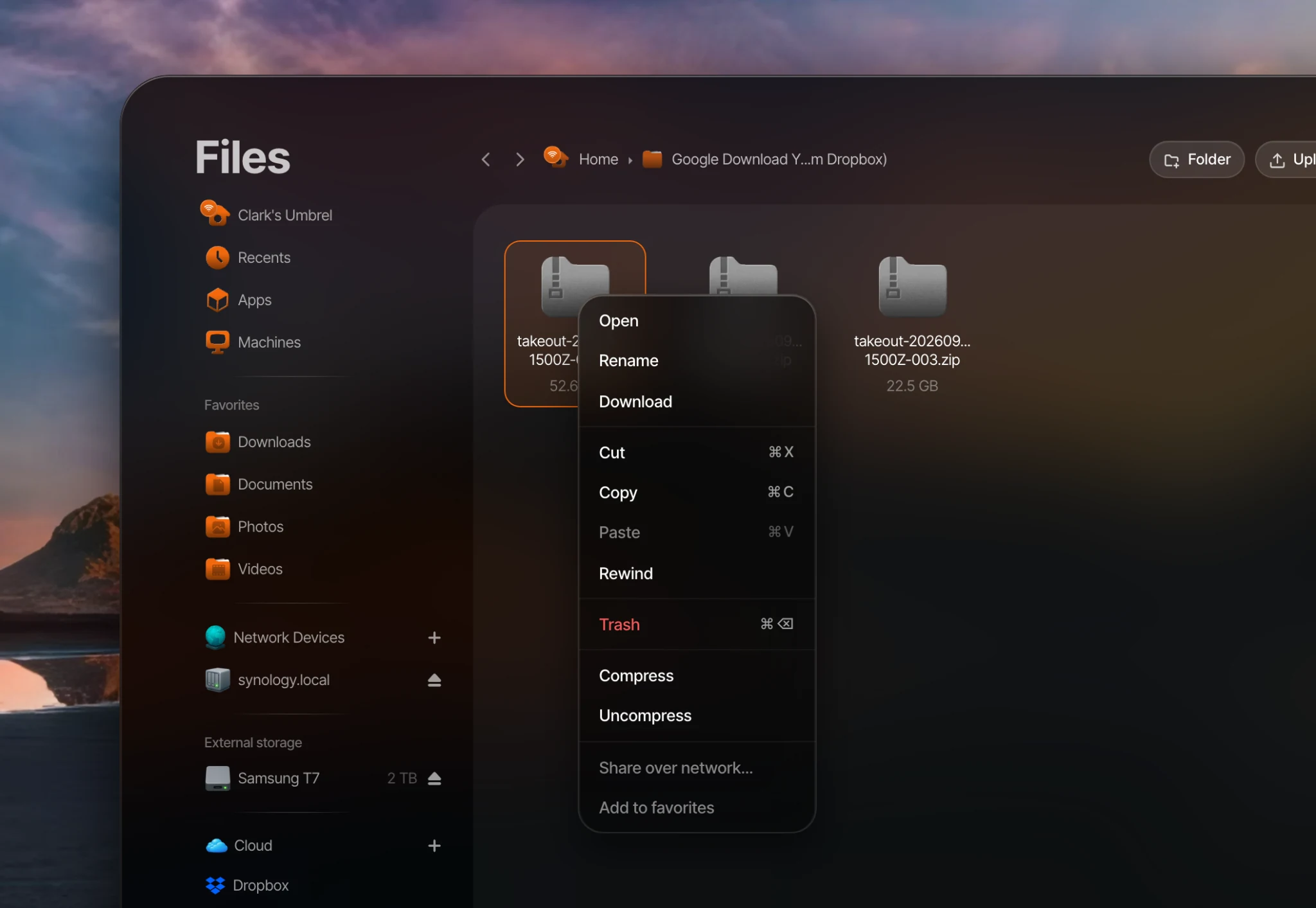
-
Inside each folder, your photos are in Takeout > Google Photos. There's a Photos from folder for each year, and a folder for each of your albums.
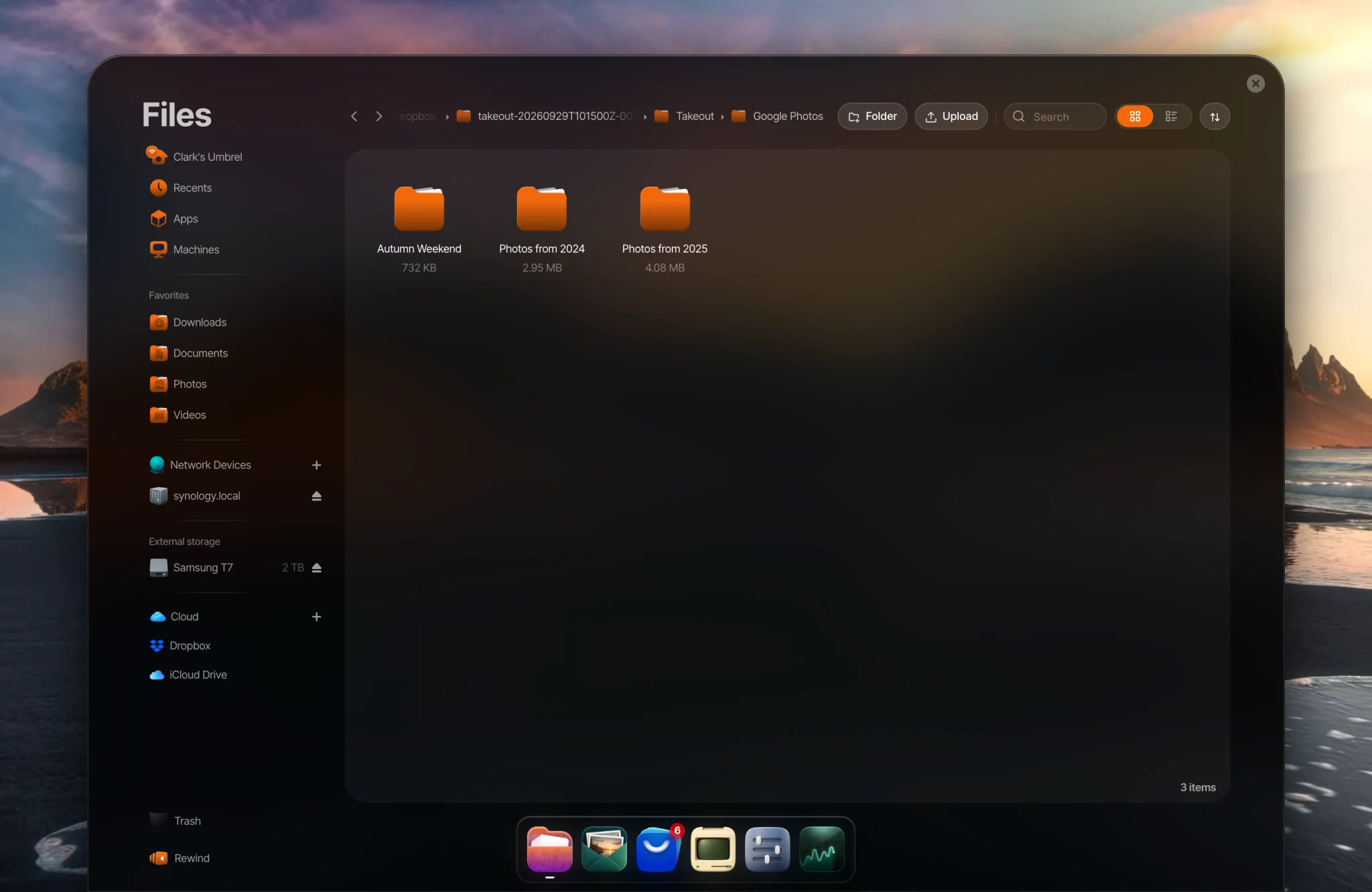
As the files appear, Photos starts preparing them. You'll see a progress ring next to Library in the Photos sidebar. With a large library this can take a while, especially on smaller devices.
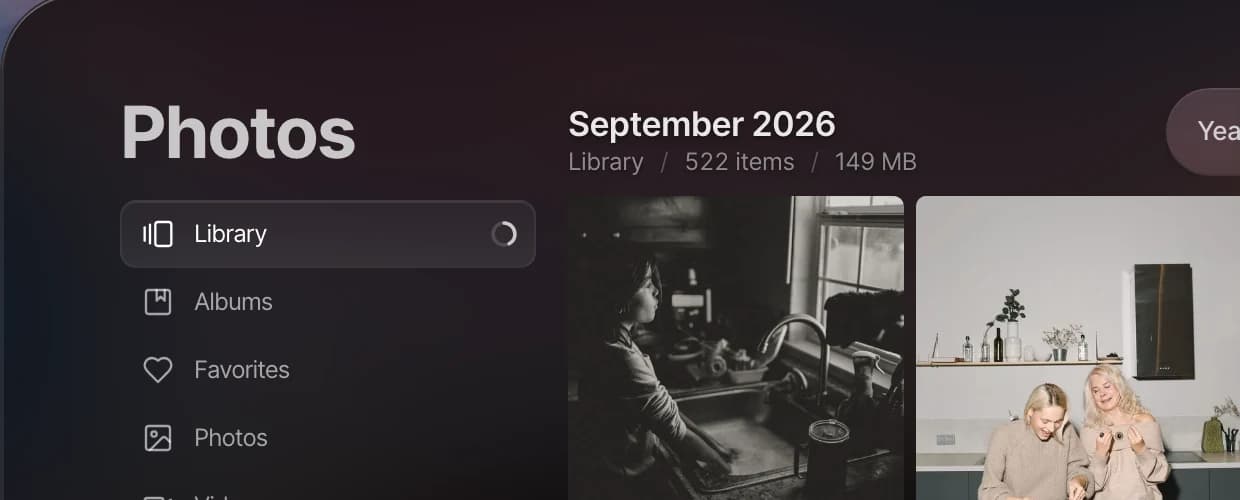
When everything looks right in Photos, delete the zip files to free up space.
What to expect
Dates
Most photos land on the right date, because the date is stored inside each photo file.
Google also saves a small .json file next to each photo with its details. Photos on your Umbrel doesn't read these files, which affects two kinds of photos:
- Photos without a date of their own, like images saved from messaging apps, some screenshots, and scanned photos. These show up on the day you uncompressed them.
- Photos whose date or location you changed in Google Photos. They show the original date and location from the file instead.
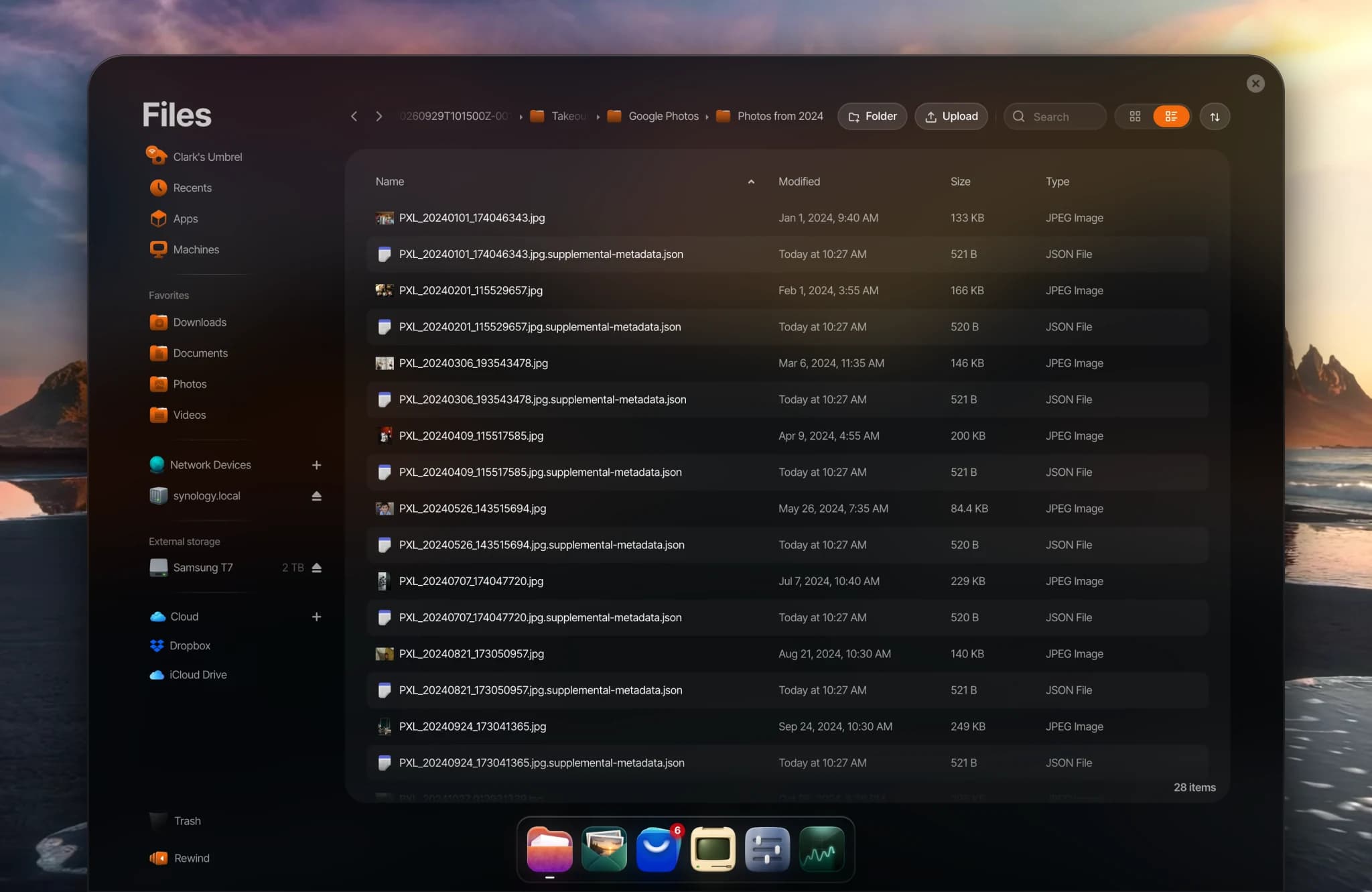
It's fine to leave the .json files where they are. They take up very little space, and Photos ignores them. If many of your photos are affected, tools like ExifTool can copy the dates from the .json files into the photos themselves.
Albums
Each album is exported as a folder, but albums aren't recreated in Photos. You can recreate the ones you want with Create album in Photos.
Photos in album folders are normally also in the Photos from folders. Photos shows each photo only once, even when it's saved in more than one folder, but each copy takes up space. If space is tight, you can delete the album folders once you've recreated your albums.
Edited photos
Photos you edited in Google Photos are exported twice: the original, and a copy with -edited at the end of its name. Both show up in Photos, so you can delete whichever one you don't want.
Live Photos and Motion Photos
- iPhone Live Photos are exported as a photo and a short video with the same name. Photos pairs them back together as a Live Photo when both files are in the same folder.
- Android Motion Photos show as regular photos.
Favorites, descriptions, and faces
Favorites, descriptions, and face groups stay in Google Photos. They aren't carried over to Photos on your Umbrel.
Using a download link instead
If you'd rather not use Dropbox or OneDrive:
- In step 1, choose Send download link via email as the destination, then click Create export.
- When Google emails you, download each zip file to your computer. The links expire after about 7 days, and each file can be downloaded up to 5 times.
- Copy the zip files to a folder in your Home folder over your network. On a Mac, Umbrel for Mac adds your Umbrel to Finder. On other computers, see Accessing your files from other devices.
- Continue with step 3 to uncompress them.
After you move
To keep backing up new photos from your iPhone, use Umbrel for iPhone. Photo backup for Android is coming soon. Until then, you can back up an Android phone with the Immich app from the App Store, though photos backed up with Immich stay in Immich.