
Connecting to Wi-Fi
Connect your Umbrel to a Wi-Fi network
Your Umbrel requires an ethernet connection for initial setup, but once set up you can connect it to Wi-Fi. Your Umbrel stays on Wi-Fi even if you remove the ethernet cable, and automatically reconnects on startup.
Wi-Fi lets you place your Umbrel anywhere without worrying about cable routing. Ethernet provides faster transfer speeds, which you may notice when uploading files, streaming media, or backing up large amounts of data.
Connect to a Wi-Fi network
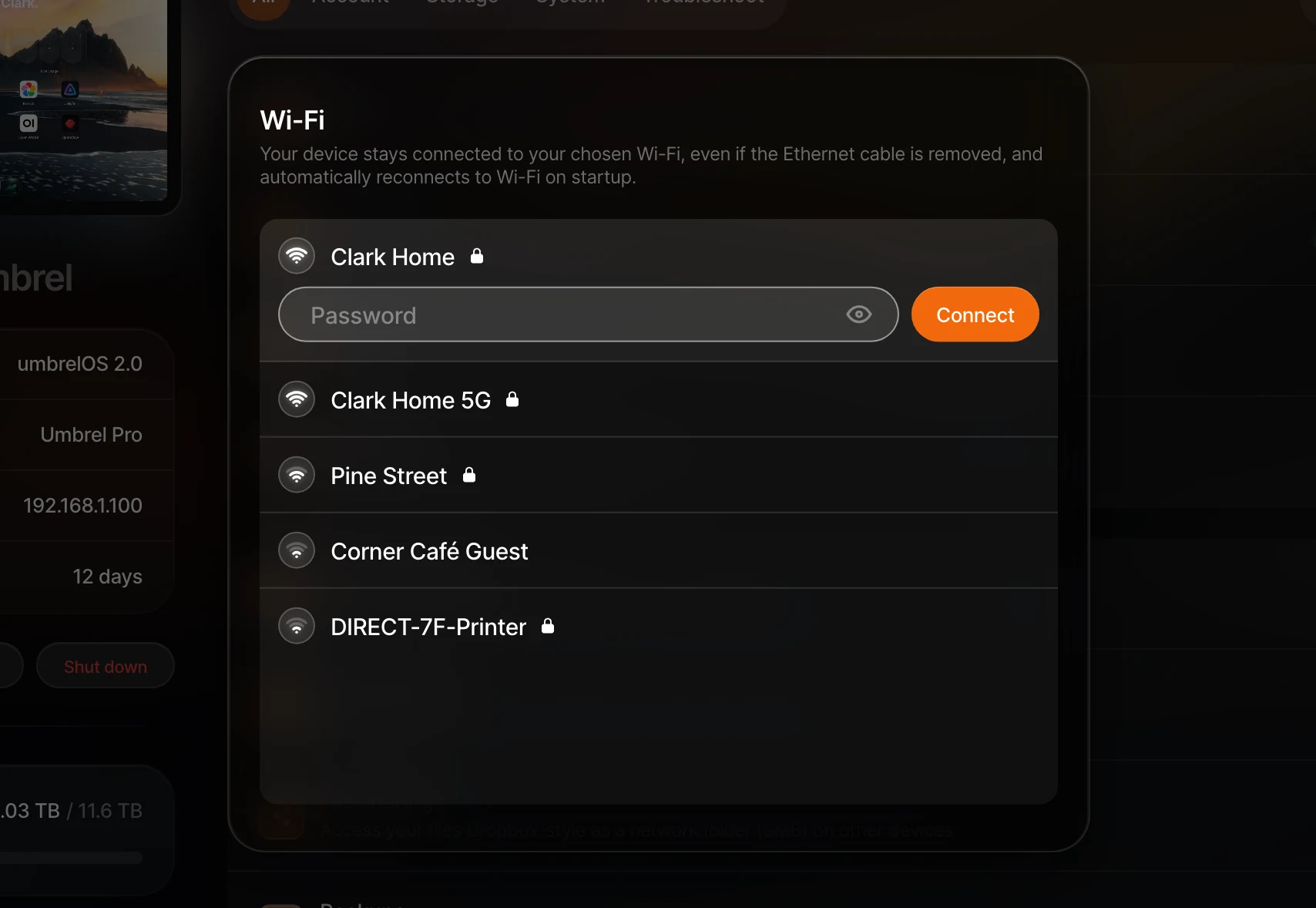
- Go to Settings > Wi-Fi.
- Select a network from the list. Networks with a lock need a password.
- Enter the password and connect.
Switch or disconnect
To switch networks, go to Settings > Wi-Fi and select a different network. If your Umbrel moves to a different network than the device you're using, you'll lose access until both are on the same network again.
To disable Wi-Fi, make sure your Umbrel is connected via ethernet first, then toggle it off in Settings > Wi-Fi. Otherwise, your Umbrel will have no network connection and you won't be able to access it.
Wi-Fi not available?
Umbrel Home and Umbrel Pro have Wi-Fi built in. On DIY hardware, Wi-Fi availability depends on whether your device has a compatible wireless adapter.
Static IP on Wi-Fi
The recommended way to keep your Umbrel on the same IP address is to create a DHCP reservation in your router's settings. This works for both ethernet and Wi-Fi, and lets your router stay in charge of assigning addresses and preventing IP conflicts.
Depending on your router, this setting might be called something like "DHCP reservation," "address reservation," or "static IP."
umbrelOS can also configure a static IP directly for ethernet connections in Settings > Advanced settings > Network, but this is best used only if you can't set a DHCP reservation on your router. For Wi-Fi, use a DHCP reservation on your router.