

Moving from Immich
Move your photos from Immich into Photos on your Umbrel, or use both apps side by side
If you've been using Immich, you can move your photos into Photos, the built-in photo library in umbrelOS. You can also keep using Immich alongside Photos. Both apps can show the same photos without storing them twice. See Keep using Immich alongside Photos.
What moves and what doesn't
- Moves: your photos and videos in their original quality, with the dates, locations, and camera details stored inside them.
- Doesn't move: albums, favorites, people and faces, and changes you made in Immich, like edits, new dates or locations, and descriptions. Immich keeps these in its own database or in
.xmpfiles next to your photos, and Photos doesn't read them.
If Immich is on this Umbrel
Immich keeps your original photos inside its app folder, and Photos doesn't look in app folders. To move them, copy them into your Home folder.
-
Open Files and go to Apps > Immich > data > upload.
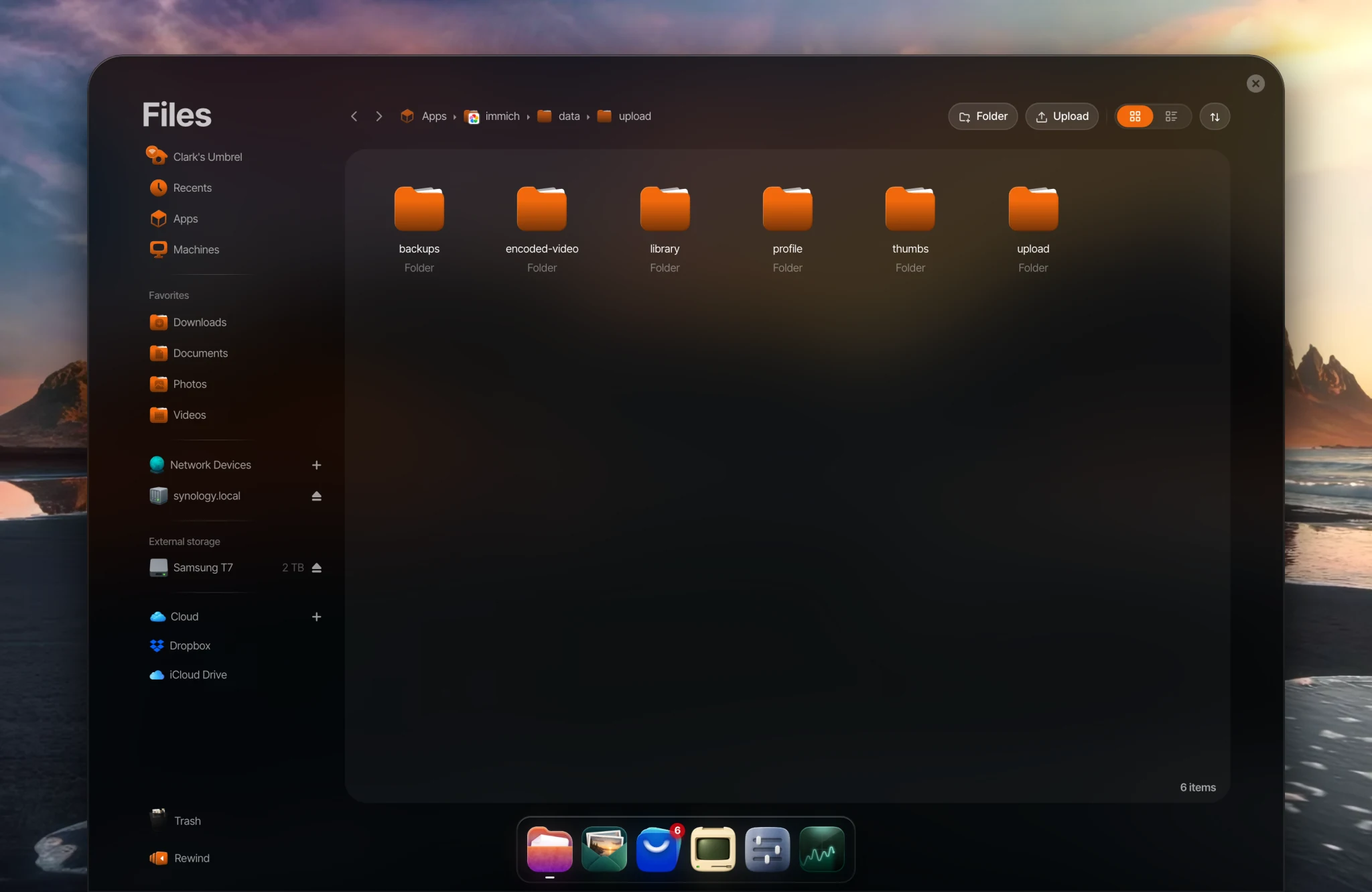
Your originals are in two of these folders:
- library has the photos Immich has sorted into folders by date. Immich does this when its storage template is turned on.
- upload has photos that Immich hasn't sorted. Their file names are random, but that's fine: Photos puts each photo on your timeline by the date stored inside it.
The other folders (backups, encoded-video, profile, and thumbs) are Immich's own files. You don't need them.
-
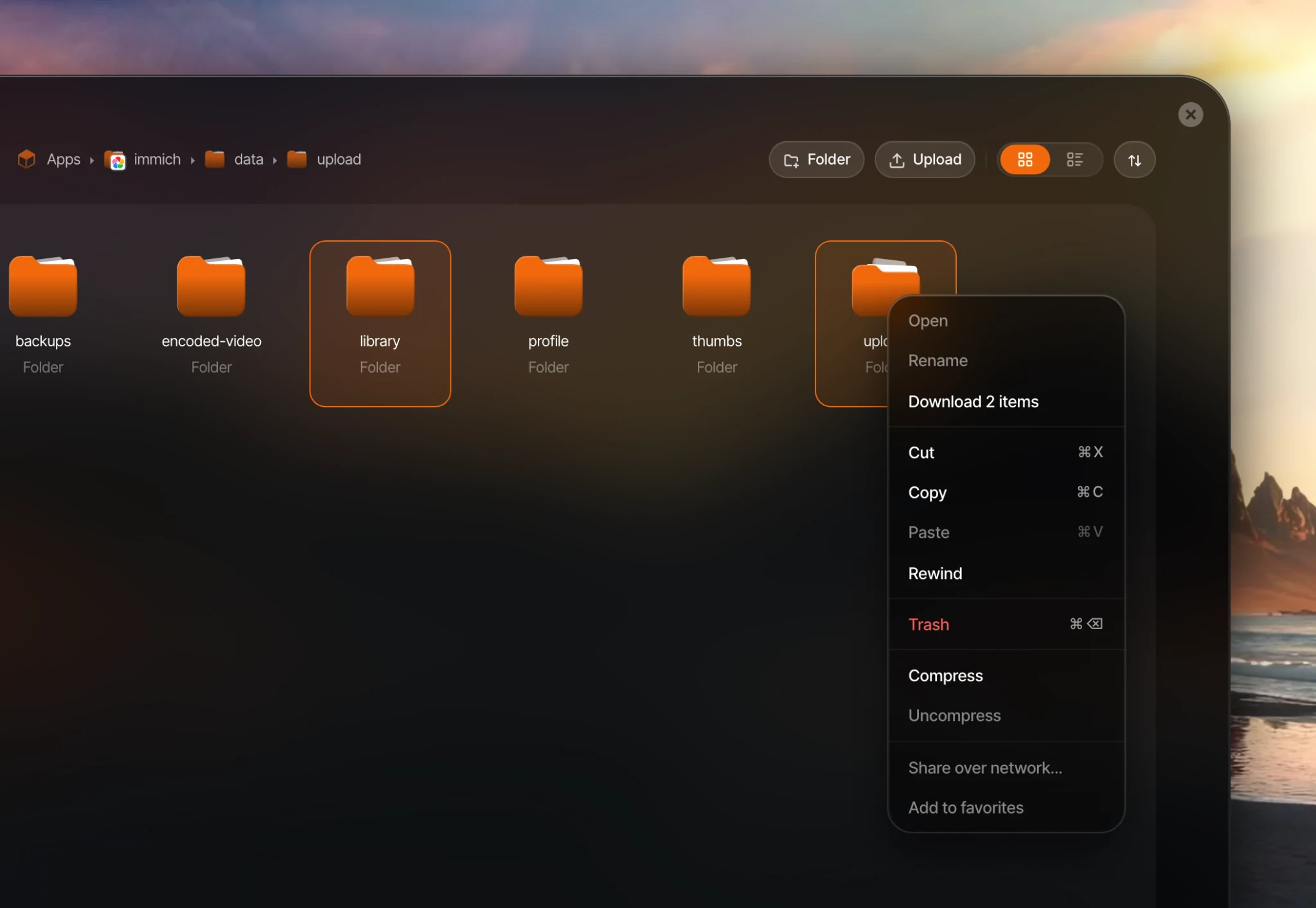
Select library and upload (hold ⌘ or Ctrl and click), right-click, and choose Copy.
-
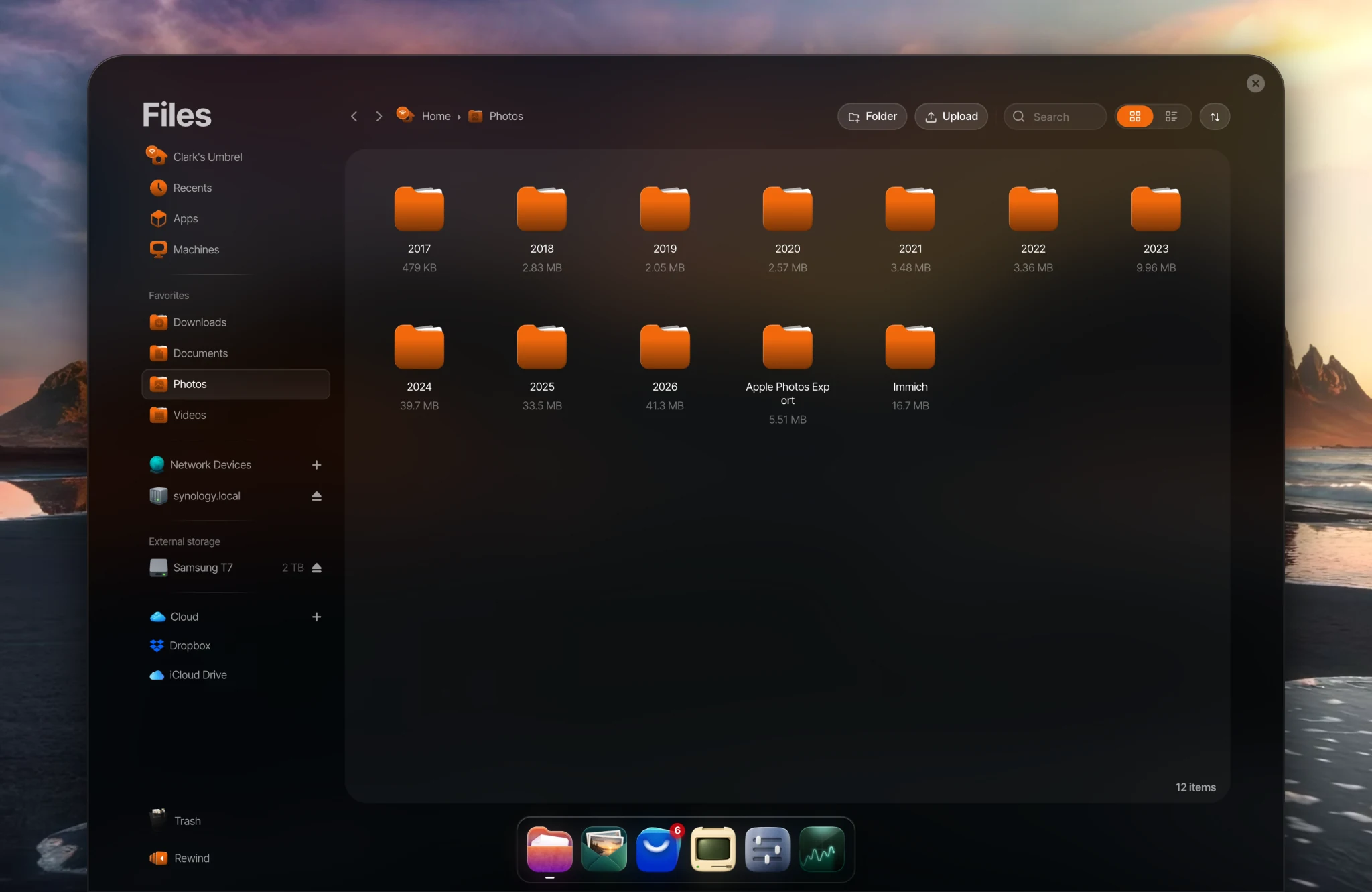
Go to Photos in the Files sidebar, create a new folder (for example Immich), open it, right-click an empty space, and choose Paste.
-
Photos starts preparing the new files. With a large library, this can take a while. Photos that are already in your library won't show up twice.
Copying needs as much free space as your Immich library takes up. If you're short on space and you're going to remove Immich anyway, stop Immich first (right-click it on your home screen and choose Stop), then use Cut instead of Copy.
Uninstall Immich (optional)
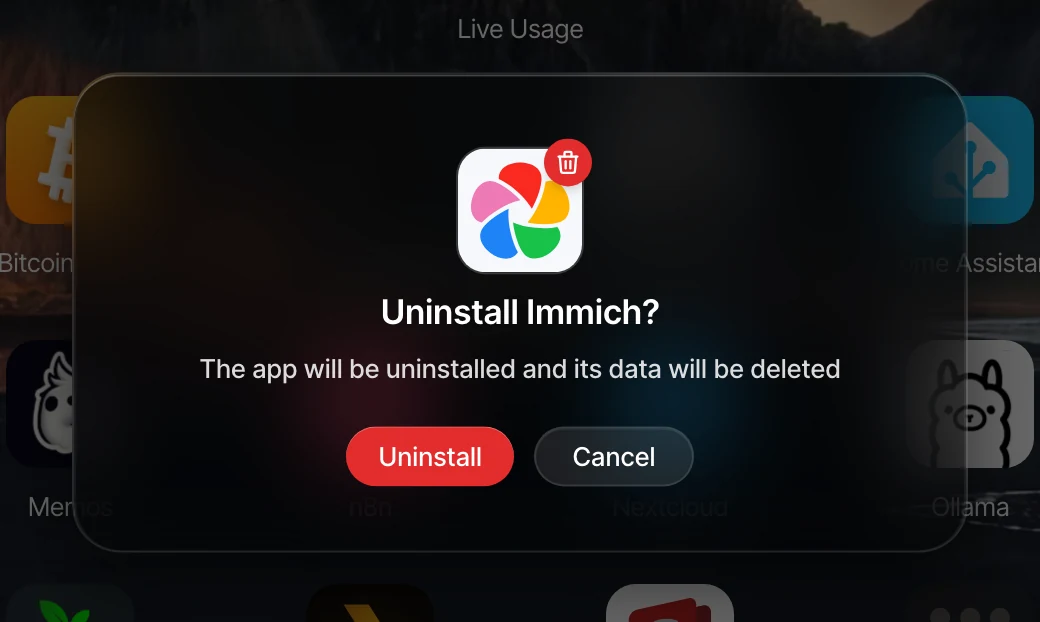
Once you've checked that your photos are in Photos, you can uninstall Immich. Right-click Immich on your home screen and choose Uninstall.
Uninstalling deletes all of Immich's data, including its own copy of your photos. Your copy in your Home folder isn't affected, but only uninstall once you're sure everything is there.
If Immich is on another device
On another Umbrel
- On the other Umbrel, copy Immich's library and upload folders into its Home folder, as in steps 1 to 3 above.
- Still on the other Umbrel, right-click that folder in Files and choose Share over network....
- On this Umbrel, click the + next to Network Devices in the Files sidebar and add the other Umbrel. See Adding network devices.
- Copy the folder from the other Umbrel into your Photos folder.
On another server
If you can open Immich's upload location on that server, copy its library and upload folders to your Umbrel's Photos folder over your network. See Accessing your files from other devices.
If you can't reach those folders, you can download everything with immich-go, a free community tool you run on your computer:
-
In Immich, create an API key under Account Settings > API Keys.
-
On your computer, run:
immich-go archive from-immich --from-server=http://your-immich-server:2283 --from-api-key=YOUR_API_KEY --write-to-folder=immich-export -
Copy the
immich-exportfolder to your Umbrel's Photos folder.
immich-go saves a .json file next to each photo with its albums and favorites. Photos ignores these files.
Keep using Immich alongside Photos
You don't have to choose. Many people use Photos for everyday browsing and iPhone backup, and keep Immich for features like face recognition, a map of their photos, smart search, shared albums, and Android backup.
You can point Immich at the same photos Photos uses, so your library isn't stored twice:
-
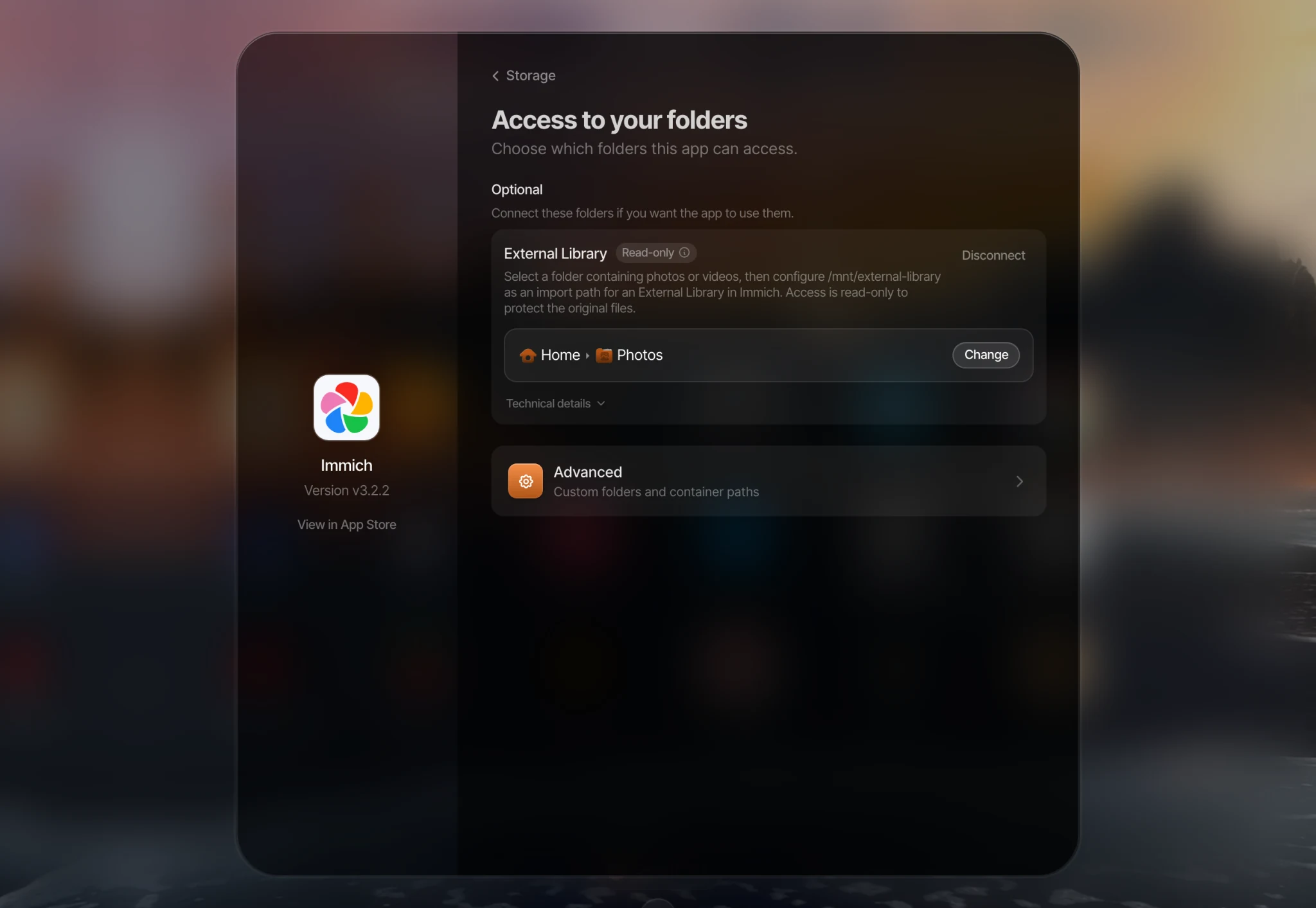
Right-click Immich on your home screen, choose Settings, then open Storage > Access to your folders.
-
Under External Library, choose your Photos folder, or any folder with the photos you want Immich to see. Immich gets read-only access, so it can't change or delete these files.
-
Click Apply and restart.
-
In Immich, go to Administration > External Libraries and click Create Library.
-
Add
/mnt/external-libraryas a folder, then click Scan.
Immich now shows the photos in that folder, and so does Photos. To have new photos show up in both apps, back them up with Umbrel for iPhone. Photos you back up with the Immich mobile app are stored in Immich's own folder, so they won't appear in Photos unless you copy them over.