Backing up your data
Set up encrypted backups of your files, apps, and data
umbrelOS can back up your entire Umbrel, including your account, settings, files, apps, and data, to another Umbrel, a NAS, or an external USB drive. Backups are encrypted and run automatically every hour once set up.
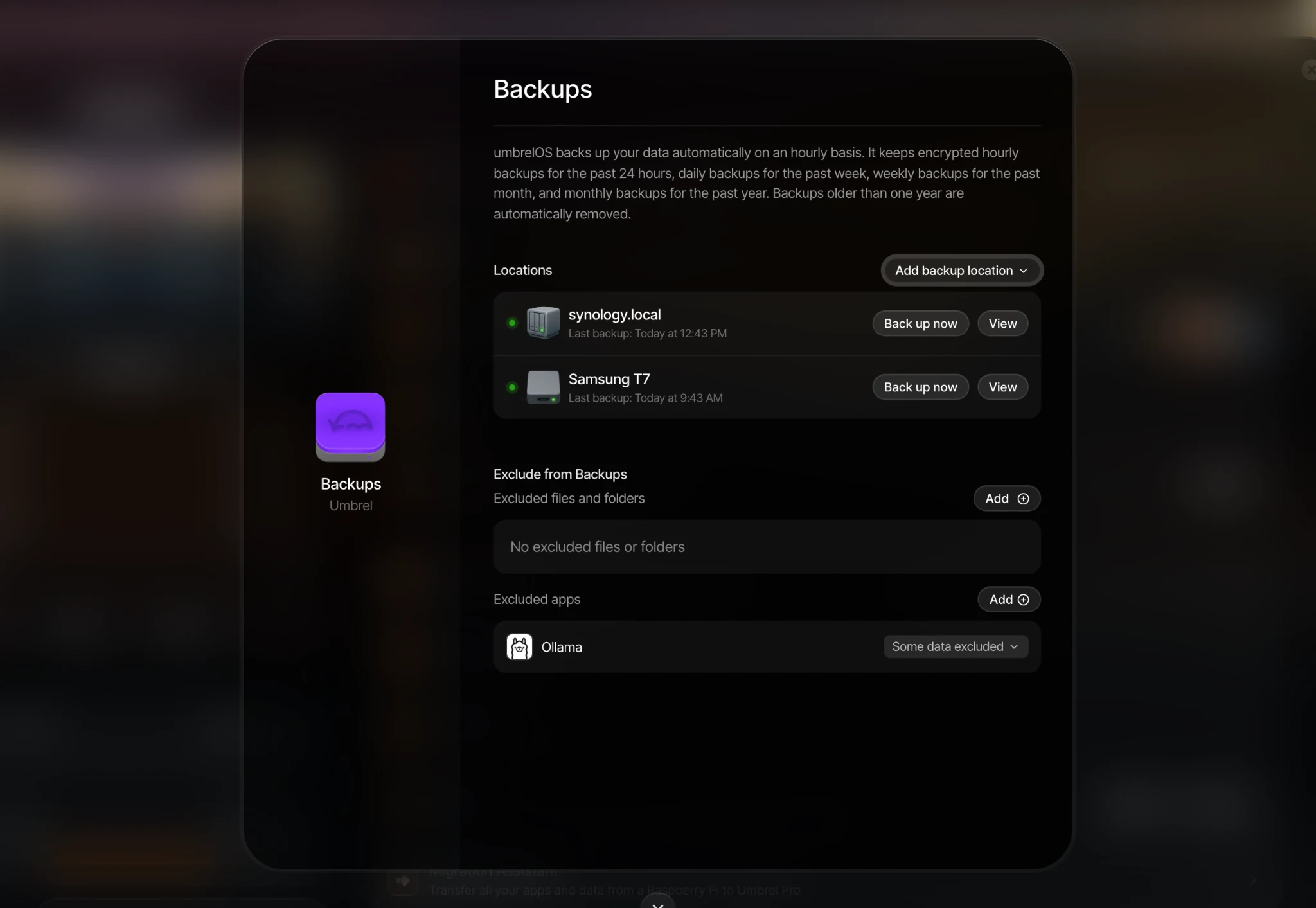
When you need your data back, you can restore everything or use Rewind to recover specific files and folders from past backups.
Set up backups
Your backup location needs free space equal to at least twice the size of your backup.
-
Go to Settings > Backups and click Set up.
-
Choose a backup type: Another Umbrel or NAS for a device on your network, or External Drive for a USB drive connected to your Umbrel. Umbrel Private Cloud is also coming soon. If you're backing up to another Umbrel, that Umbrel will need file sharing set up first. You'll connect using the username and password shown in its file sharing settings. For a NAS, you'll need the credentials for that device.
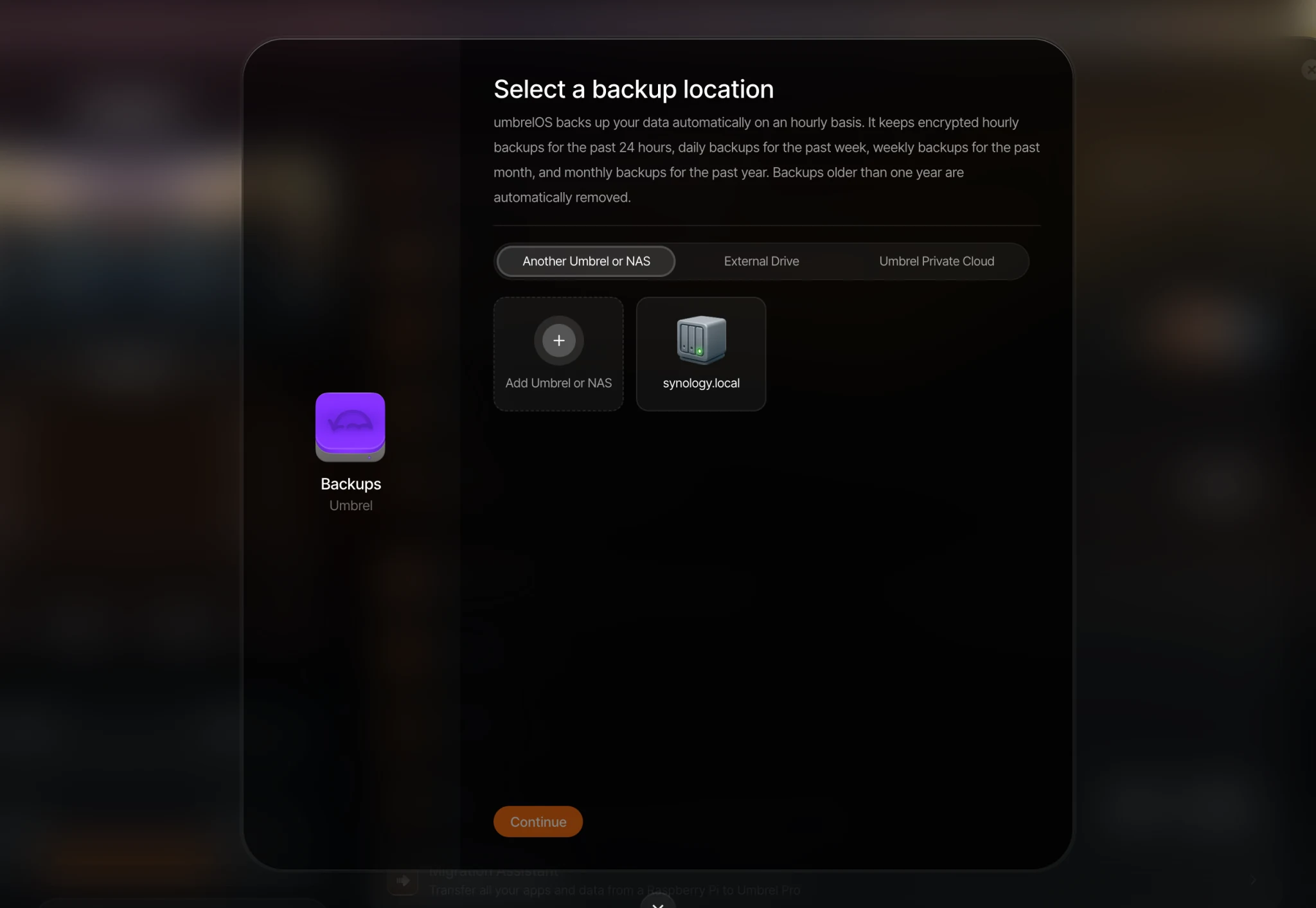
-
Select a folder on that device to store your backups. You can also create a new folder right from the wizard.
-
Choose whether to exclude any files, folders, or apps from your backups. By default, everything is included. You can always change this later.
-
Set an encryption password to protect your backups. You'll need this password to restore from them.
Save your encryption password somewhere safe, like a password manager. You won't be able to see it again, and you won't be able to restore without it.
Back up to another Umbrel
If you're backing up one Umbrel to another, we recommend connecting both Umbrels with Tailscale first. This gives each Umbrel a stable private address and avoids relying on local network discovery.
- Install Tailscale from the Umbrel App Store on both Umbrels.
- Sign in to both with the same Tailscale account.
- On the destination Umbrel, create a folder in Files for storing backups.
- Share that folder over the network. Right-click the folder in Files and select Share over network, or go to Settings > File sharing > Configure and share that specific folder.
- Copy the destination Umbrel's Tailscale IP address or MagicDNS name from the Tailscale app or admin dashboard.
- On the source Umbrel, open Files, click the + next to Network Devices, and add the destination Umbrel manually. Use its Tailscale IP address or MagicDNS name as the server address instead of
umbrel.localor a local IP address, then enter the file sharing username and password shown on the destination Umbrel. - Go to Settings > Backups. If this is your first backup location, click Set up. Otherwise, go to Configure and add a backup location. Choose Another Umbrel or NAS, select the destination Umbrel and shared folder, then finish configuring backups.
How backups work
Once set up, umbrelOS backs up your data automatically on an hourly basis. It keeps:
- Hourly backups for the past 24 hours
- Daily backups for the past week
- Weekly backups for the past month
- Monthly backups for the past year
Backups older than one year are automatically removed.
Back up manually
You can trigger a backup at any time from Settings > Backups > Configure. Select the backup location you want to back up to and click Back up now.
Multiple backup locations
You can add more than one backup location for extra peace of mind. To add another, go to Settings > Backups > Configure and add a new backup location. Each location runs its own set of automatic backups.
Excluding files or apps
By default, all your files and apps are included in backups. You can exclude specific files, folders, or entire apps from the Exclude from Backups section in Settings > Backups > Configure. Exclusions apply to all backup locations.
Some apps automatically exclude certain data like caches or logs that can be recreated or could cause issues if restored. These auto-exclusions are set by the app developer and can't be changed. You can see what each app auto-excludes in the Exclude from Backups section.
Keep in mind that if you exclude an app, it will still be reinstalled during a restore but its data won't be included. It will start fresh as if newly installed.