Personalizing your Umbrel
Change your name, password, profile picture, wallpaper, shortcuts, widgets, language, and more
Make your Umbrel feel like yours. You can change your name, password, and profile picture, pick a wallpaper, add shortcuts and widgets to your home screen, and set preferences like language and temperature units.
If your Umbrel has more than one user, these settings are personal. Each account has its own name, password, profile picture, wallpaper, widgets, and language, so changing yours doesn't affect anyone else.
Change your name
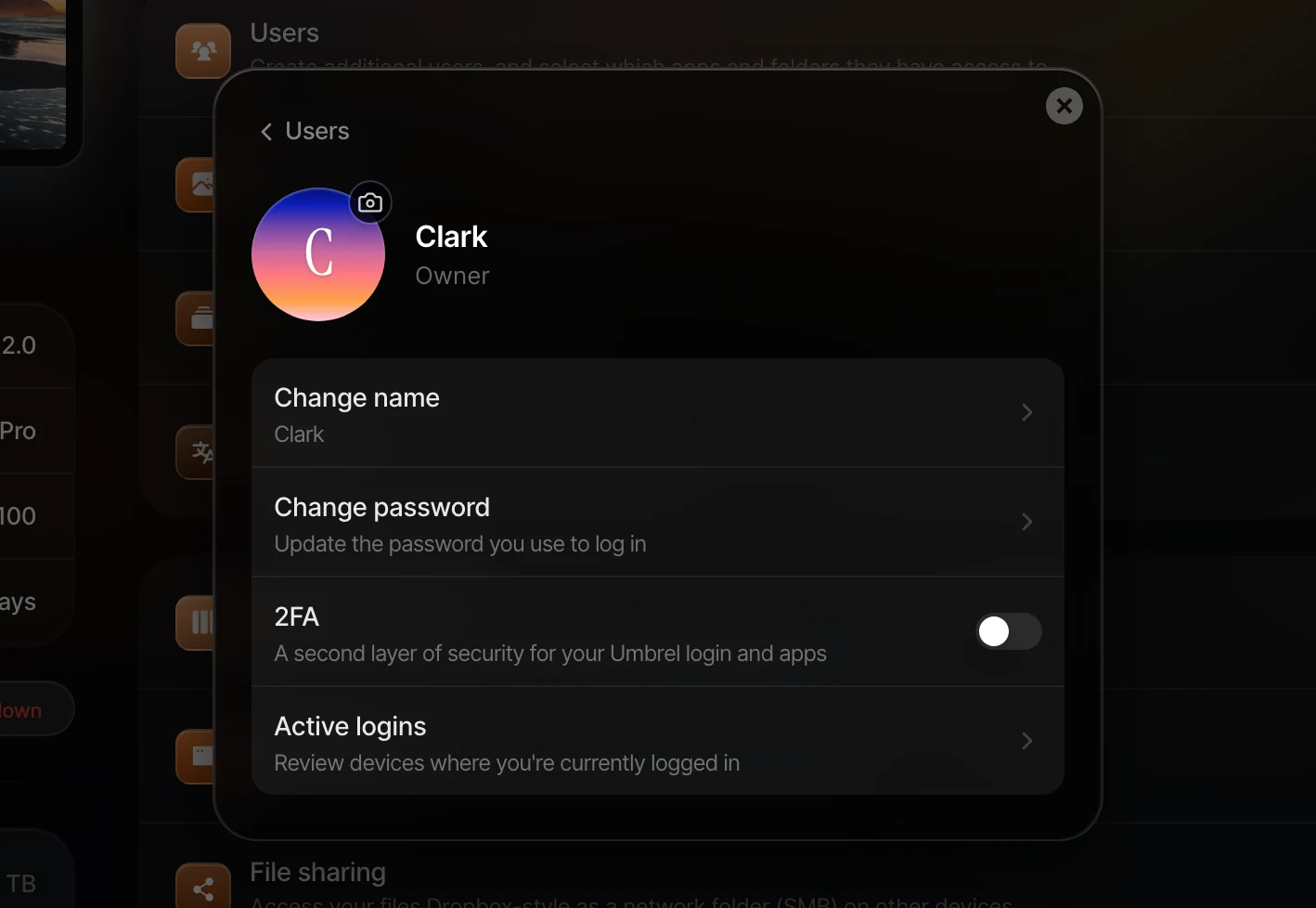
- If you're the owner (the account that set up the Umbrel), go to Settings > Users, click your own account, then click Change name.
- If you're a member, go to Settings > Change name.
Change your password
- If you're the owner, go to Settings > Users, click your own account, then click Change password.
- If you're a member, go to Settings > Change password.
You'll need to enter your current password first. Your new password must be at least 6 characters.
If you're the owner and use SSH, your SSH password is the same as your umbrelOS password and changes along with it. Member accounts can't log in over SSH.
If the owner loses their password, there is no way to recover it because the account is stored entirely on your device. We recommend saving your password in a password manager. If a member forgets their password, the owner can set a new one for them in Settings > Users.
Change your profile picture
Hover over your profile picture at the top of Settings and choose Select image, Replace image, or Remove. The owner can also do this from their own account in Settings > Users. Your profile picture shows on the login screen.
Change your wallpaper
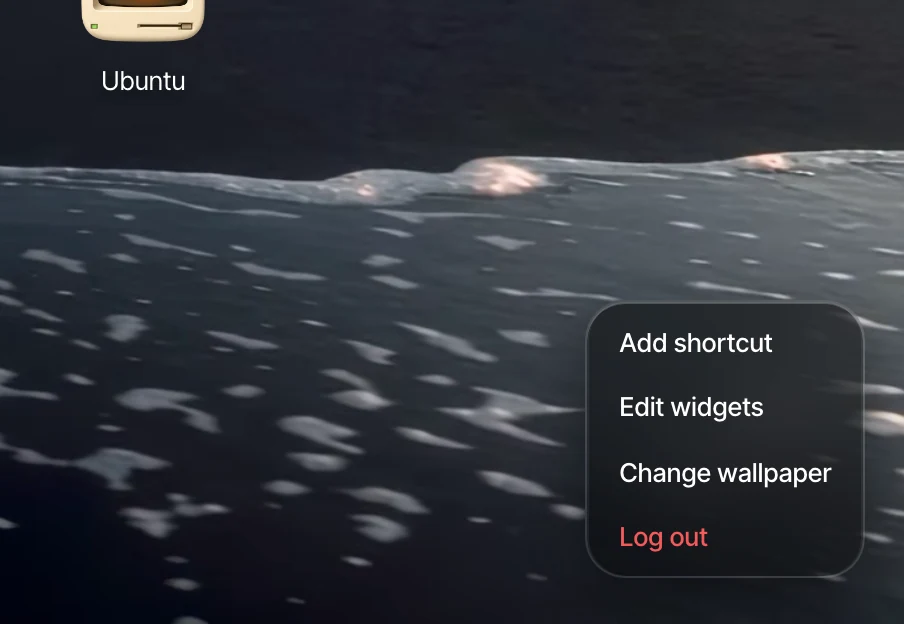
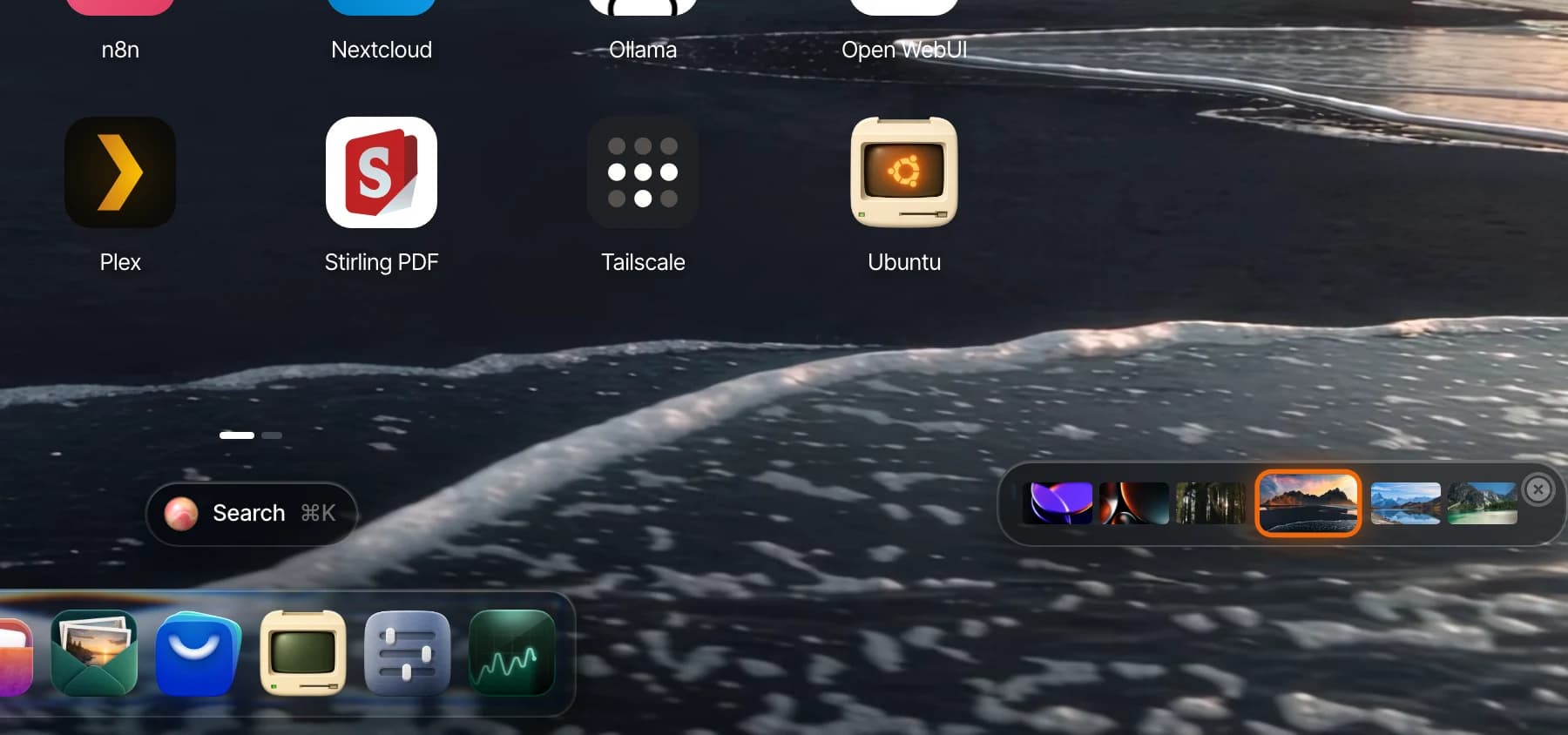
Right-click anywhere on your home screen and select Change wallpaper, or go to Settings > Wallpaper. You can choose from a curated collection of wallpapers and themes. Uploading custom wallpapers is not currently supported.
Add home screen shortcuts
Shortcuts let you add websites and services running on your Umbrel directly to your home screen. Only the owner account can add shortcuts.
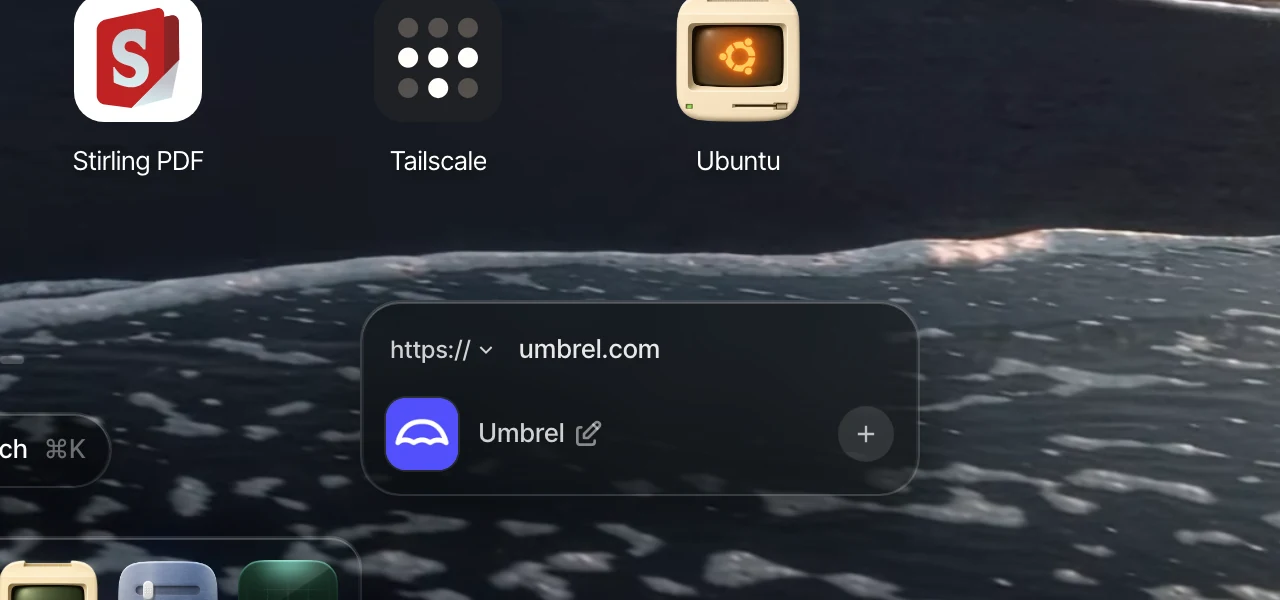
Right-click anywhere on your home screen and select Add shortcut.
Use https:// for websites, http:// for local addresses or devices that don't support HTTPS, or Custom Port for a service running on your Umbrel. umbrelOS fetches the site's name and icon for you. You can edit the name before clicking + to add it.
Widgets
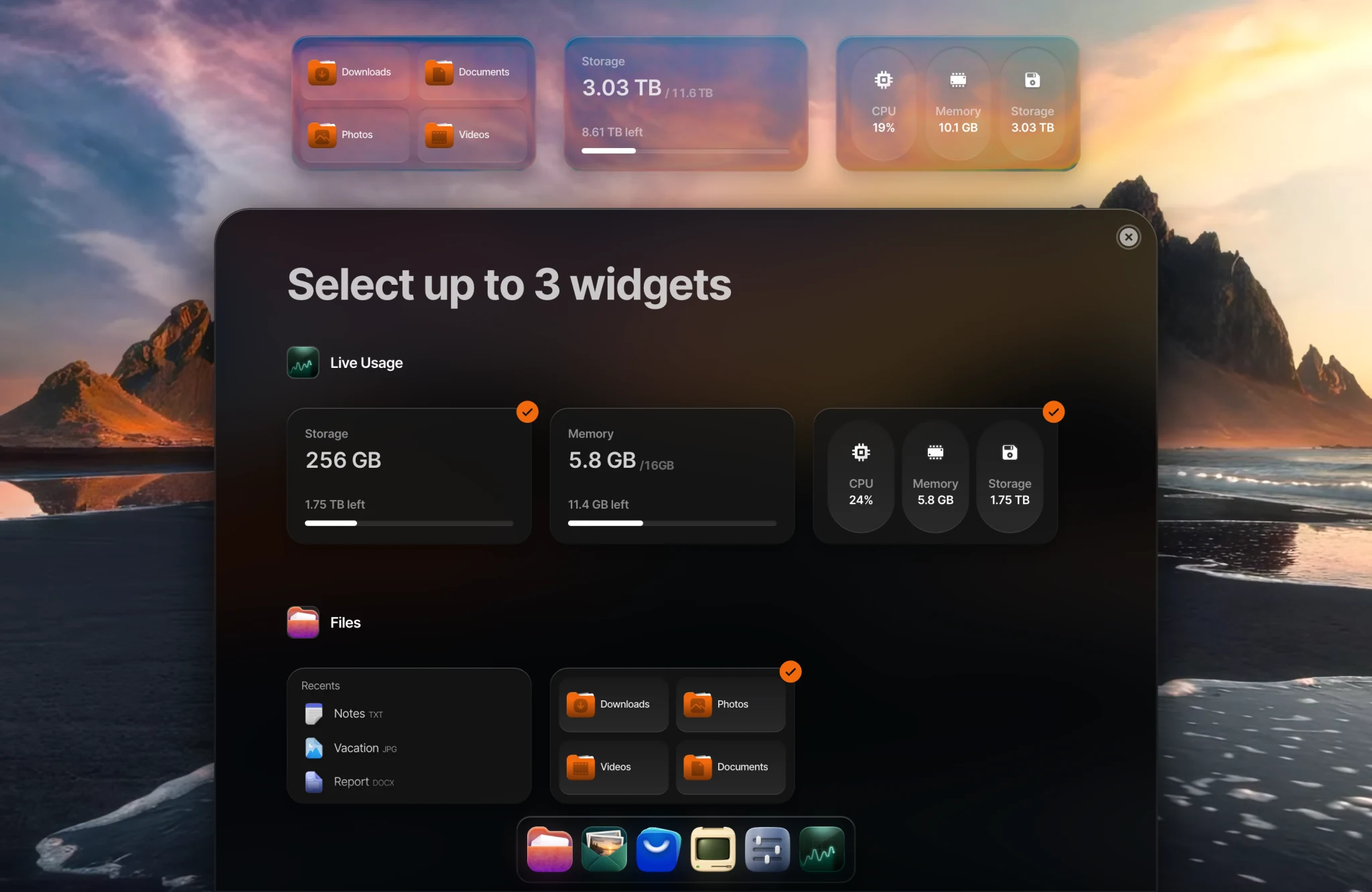
Widgets put quick-glance info on your home screen, like live system usage, recent files, or stats from your apps.
To add or change widgets, right-click anywhere on your home screen and select Edit widgets, or go to Settings > Widgets. You can have up to 3 widgets at a time.
Some apps come with their own widgets. Once you install an app that supports widgets, its widgets will automatically appear as options in the widget selector.
Change your language
- Go to Settings > Language.
- Select your preferred language.
umbrelOS is available in 29 languages. If you don't see yours, let us know. You can reach out on X or open an issue on GitHub.
Change temperature units
The owner's Settings page shows your Umbrel's CPU temperature in the sidebar. Use the dropdown on the temperature card to switch between Celsius and Fahrenheit.