Installing an app
Step-by-step guide to installing apps on your umbrelOS home server
umbrelOS aims to make self-hosting as easy as installing an app on your phone, with one-click installs, sane defaults, and apps that work out of the box. Here's how to get started.
Only the owner account can install apps. If you're a member on someone else's Umbrel, the App Store will show Please ask the owner to install this app. Once the owner installs an app and shares it with you, it appears on your home screen.
Browse the App Store
- Open http://umbrel.local in your browser. See Connecting to your Umbrel if you need help connecting.
- Click App Store in the dock at the bottom of the screen.
- Browse featured apps on the Discover page, filter by category, or search for a specific app by name.
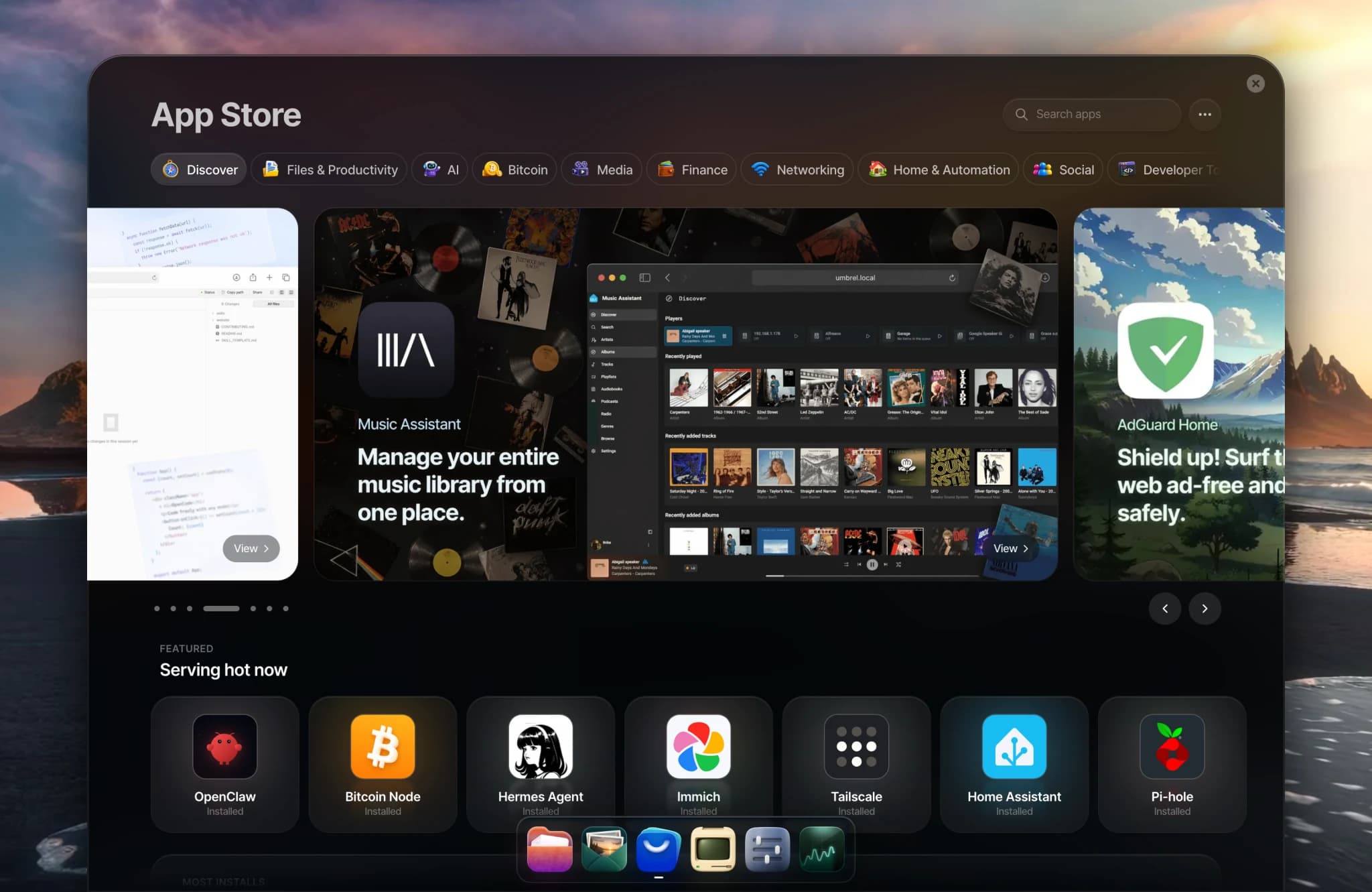
Install an app
-
Click the app you want to install to open its detail page. You can also click Install directly on an app's card in the store.
-
Review the app description and screenshots. The download size is shown on the Install button.
-
Click Install.
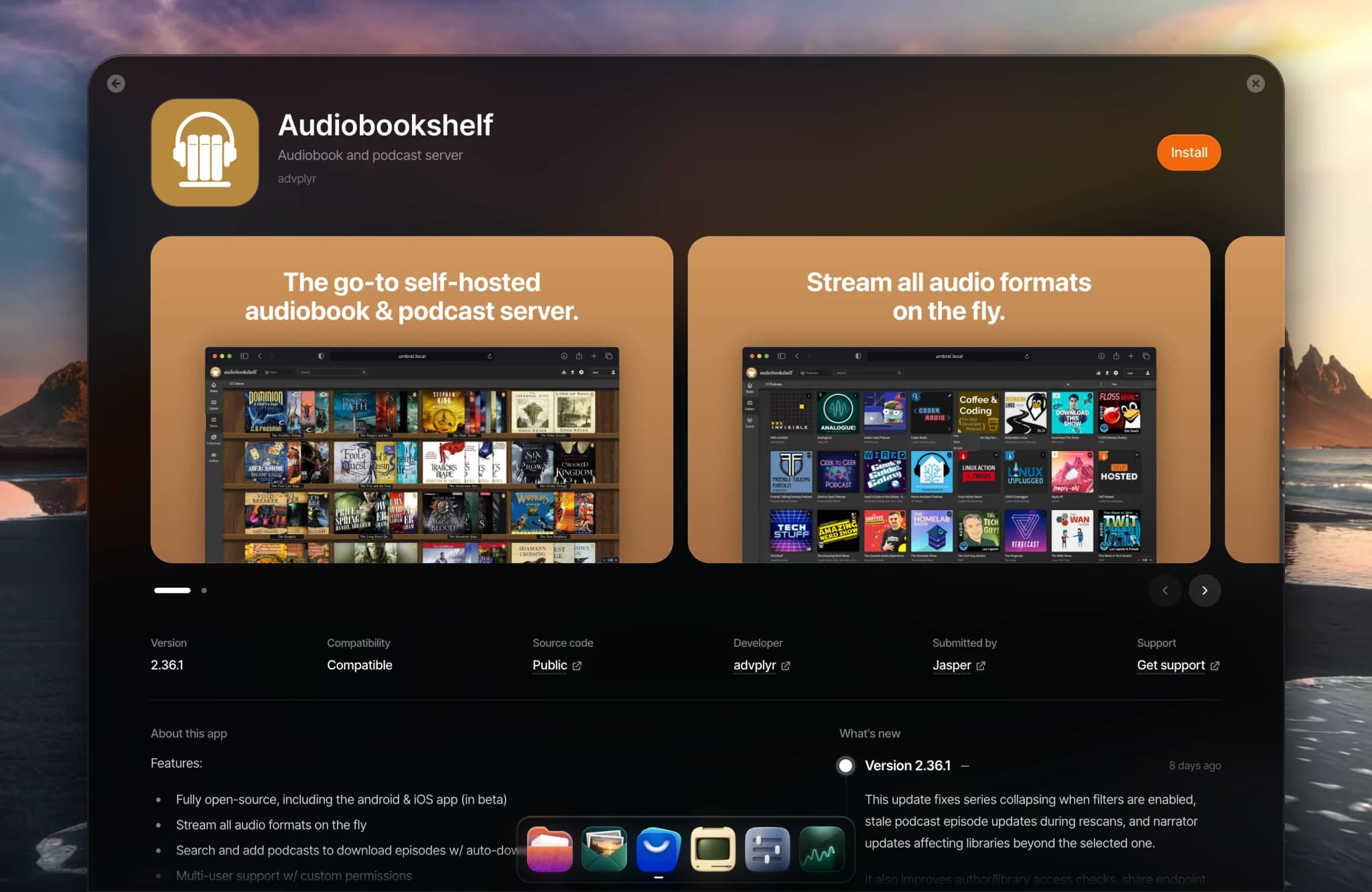
-
Some apps show a short Install dialog first. It walks you through anything the app needs, one step at a time, and skips any steps that don't apply:
- Required apps. Some apps need other apps installed first (see below).
- Folder access. Some apps need a folder for their files, such as a media library. You can use the suggested folder or choose a different one, including a folder on a USB drive or network device. You can change this later in app settings.
- GPU access. Apps that use your device's GPU for hardware acceleration show this as Required. There's nothing to change here. See GPU acceleration.
Click Install now on the last step.
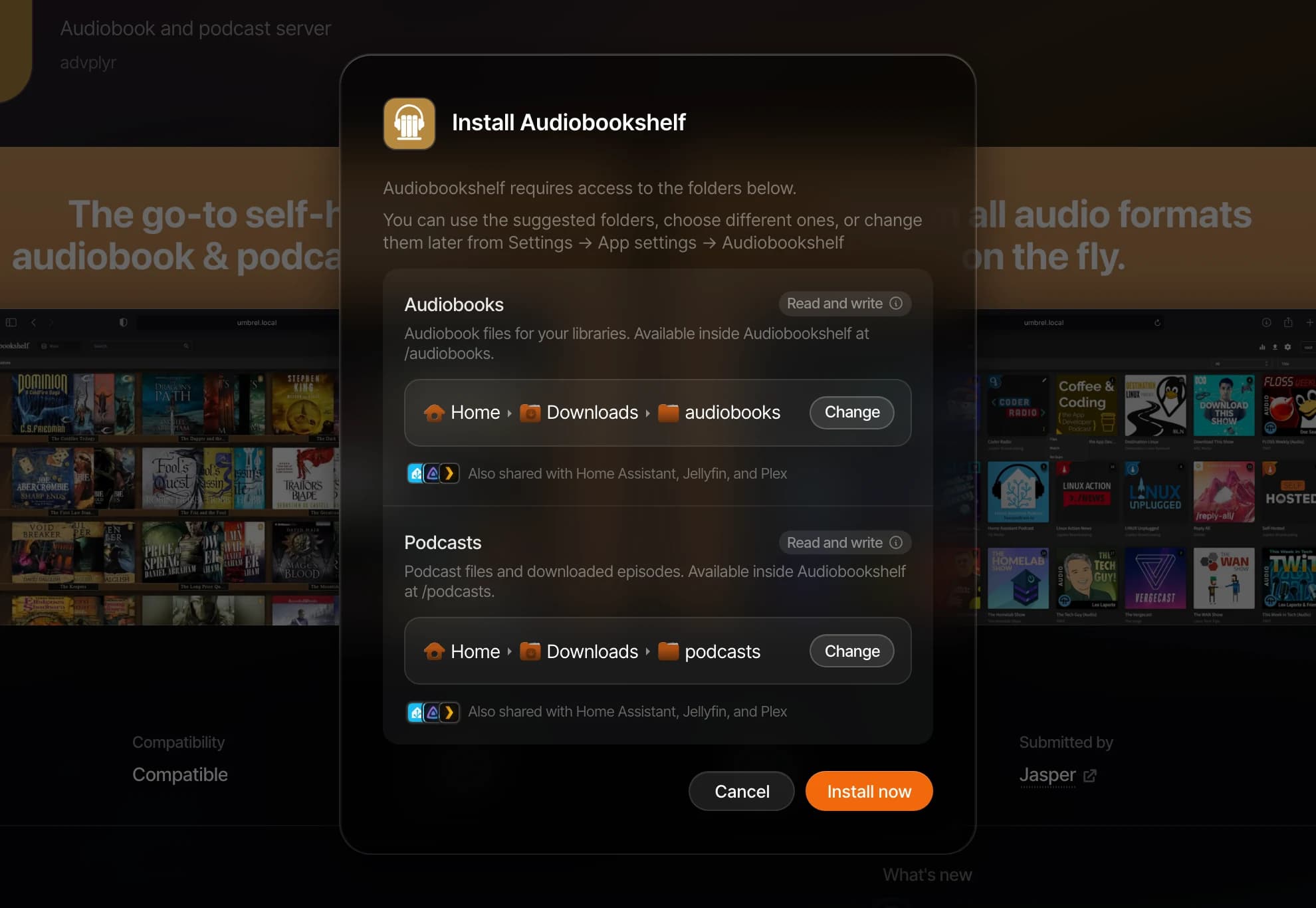
-
The app will begin installing. You don't need to wait on this page. You can navigate away and keep using your Umbrel while it installs. Progress is shown on the app's icon on your home screen and on the app's detail page.

-
Once finished, click Open to launch the app.
Apps with dependencies
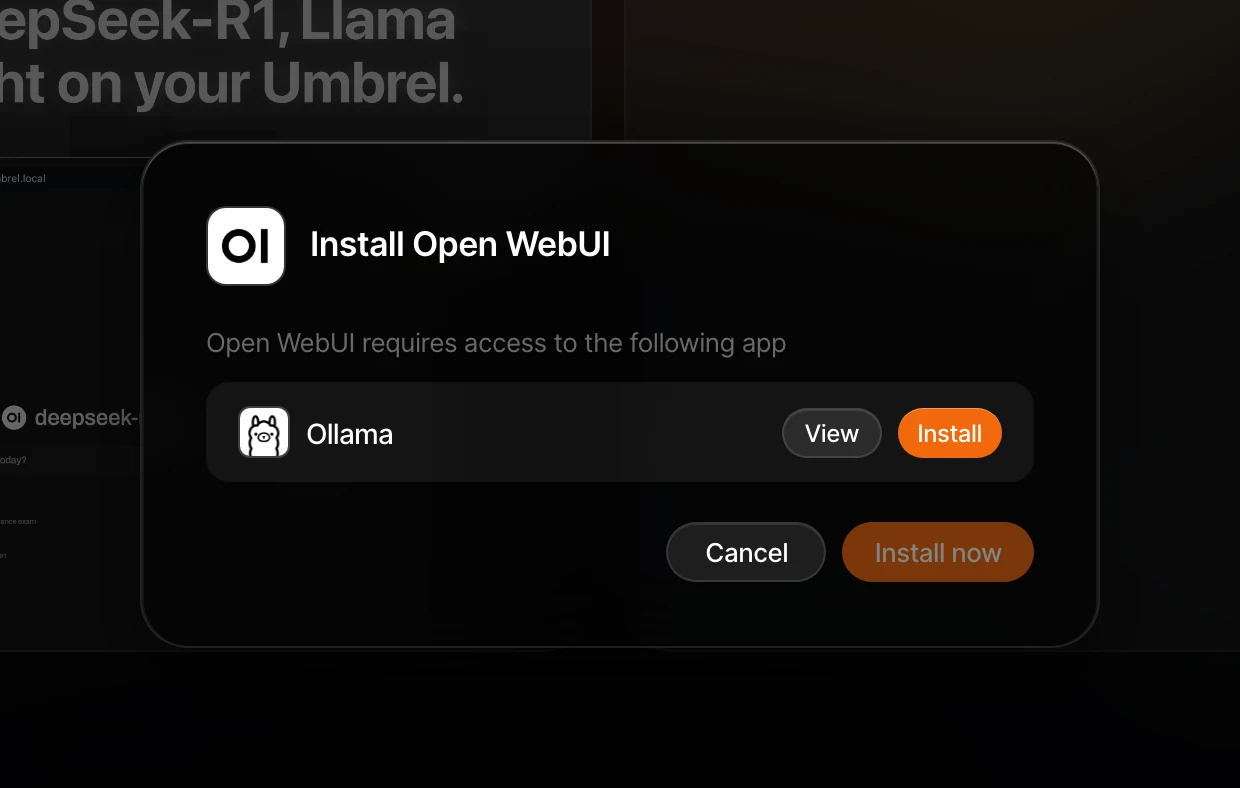
Some apps require other apps to be installed first. For example, Open WebUI requires Ollama to be installed for running AI models locally. If an app has dependencies, the first step of the install dialog lists the required apps.
- Install each required app shown in the dialog. If alternatives are available, you can choose which one to use.
- Once all dependencies are installed, continue through the dialog and click Install now.
You can see which apps an installed app is connected to later under Connections in its app settings.
Default credentials
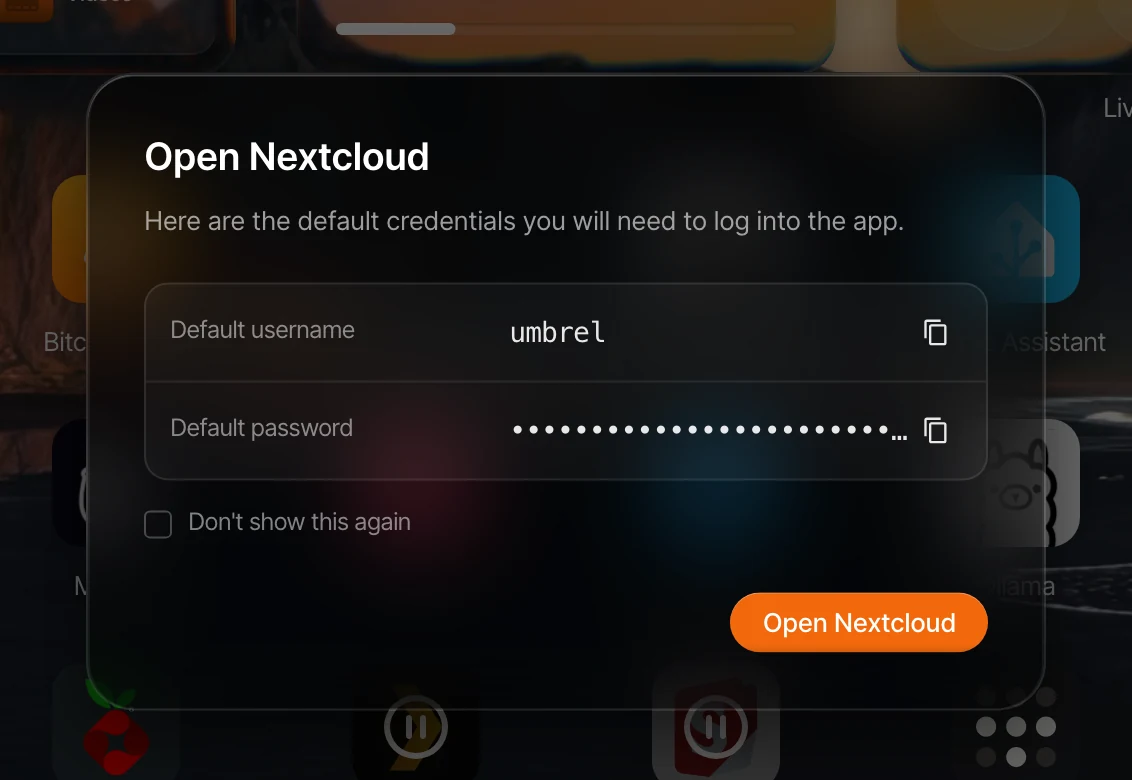
Some apps come with default login credentials. The first time you open one of these apps, an Open dialog shows the default username and password. Tick Don't show this again if you don't want to see it every time.
You can view the credentials at any time by right-clicking the app icon on your home screen, selecting Settings, and opening Default credentials. The Show before opening switch there controls whether the credentials appear each time you open the app. They're also listed on the app's page in the App Store once it's installed.
App security
Most apps in the official App Store are protected by your Umbrel login, so anyone trying to open them must first log in to your Umbrel. If you have two-factor authentication enabled, that applies too.
The owner can change this per app with the Require Umbrel login switch in the app's settings:
- Some apps ship with Umbrel login turned off, usually because it can stop mobile apps, integrations, or remote access tools from connecting. You can turn it on if you don't need those.
- If you turn Umbrel login off, anyone who can reach the app on your network can open it without signing in to Umbrel. Only do this if the app has its own secure login.
- Some apps show This app manages its own login. These apps handle sign-in themselves, and the switch isn't available.
If your Umbrel has more than one user, the login page asks which account is signing in, and members can only open apps the owner has shared with them.
Can't find an app?
If the app you're looking for isn't in the App Store, you have a few options:
- Community app stores. Third-party app stores can be added to umbrelOS for access to more apps. See How to add a community app store.
- Portainer. Install the Portainer app from the App Store to run any Docker container manually.
- Machines. Run a full Linux or Windows computer inside your Umbrel and install whatever software you like. See Using Machines.
- Request or contribute an app. You can reach out to the app's developers and suggest they package it for umbrelOS, or contribute a package yourself. Learn more at github.com/getumbrel/umbrel-apps.
Troubleshooting
"Update umbrelOS" prompt
If the app requires a newer version of umbrelOS, you'll see an Update umbrelOS prompt. Click Check for umbrelOS update to open Settings > Software update, install the latest version available for your device, then try installing the app again.
"This app ID conflicts with another app store"
This happens when two app stores you've added (for example the official store and a community store) both have an app with the same ID. You can't install, update, or manage that app until you remove one of the conflicting community app stores.
Installation fails
- Check that your device has enough free storage for the app.
- Make sure your device is connected to the internet.
- Try restarting umbrelOS and installing again.
- If the issue persists, check your logs for more details.