
Network devices
Access files on other Umbrels, NAS devices, or shared drives from within Files
You can add other Umbrels, NAS devices, or shared drives on your local network or private Tailscale network to Files and browse their files alongside your own. Network devices appear under Network Devices in the Files sidebar.
Add a network device
- Click the + next to Network Devices in the Files sidebar.
- Devices on your network will be auto-discovered. Select the one you want to add, or enter the server details manually if your device doesn't show up.
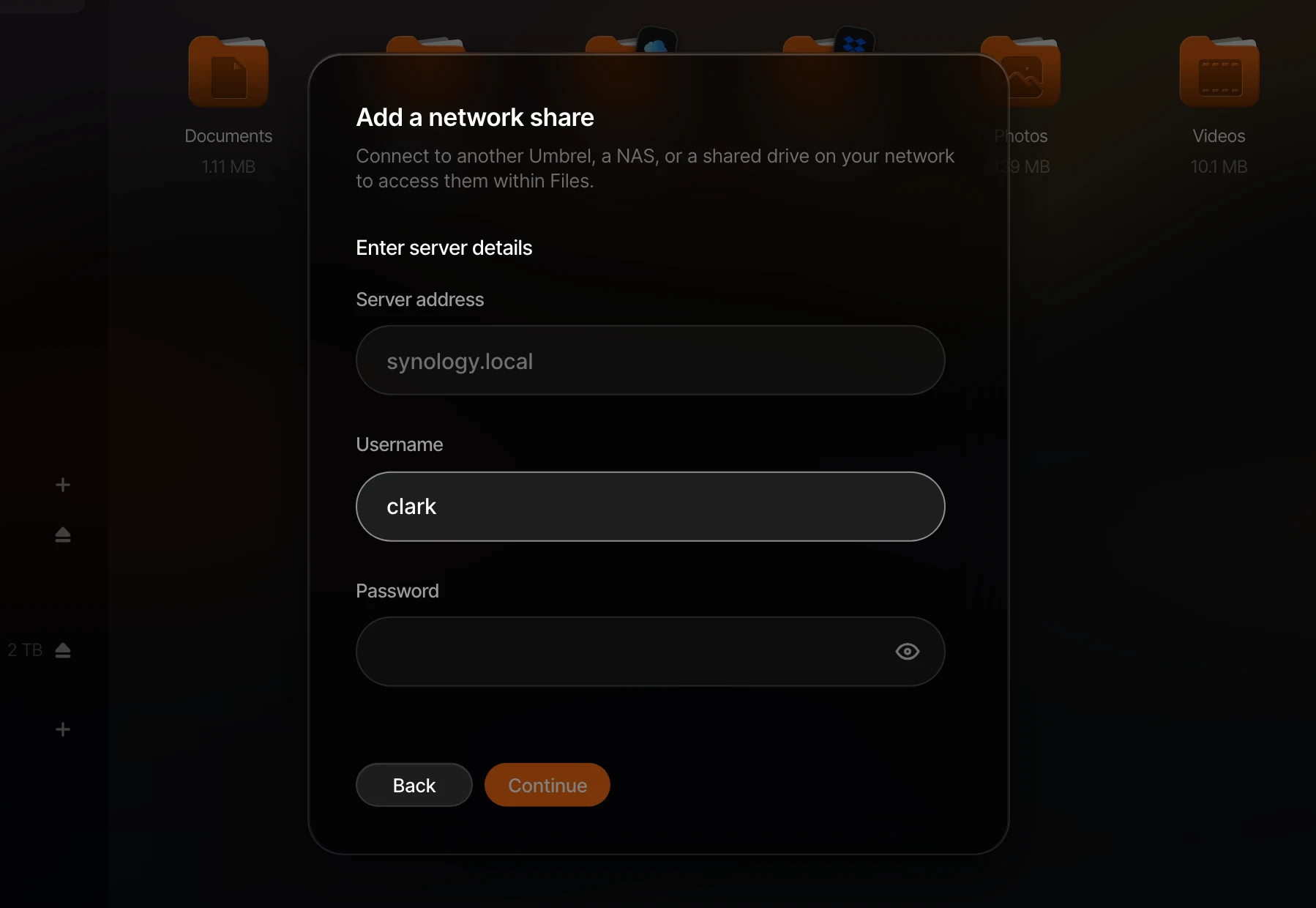
- Enter the username and password for that device.
- Select a share to add. If you don't see the share you're looking for, you can enter its name manually.
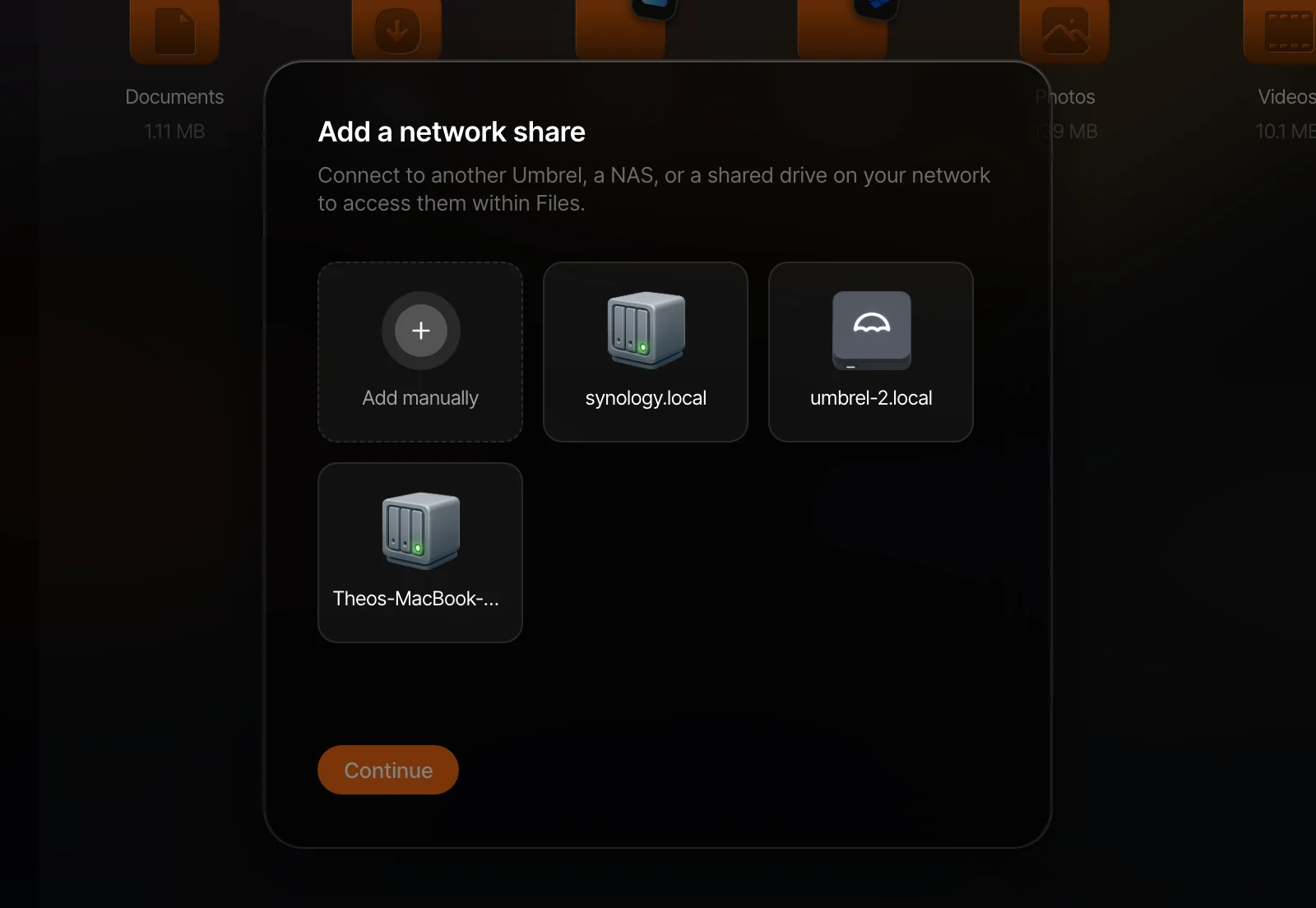
The device will now appear under Network Devices in the sidebar. You can browse, download, upload, and manage files on it just like your local files.
If your device isn't discovered
Auto-discovery works by scanning your local network for devices that advertise file sharing. If your device doesn't appear, click Add manually and enter its details. You'll need the server address, username, password, and share name.
For another Umbrel connected over Tailscale, use its Tailscale IP address or MagicDNS name as the server address instead of umbrel.local or a local IP address like 192.168.1.100. You can find the Tailscale IP address or MagicDNS name in the Tailscale app or admin dashboard.
Removing a network device
Click the eject button next to a network device in the sidebar to remove it.
Use as a backup location
Network devices can also be used as backup locations. Once a device is added, you can select it as a destination when setting up backups in Settings > Backups.
What to know
- Network devices connect over SMB, the same protocol used by Windows, macOS, and most NAS devices.
- If a network device goes offline or becomes unreachable, it will show as offline in the sidebar. It will automatically reconnect when the device comes back.
- Network devices can't currently be used to store or run apps. They're for browsing and managing files.