Downloading your files from the cloud
Bring your files home from Dropbox, OneDrive, iCloud Drive, Nextcloud, and more
Cloud lets you download your files from cloud storage services to your Umbrel. You can download everything once, or keep a folder on your Umbrel up to date with your cloud storage automatically.
Cloud only ever reads from your cloud storage. It never uploads, changes, or deletes anything in your cloud account. Files go directly from the cloud service to your Umbrel, with nothing in between.
Supported services
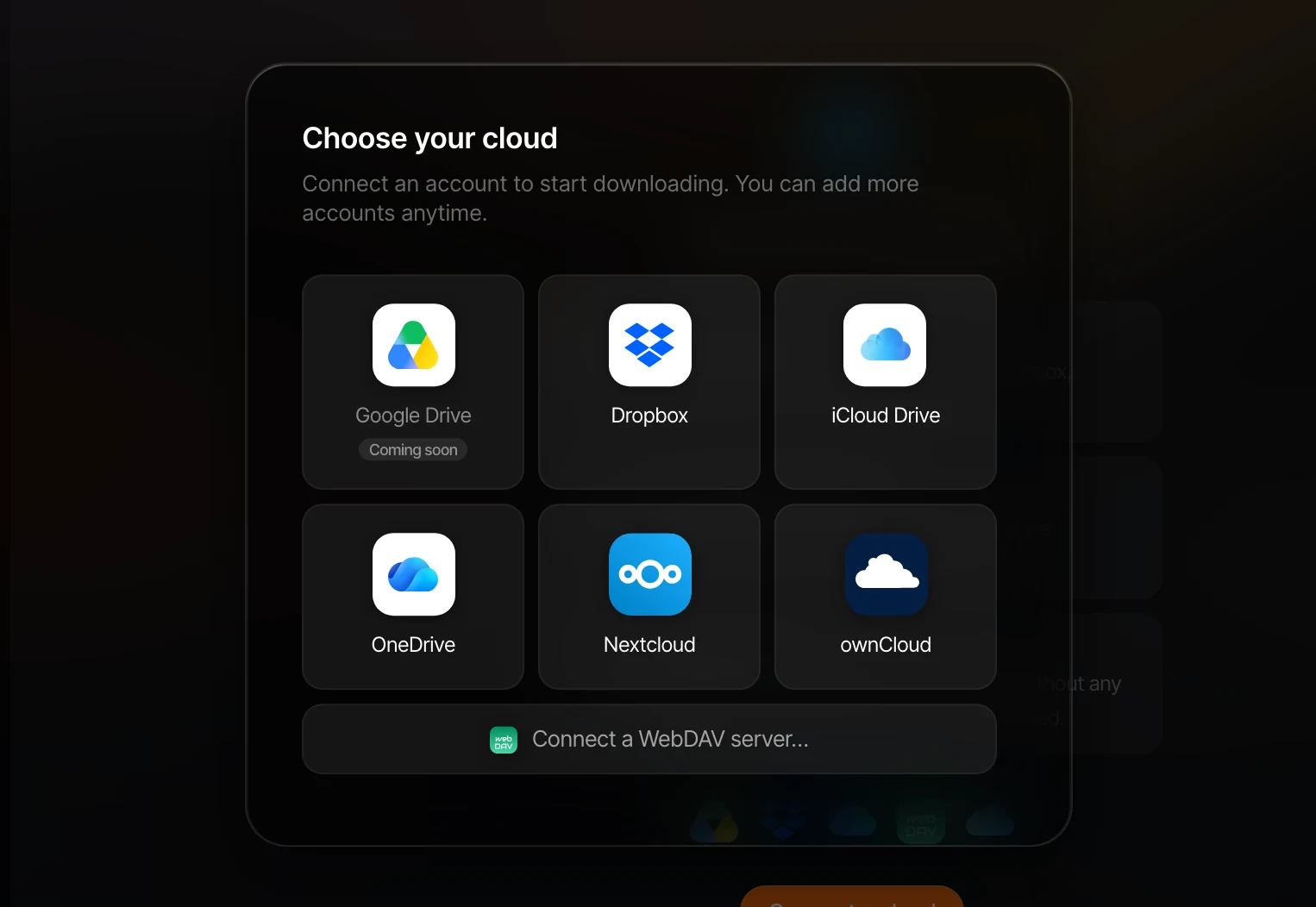
- Dropbox
- OneDrive
- iCloud Drive
- Nextcloud
- ownCloud
- Any WebDAV server
Google Drive shows as Coming soon.
Download from the cloud
-
Open Files and click Cloud in the sidebar.
-
Click Connect a cloud (or Add cloud if you already have one connected) and choose your cloud service.
-
Sign in (see below for each service).
-
Choose what to download:
- Download everything downloads all your files and folders.
- Choose a folder downloads a single folder.
-
Choose how to download:
- Keep up to date checks your cloud storage about every 30 minutes and downloads anything new or changed. Files you delete in the cloud are removed from your Umbrel too.
- Download once downloads everything one time. Afterwards it's a regular folder you can edit.
-
Choose where to save it. By default it goes into a new folder in your Home folder, like My Dropbox. You can also pick an empty folder anywhere in your Home folder, on a USB drive, or on a network device. The folder you pick must be empty.
You can also right-click inside an empty folder in Files and choose Download from cloud here....
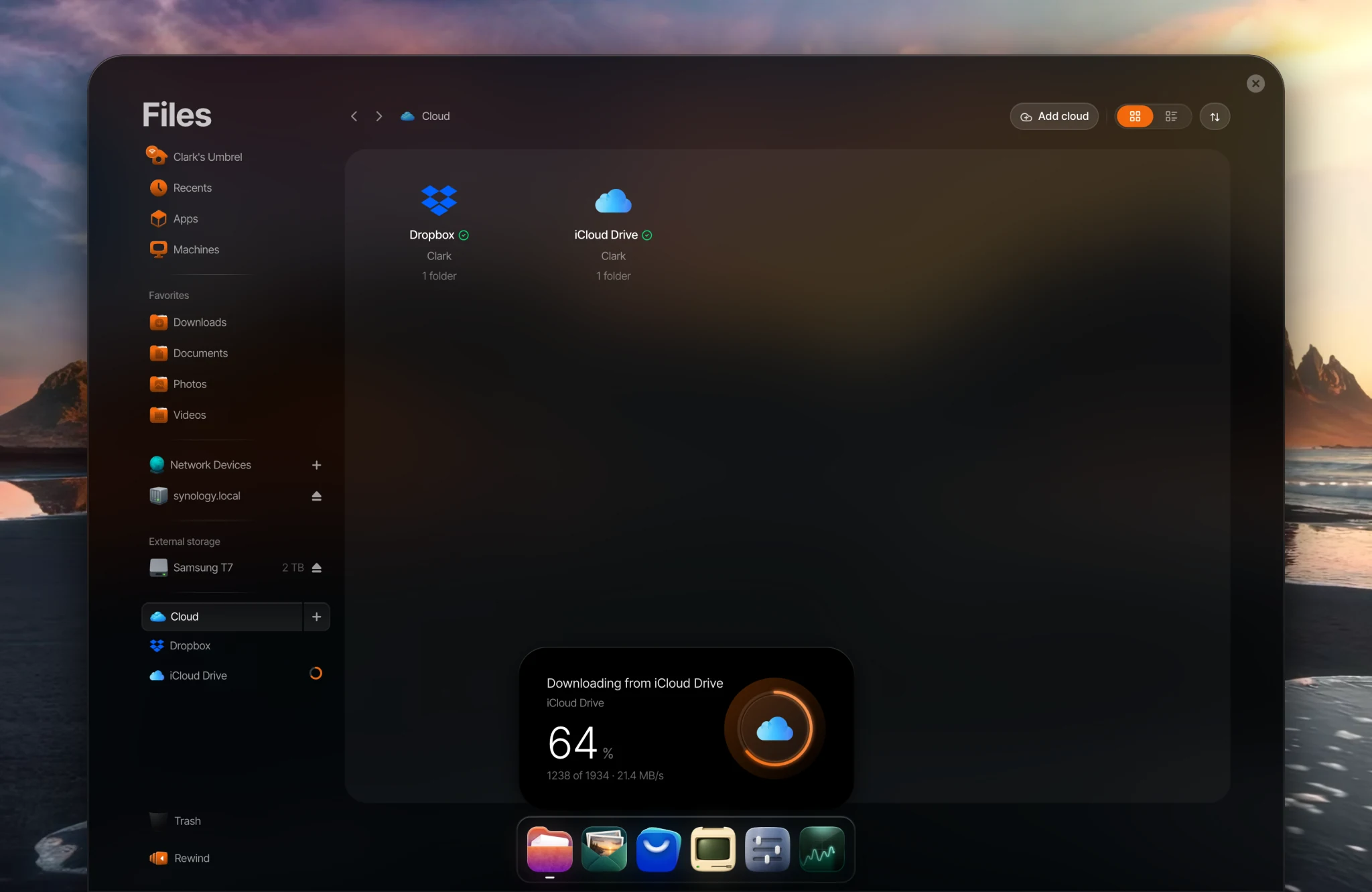
Files shows the download progress while it runs. Only one cloud download runs at a time on your Umbrel, so others wait their turn.
Signing in
Dropbox and OneDrive
- Click Continue to Dropbox (or OneDrive). A new tab opens where you sign in and give your Umbrel read-only access.
- After you approve, the page shows an authorization code. Copy it.
- Go back to your Umbrel, paste the code into Paste authorization code, and click Finish connecting.
Finish within 10 minutes, or you'll need to start again.
OneDrive's Personal Vault isn't included, because Microsoft requires an extra identity check to access it.
iCloud Drive
- Make sure Access iCloud Data on the Web is turned on for your Apple Account. On your iPhone, go to Settings > your name > iCloud > Access iCloud Data on the Web.
- Enter your Apple ID and password.
- Enter the verification code sent to your Apple devices, or choose Text me a code instead.
Your Umbrel signs in directly with Apple. iCloud may ask you to sign in again from time to time.
Nextcloud, ownCloud, and WebDAV
Enter the address you use to open the service in your browser, your username, and your password. If you use two-factor authentication with Nextcloud or ownCloud, create an app password in its security settings and use that instead of your regular password.
Folders that are kept up to date
While a folder is set to Keep up to date, you can't edit it in Files. This keeps it an exact copy of your cloud storage. To work with the files, copy them somewhere else first.
If you add or change files in that folder another way (for example over network file sharing), they'll be overwritten or removed at the next check.
Keep up to date is a mirror, not a backup of your cloud. If a file is deleted in the cloud, it's removed from your Umbrel too. For your own backups of your Umbrel, see Backing up your data.
Manage your downloads
Click Cloud in the Files sidebar to see your connected accounts and downloads. For each download you can:
- Pause and Resume it.
- Download now to check for changes right away.
- Stop download... to stop keeping it up to date. The folder and everything in it stay on your Umbrel and become a regular folder you can edit.
To remove an account, choose Manage... and then Disconnect.... Its folders stop downloading and become regular folders. Everything already downloaded stays on your Umbrel. For OneDrive, also remove Umbrel's access in your Microsoft account settings.
Status
Each download shows its status:
- Up to date: the latest check finished.
- Updating...: it's downloading now.
- Paused: you paused it, or your Umbrel was restored from a backup. Click Resume when you're ready.
- Rate-limited: the cloud service is temporarily limiting downloads. Your Umbrel waits and tries again automatically.
- Sign in: you've been signed out of the account. Click Sign in again to continue.
- Disconnected: the account was disconnected.
If you have more than one user
Each person's cloud accounts and downloads are private to them. Members can use Cloud to download into their own Home folder.
Things to know
- Your Umbrel needs enough free space for everything you download. Cloud keeps some space free and won't fill your storage completely.
- Photos and videos downloaded into your Home folder also show up in Photos.
- Downloaded files are included in your umbrelOS backups like any other files in your Home folder. Files downloaded to a USB drive or network device aren't.