



Performance troubleshooting
Fix issues with storage, memory, or CPU usage on your Umbrel
If your Umbrel is running slowly, apps are crashing, or you're seeing warnings about storage or memory, start by checking Live Usage. Click the Live Usage icon in the dock to see real-time breakdowns of storage, memory, and CPU usage, including how much each app is using.
Storage full
umbrelOS will notify you when your storage is full. When this happens, apps may fail to start or behave unexpectedly. To free up space:
- Delete files you no longer need in Files, and empty the Trash.
- Uninstall apps you're not using. Check Live Usage to see which apps are using the most storage.
- Add more storage. Plug in an external drive and move files to it to free up internal storage, or add more SSDs if you're on Umbrel Pro.
Low memory
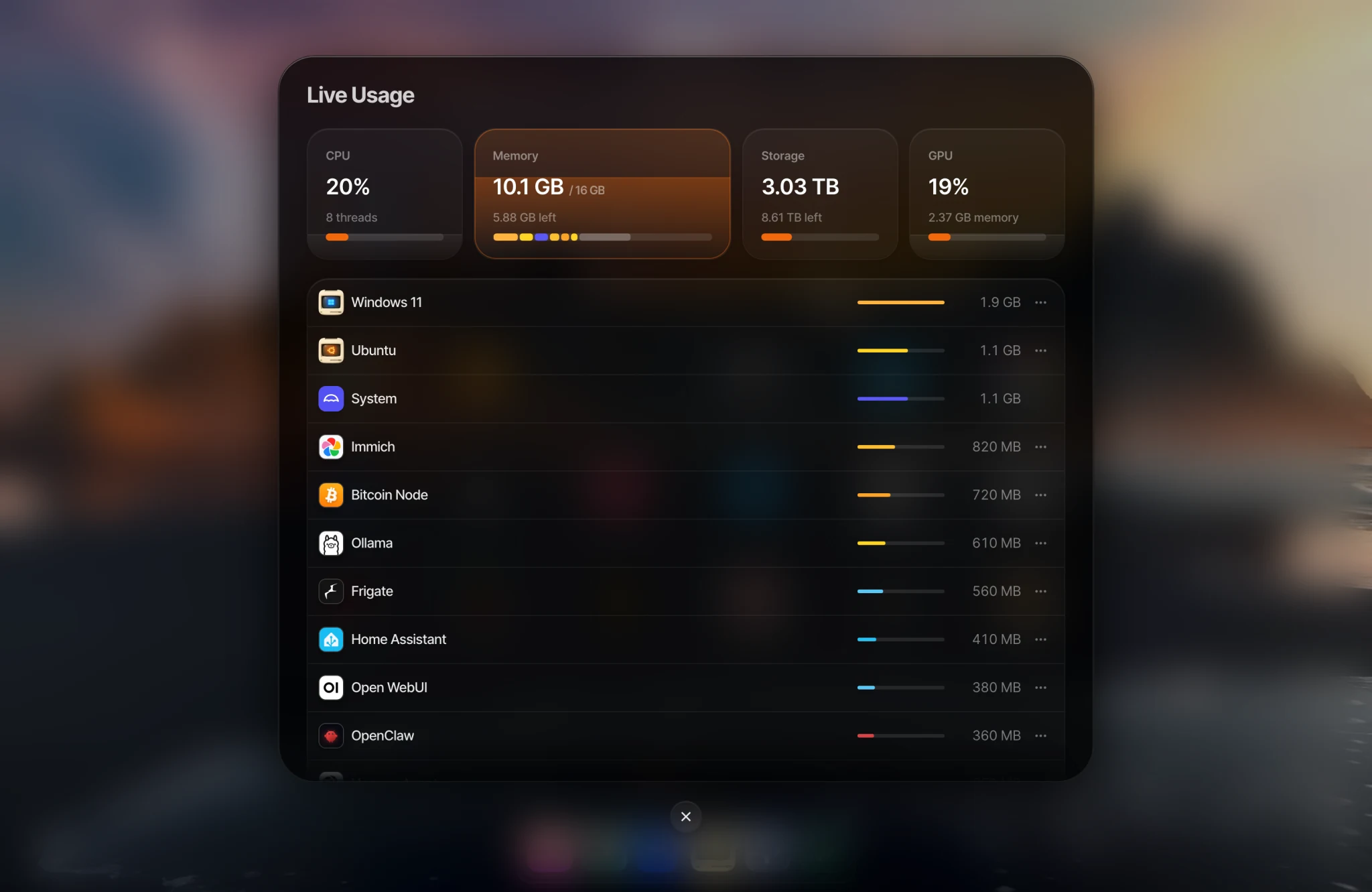
umbrelOS will notify you when your device's memory is running low. umbrelOS uses compressed swap (zram) to extend your available memory beyond what's physically installed, so even if your memory usage looks high, your device may still be running comfortably. If you see a low memory warning though, that means your device is genuinely running out and it usually means too many apps are running at once. To free up memory:
- Stop apps you're not actively using. Check Live Usage to see which apps are using the most memory, then right-click the app icon and select Stop. Stopped apps stay installed but don't use any resources, and they won't start again until you manually start them. This is great for apps you only need on demand.
- Uninstall apps you no longer need.
- Restart your Umbrel from Settings to clear any memory that apps haven't released.
High CPU usage
If your Umbrel feels sluggish, it may not be a CPU issue. If you're accessing your Umbrel remotely, a slow connection can also make the interface feel unresponsive.
If your network connection is fine, check Live Usage to see if a specific app is consuming most of the CPU. Some apps, like Bitcoin Node during its initial sync, are expected to use a lot of CPU temporarily. If an app is consistently using too much CPU and affecting performance, try restarting it.
Can't access the UI
If the web interface won't load, it could be a network issue. See Network troubleshooting. It can also happen when your device is critically low on memory or storage. To recover:
- Restart your device using the power button and immediately stop any apps you don't need before memory fills up again.
- If that doesn't help, reach out to support and we'll help you recover.