

Support
BasicsUpdated October 2, 2026
Monitoring your Umbrel's performance
Monitor CPU, memory, and storage usage on your Umbrel
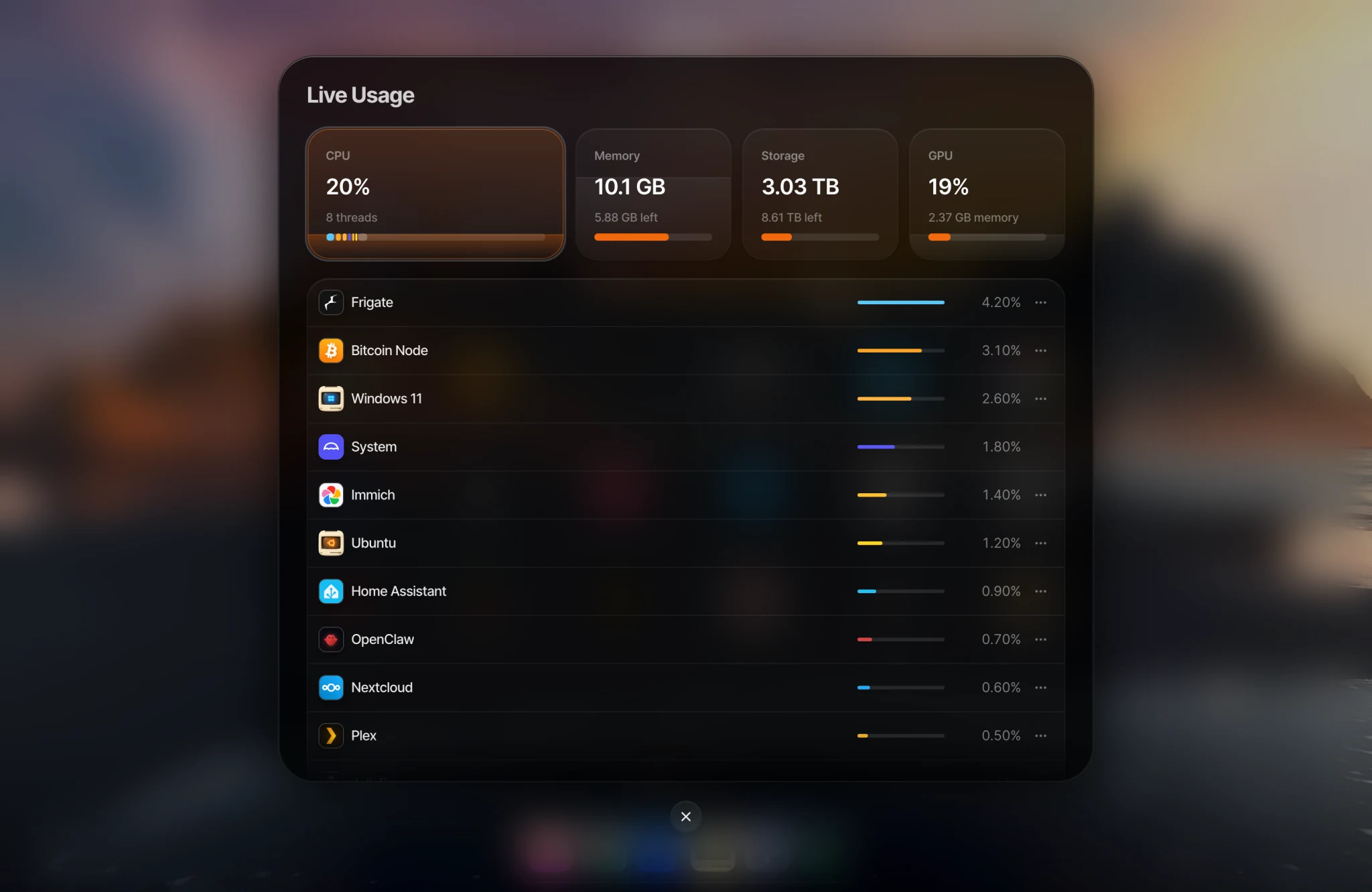
Live Usage lets you see how your Umbrel's resources are being used in real time. You can monitor CPU, memory, and storage, with a breakdown showing how much each app is using.
Open Live Usage
Click the Live Usage icon in the dock, or open it from Settings.
What you'll see
- CPU. Real-time processor usage with a live chart and per-app breakdown.
- Memory. How much RAM is being used, with a live chart and per-app breakdown. You'll see a warning if memory is running low.
- Storage. Total storage used with a per-app breakdown. You'll see a warning if storage is getting low or full.
When it's useful
Live Usage is helpful for understanding which apps are using the most resources. If your Umbrel feels slow or an app isn't performing well, check Live Usage to see if a particular app is using an unusual amount of CPU or memory.
You can also add Live Usage widgets to your home screen for a quick glance without opening the full view. See Personalizing your Umbrel for more on widgets.