

Managing your storage
Manage your SSDs and hard drives, choose between FailSafe and Full Storage, add SSD acceleration, and monitor drive health
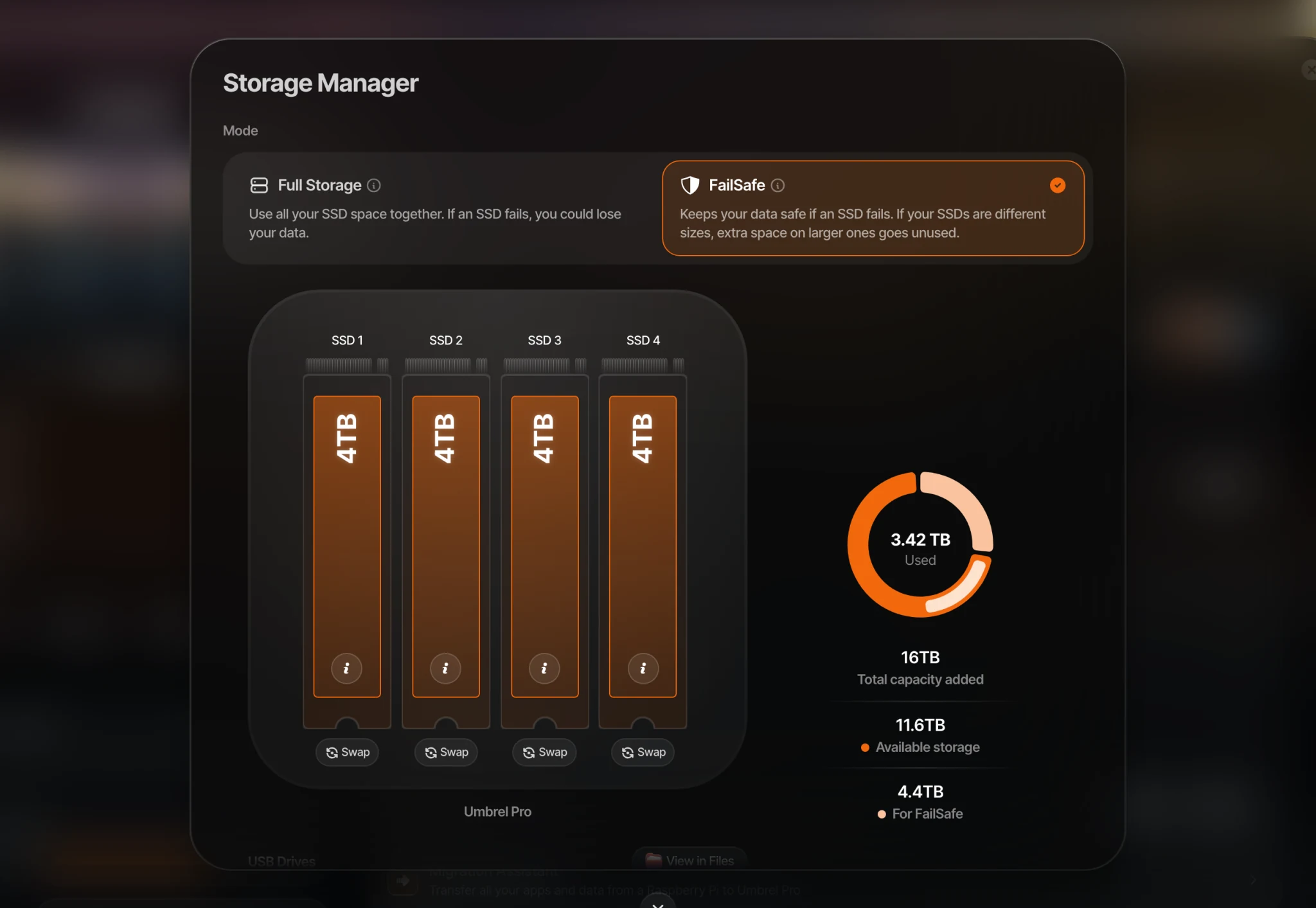
Storage Manager lets you manage the internal drives in your Umbrel. You can add new drives, choose how they work together (RAID), swap out old ones, and monitor their health. It works with SSDs and hard drives on any device with more than one internal drive slot, including Umbrel Pro, NAS devices, mini PCs, and servers. You'll find it in Settings > Storage Manager.
Looking for external storage instead? See External storage.
What you need
- A device with two or more internal NVMe or SATA drive slots. With a single drive, umbrelOS simply uses it, and Storage Manager shows that drive's health.
- NVMe and SATA drives. SAS drives, which usually connect through an HBA card, don't appear in setup or Storage Manager yet. SAS support is coming in umbrelOS 2.1.
- Drives connected directly to your device. Drives behind a hardware RAID controller and virtual drives that aren't set up as SATA or NVMe don't appear either. USB drives and USB drive enclosures work as external storage, not as part of your main storage.
- Empty drives, or drives you're happy to erase. umbrelOS erases a drive when it's added to your storage, and it can't adopt a drive that already holds data from another system, such as NTFS, XFS, or a pool from Unraid or TrueNAS. See Bringing over data from existing drives.
- On your own hardware, umbrelOS should run from a separate boot drive, such as onboard storage (eMMC), a USB drive, or a small SSD, so your storage drives are free to be pooled. The drive umbrelOS boots from can't be part of a pool. See Running umbrelOS on your own hardware.
- Storage Manager isn't available on Raspberry Pi.
SSDs and hard drives can't be mixed in the same pool. If your device has both, the hard drives make up your storage and the SSDs can be used for SSD acceleration.
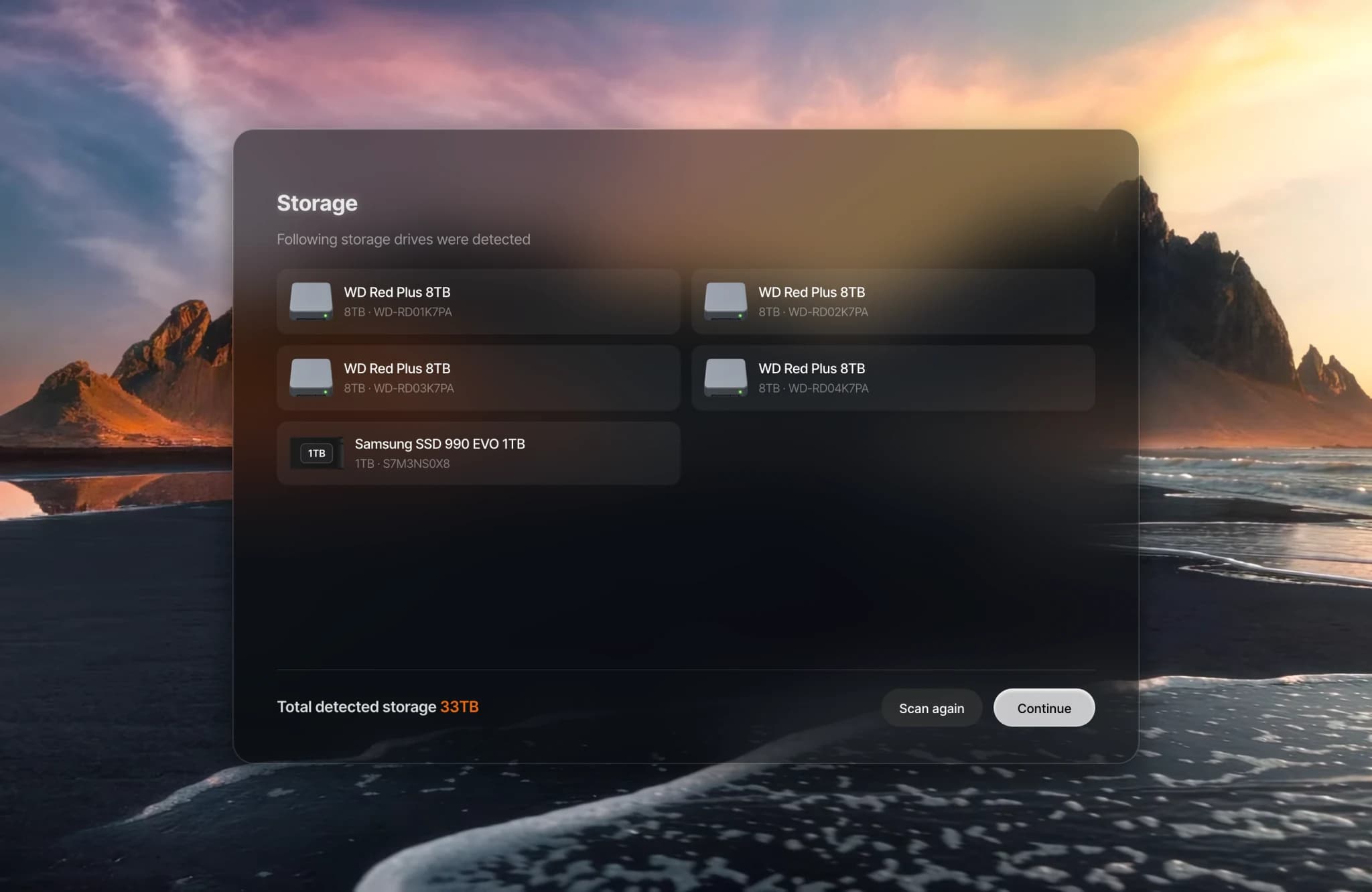
When you set up umbrelOS on a device with more than one internal drive, setup lists the drives it found before you choose how to use them.
FailSafe vs Full Storage
When you have more than one drive, you choose between two modes:
- FailSafe. Keeps copies of your data across your drives so if any single drive fails, your data stays safe. With SSDs, this uses ZFS RAIDZ1, and if your SSDs are different sizes, extra space on the larger ones goes unused. With hard drives, this uses mirrored pairs: you need an even number of drives, ideally the same size, and half of the total capacity is reserved for protection.
- Full Storage. Combines all your drives into one large storage pool, giving you maximum space. However, if any drive fails, all your data will be lost. Under the hood, this uses ZFS with striping.
FailSafe protects against drive failure, but it's not a replacement for backups. It won't protect against accidental deletion, theft, or damage to your device.
Switching modes
- SSDs. With one SSD, your Umbrel runs in Full Storage mode. When you add a second SSD, you'll have the option to enable FailSafe. This is the only time you can enable it. Any additional SSDs you add after that will simply expand your existing storage.
- Hard drives. You can enable FailSafe later as long as you have a free slot for every drive already in your storage. Storage Manager pairs each existing drive with a new drive of the same size or larger, and your Umbrel stays fully usable while the copies sync in the background. If you use SSD acceleration, you'll also need a second SSD to mirror it.
Switching from FailSafe back to Full Storage, or enabling FailSafe when multiple SSDs are already in Full Storage mode, requires backing up your data, factory resetting, and restoring from a backup.
SSD acceleration for hard drives
If your device has hard drives plus a spare SSD slot, which is common on NAS devices, you can add an SSD to make everything faster. All of your data stays on the hard drives, while umbrelOS uses the SSD to cache frequently accessed data and store small files. Apps load faster and heavy tasks complete quicker, and even a small SSD makes a noticeable difference.
- Full Storage uses one SSD.
- FailSafe uses two SSDs of the same size. They're mirrored so acceleration stays intact if one fails. If the SSDs are different sizes, only the size of the smaller one is used.
You can add acceleration during initial setup or later. Shut down your Umbrel, install the SSD, power back on, and click Enable under SSD Acceleration in Storage Manager. Once added, the SSD becomes part of your storage and can't be removed. Under the hood, this uses a ZFS special device for small files and metadata plus an L2ARC read cache on the SSD.
Adding drives
Shut down your Umbrel, install the new drive, and power back on. For physical installation steps on Umbrel Pro, see Setting up Umbrel Pro. Storage Manager will detect the new drive and walk you through adding it to your storage. With hard drives in FailSafe mode, new drives are added as mirrored pairs.
Swapping or replacing a drive
If you need to replace a drive, go to Settings > Storage Manager and click Swap. Storage Manager will walk you through every step, including when to shut down, physically swap the drive, and power back on. What to expect depends on your setup:
- FailSafe. You can swap out any single drive without losing data. FailSafe will rebuild your data onto the new drive. No backup needed. After physically swapping the drive, return to Storage Manager to start the rebuild.
- Full Storage with an empty slot. You can add the new drive first and your data will be migrated over before you remove the old one. No backup needed. After installing the new drive, return to Storage Manager to start the migration.
- Full Storage with all slots full. You'll need to back up your data, factory reset, swap the drive, and restore from your backup.
Bringing over data from existing drives
Setup lists each internal drive and asks before erasing it, so nothing is erased without your confirmation. To keep what's on a drive you plan to use for storage, copy it somewhere else first, then copy it back once umbrelOS is set up:
- From another computer or NAS on your network. Add it as a network device in Files and copy your files across.
- From a USB drive. Plug it in and copy your files from External storage in Files. If Files offers to format the drive, its format isn't supported: don't format it, and copy the files over your network instead.
- From your computer. Turn on file sharing and copy files to your Umbrel from Finder or File Explorer.
Moving from another Umbrel? See Migrating to a new Umbrel.
Drive health
Storage Manager monitors the health of each drive, including temperature, wear level on SSDs, and errors. Click the i on a drive to see its details. You'll see warnings if a drive is overheating, wearing out, or showing signs of failure, giving you time to replace it before you lose data.
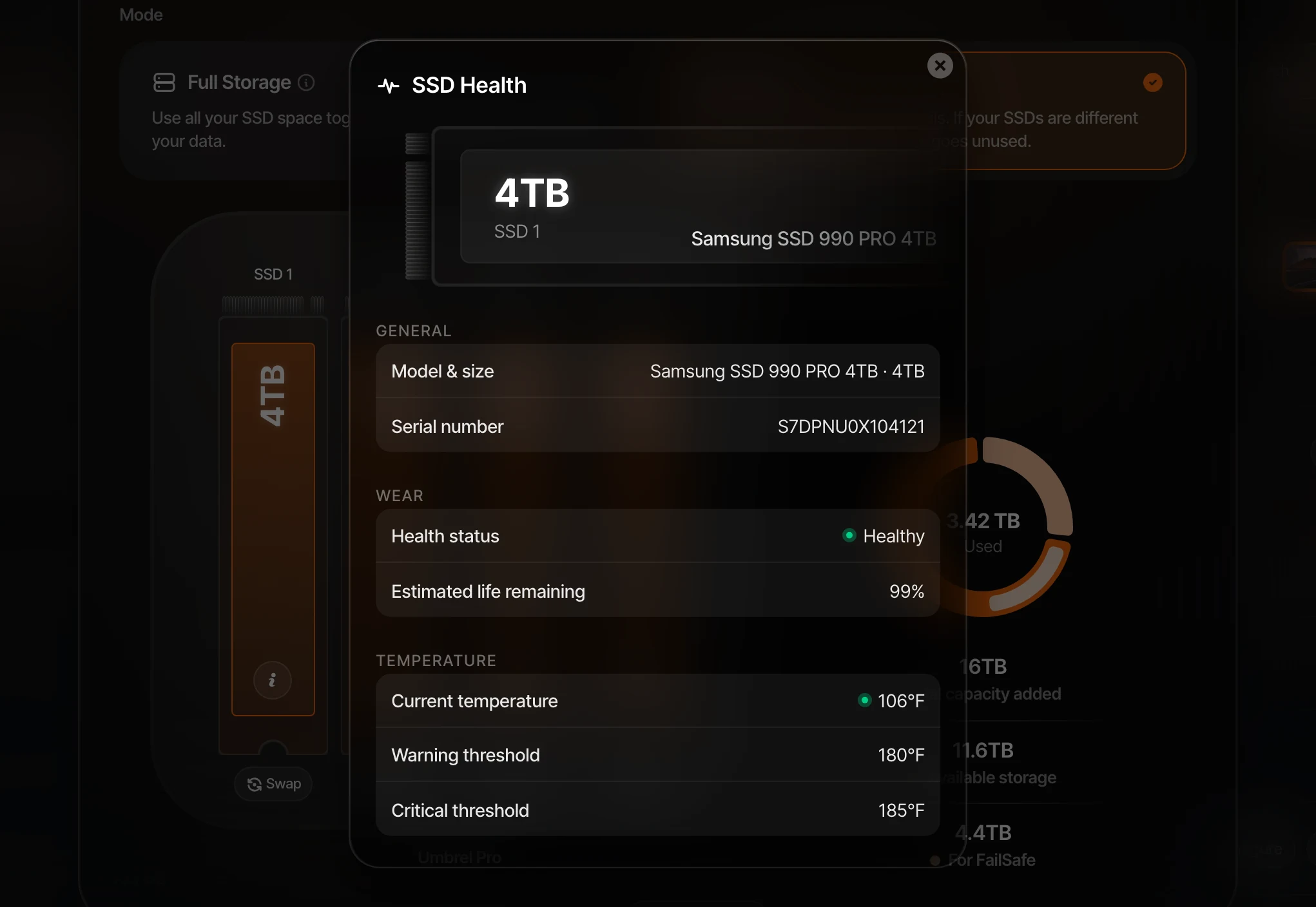
If a drive fails or goes missing while in FailSafe mode, Storage Manager will let you know that your protection is reduced and prompt you to replace the drive to restore full protection.
What to know
- If a drive goes missing (disconnected or failed), Storage Manager will alert you and guide you through next steps.
- You can continue using your Umbrel normally while drives are being added or storage is expanding. Enabling FailSafe on SSDs requires a brief automatic restart partway through, but you can resume normal use right after.