Accessing your files from other devices
Share your Umbrel's files and folders with other devices on your network
You can share files and folders from your Umbrel so other devices on your local network can access them, like a personal Dropbox. Shared folders appear as network drives on your computer or phone, letting you browse, open, and save files directly. This uses SMB, the standard file sharing protocol built into macOS, Windows, and iOS.
On a Mac, the easiest way to connect is the Umbrel for Mac app. It finds your Umbrel automatically and adds your shared folders to Finder.
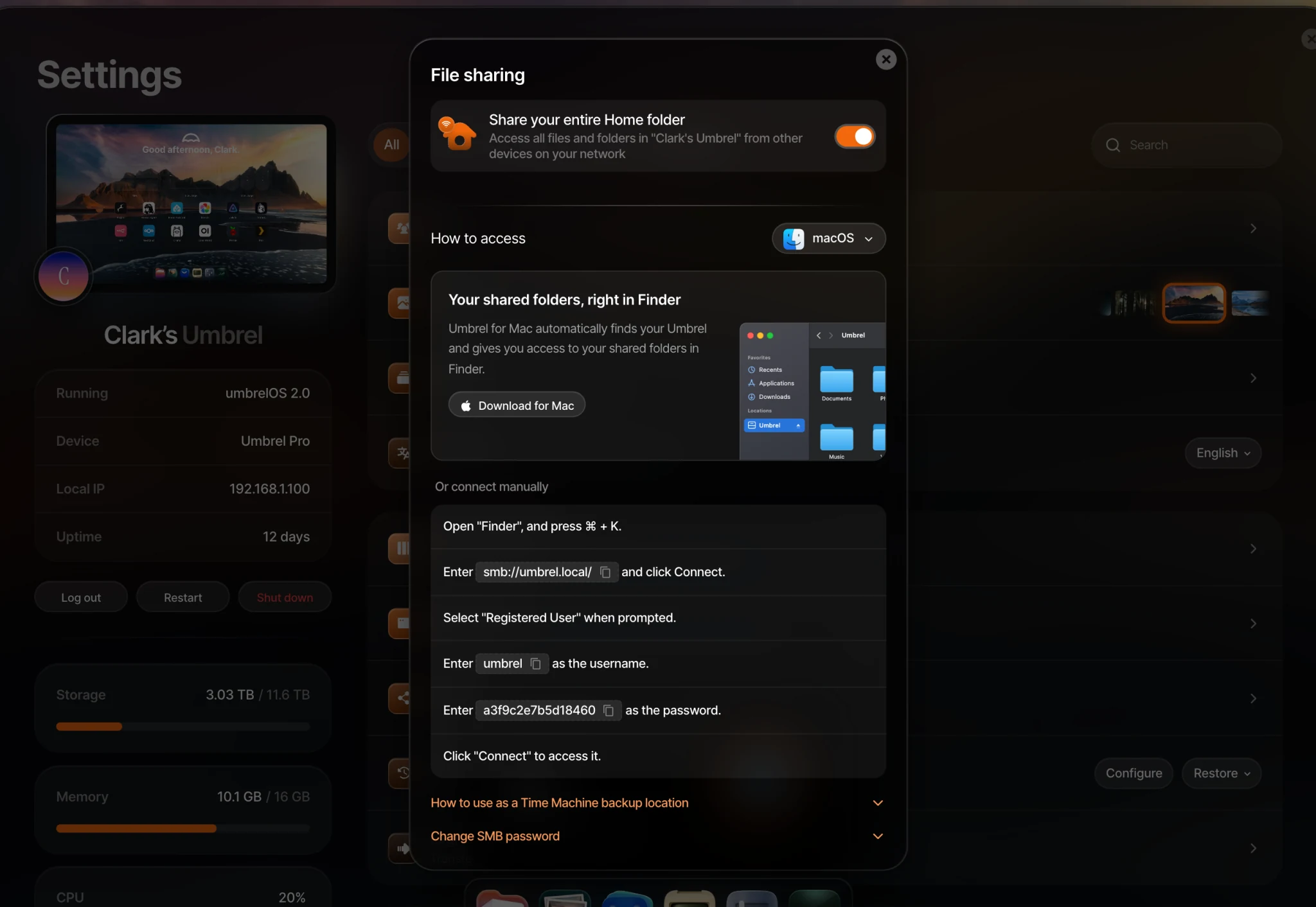
Set up file sharing
- Go to Settings > File sharing.
- Choose what to share. Pick Everything to share your entire Home folder, or Specific folders to pick individual folders from your Home folder or an external USB drive.
You can also right-click any folder in Files and select Share over network... to share it directly.
Once sharing is enabled, you'll see a username and password in your file sharing settings, along with step-by-step instructions for your device. These are separate from your Umbrel login, and you'll need them to connect from other devices.
File sharing with multiple users
If your Umbrel has more than one user, each account has its own file sharing username and password.
- The owner's username is always
umbrel. - Members can use file sharing only if the owner turns on Allow file sharing (SMB) for them in Settings > Users. Once that's on, the member sees File sharing in their own Settings, with their own username and password.
- Members can only share folders from their own Home folder.
To share a folder with another person on the same Umbrel, you don't need network sharing. Right-click the folder in Files and choose Share with users... instead.
Change your file sharing password
Go to Settings > File sharing and choose Change SMB password. The password must be between 6 and 127 characters. This password is separate from your Umbrel login password, and changing it disconnects any devices that use the old one, so you'll need to reconnect them with the new password.
Share folders on external drives
Folders on external USB drives can be shared over your local network just like folders on internal storage. Plug in the drive, open Settings > File sharing, choose Specific folders, click Add, then select the drive or a folder under External storage. Only the owner can share folders on USB drives.
If the drive is disconnected, the shared folder will show as unavailable and won't be published over the network until the drive is connected again. Always eject the drive in Files before unplugging it.
What can't be shared
These locations can't be shared over the network: the Apps folder, Machines, Trash, network devices you've added, and backup folders.
Connect from your devices
After setting up file sharing, the UI shows step-by-step instructions for connecting from macOS, Windows, iOS, and other Umbrels. For macOS, it points you to Umbrel for Mac first, with manual steps under Or connect manually. You'll need the SMB address, username, and password shown in your file sharing settings.
There are no built-in instructions for Android, but most Android file manager apps that support SMB can connect with the same address, username, and password.
Use as a Time Machine backup
You can use a shared folder on your Umbrel as a Time Machine backup location for your Mac. The instructions for setting this up are shown in your file sharing settings under macOS.
Use as a backup location for another Umbrel
If you have two Umbrels, one can back up to the other. For the most reliable setup, install Tailscale on both Umbrels and sign in with the same Tailscale account. Then share a folder on the destination Umbrel, add it as a network device from the source Umbrel using the destination Umbrel's Tailscale IP address or MagicDNS name, and set that folder as a backup location.
Instructions for sharing folders and connecting from another Umbrel are shown in your file sharing settings.
Accessing files remotely
File sharing works over your local network. To access your files when you're away from home, see Remote access. Umbrel for Mac can also keep your shared folders connected over Tailscale when you're away.
Security
Shared folders are protected by each account's file sharing username and password. Only devices on your local network that have these credentials can access your shared files.
Managing shared folders
Go to Settings > File sharing to see your shared folders, add new ones, or stop sharing. You can also disable file sharing entirely from the same page. If you're sharing your entire Home folder, individual folders don't need to be shared separately.