
Support
Getting StartedUpdated October 2, 2026
Connecting to your Umbrel
How to access your Umbrel from a browser on your local network
Once your Umbrel is set up and connected to your router, you can access it from any device on the same network.
Open umbrel.local
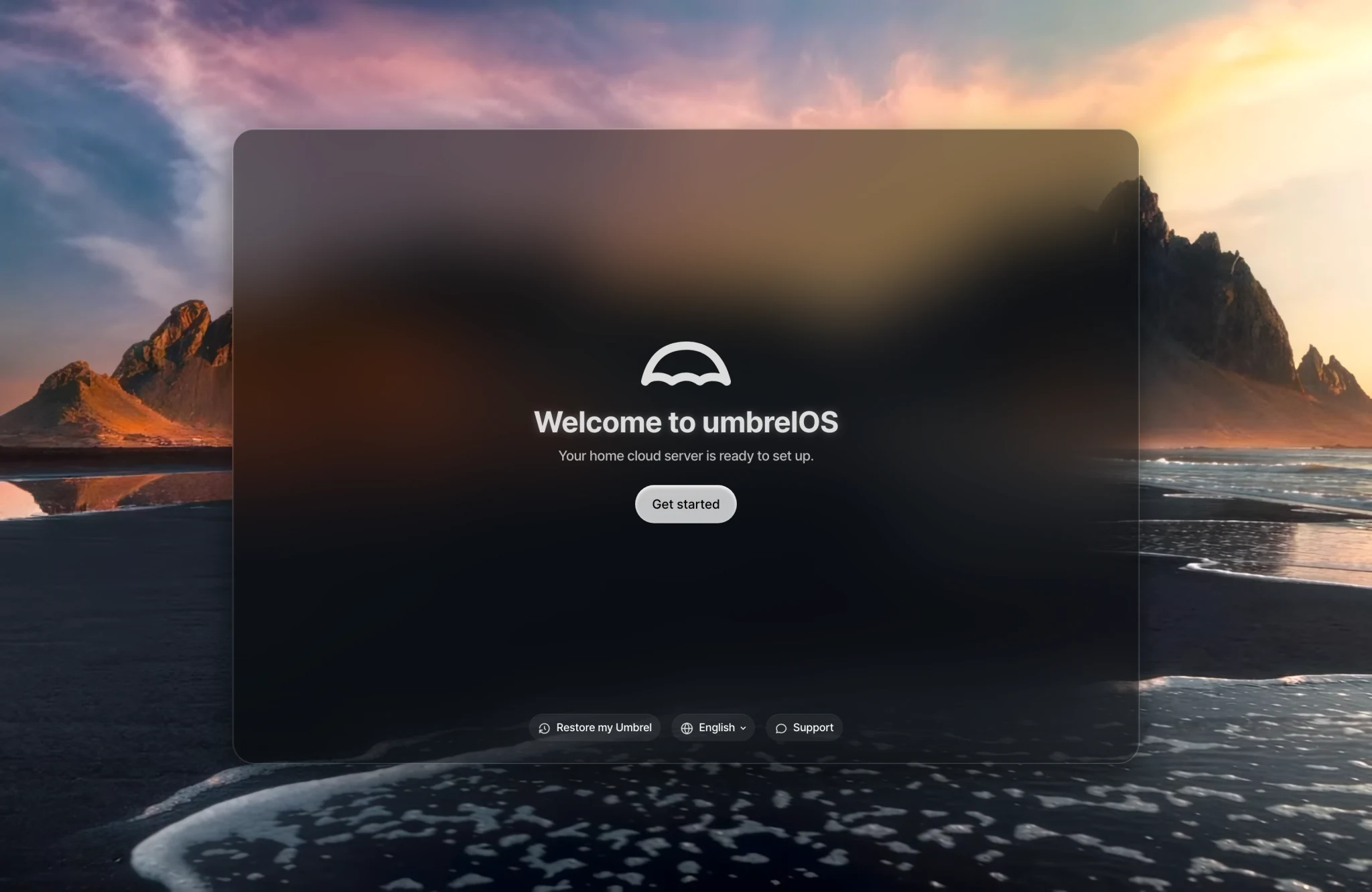
On a computer or phone connected to the same network, open a browser and go to http://umbrel.local. This works on most devices and networks out of the box.
If it doesn't work
Some routers and devices don't support .local addresses. If it doesn't load, you can use your Umbrel's IP address instead, for example http://192.168.1.100. Here are a few ways to find it:
- Check Settings. If you can already access your Umbrel, your local IP address is shown in Settings.
- Check your router's app. If you have a modern router like Eero, Google Wifi, or Orbi, open its companion app and look for a device named "umbrel" in the list of connected devices.
- Use the Fing app. Fing is a free app that scans your network and shows all connected devices. Look for "umbrel" in the list.
- Check your router's admin page. Open
192.168.1.1or192.168.0.1in your browser (check your router's documentation for the exact address), log in, and look for a connected device named "umbrel".
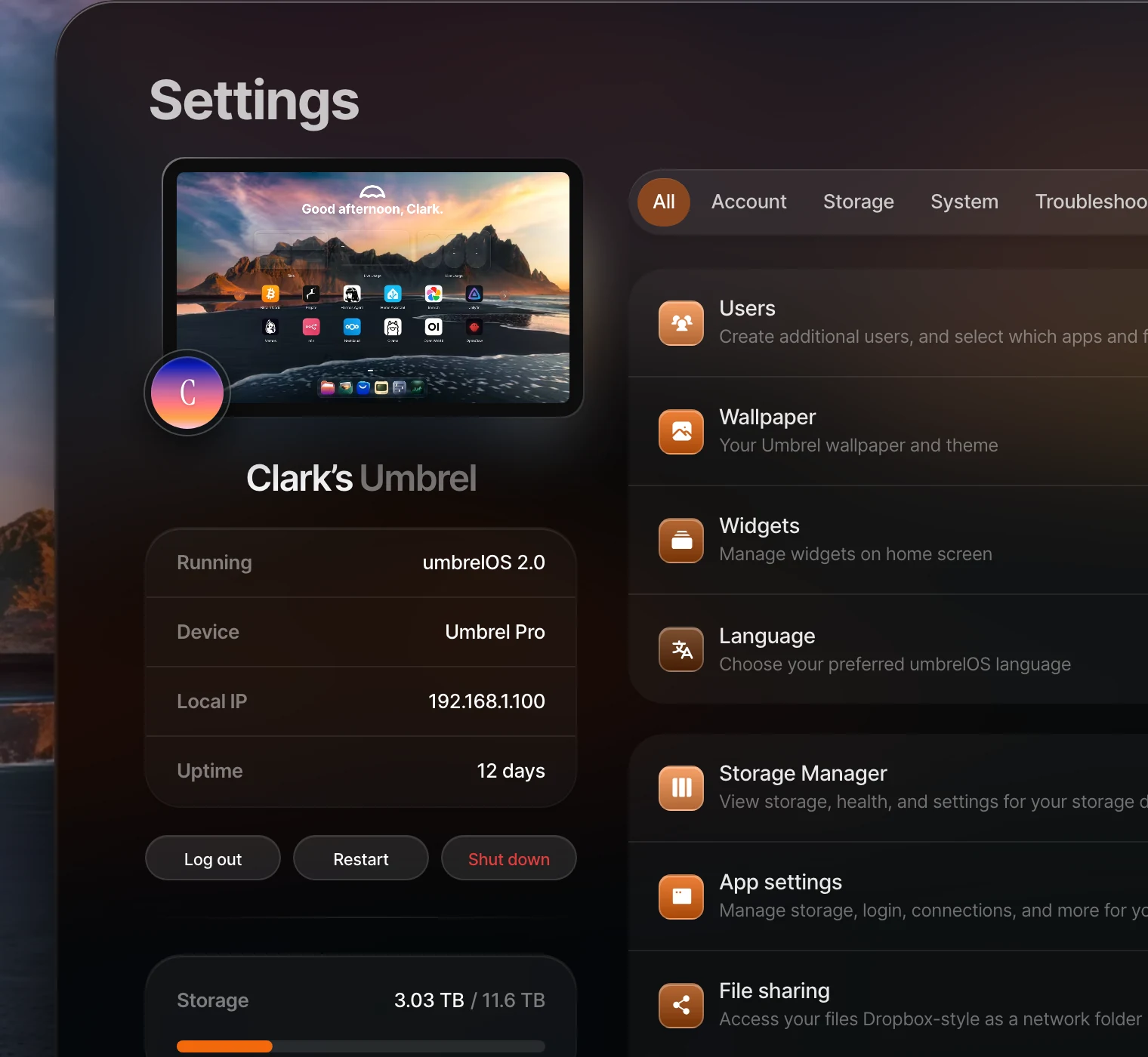
Once you find the IP address, type it into your browser to access your Umbrel.
For more details, see Network troubleshooting.
Common issues
- Make sure you're on the same network. Your computer or phone must be connected to the same router as your Umbrel, not a guest network or a different access point.
- Make sure your Umbrel is powered on and connected via ethernet. Check that the ethernet cable is plugged in to both your Umbrel and your router, and that the LED is on.
- Try a different browser. Some browsers or extensions can interfere with
.localaddress resolution. - Restart your router. If your Umbrel was recently connected, your router may need a moment to assign it an IP address. A restart can help.
Accessing your Umbrel remotely
To access your Umbrel from outside your home network, see Remote access.