Reinstalling umbrelOS on Umbrel Home and Pro
Do a clean install of umbrelOS on your Umbrel Home or Umbrel Pro using a USB stick
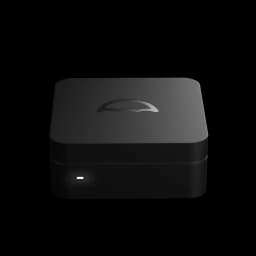
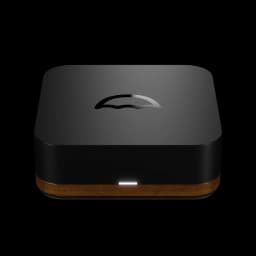
If your Umbrel Home or Umbrel Pro won't boot, is stuck, or can't be recovered any other way, you can reinstall umbrelOS from scratch using a USB stick. Umbrel Home and Umbrel Pro do this fully automatically with no display, keyboard, or mouse required.
Before going this far, try restarting your Umbrel or a factory reset from Settings. Only reinstall if you can't access your Umbrel at all.
Before you start
- This erases umbrelOS. The installer wipes the drive umbrelOS lives on and installs a fresh copy. On Umbrel Home, umbrelOS and all your data share the internal SSD, so reinstalling erases your account, apps, and files. Make sure you have a backup of anything you need.
- You'll need a USB stick with at least 4 GB of space. It will be erased.
- Umbrel Pro has USB-C ports. Use a USB-C stick, or a USB-A to USB-C adapter.
How it works
The USB installer automatically detects where umbrelOS belongs on your device and installs it there:
- Umbrel Home: the internal SSD.
- Umbrel Pro: the onboard 64 GB storage. Your SSDs aren't used for umbrelOS.
Because the installer knows which drive to use, it runs without any input from you and powers the device off when it's done.
Reinstall umbrelOS
- Download the latest umbrelOS USB installer on your computer.
- Download and install Balena Etcher.
- Connect your USB stick to your computer.
- Open Balena Etcher, select the umbrelOS installer, select your USB stick, and flash it.
- Make sure your Umbrel is powered off, then plug the USB stick into it.
- Power on your Umbrel and leave it alone. The installer runs on its own, and there's nothing to click or confirm.
- After about 4 to 5 minutes, the installation finishes and your Umbrel turns itself off. You'll know it's done when the LED on the front goes off.
- Remove the USB stick.
- Connect an ethernet cable from your Umbrel to your router, then power it on.
- Wait about 2 minutes for the first boot to complete, then open http://umbrel.local in your browser. You'll be taken through the setup process as if your Umbrel were brand new.
Don't unplug the power while the LED is on during installation. If the LED is still on after 10 minutes, power off, check that the USB stick was flashed correctly, and try again.
See Connecting to your Umbrel if you need help accessing it after the reinstall, and Restoring from a backup to bring back your apps and data.