

Umbrel for iPhone
Back up your iPhone's photos to your Umbrel and keep an eye on your Umbrel from your phone
Umbrel for iPhone is the official Umbrel app for iPhone. Its main job is backing up your camera roll to your Umbrel automatically, so your photos and videos show up in the Photos app on your Umbrel. You can also use it to check on your Umbrel, see your apps and updates, and open your apps in your browser.
Using an Android phone? See Umbrel for Android.
What you'll need
- An iPhone running iOS 26.5 or later. The app isn't available for iPad.
- An Umbrel running umbrelOS 2.0 or later. If your Umbrel is on an older version, the app will ask you to update umbrelOS first.
- Your Umbrel account name and password. Both owners and members can use the app.
- Tailscale, if you want to use Photo Backup. Tailscale needs to be set up on both your Umbrel and your iPhone.
Download the app
Open link.umbrel.com/ios-app on your iPhone. Umbrel for iPhone is currently distributed through Apple's TestFlight, so the link opens TestFlight, where you can install the app. If you don't have TestFlight yet, your iPhone will prompt you to install it from the App Store first.
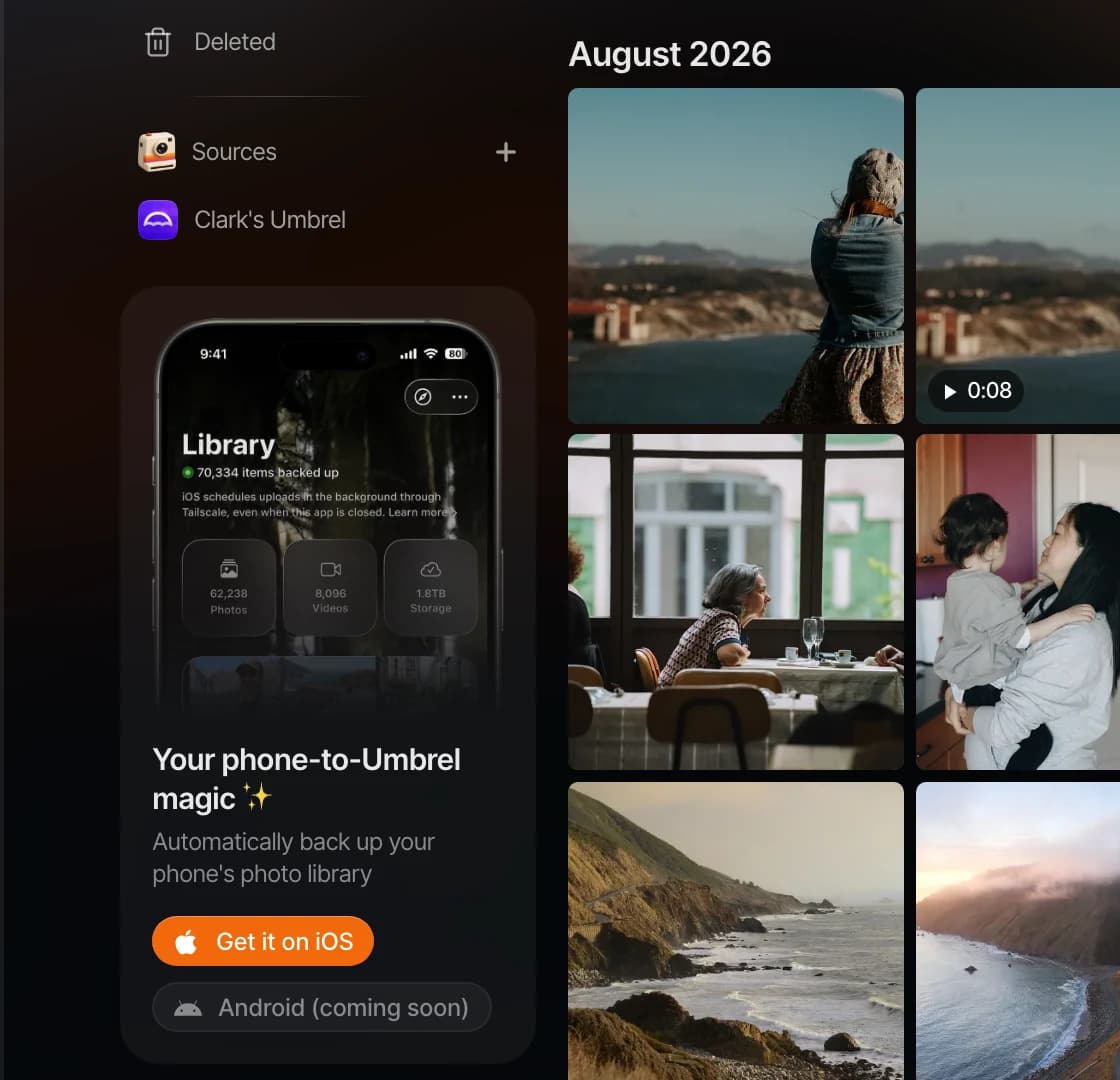
You can also find the link in umbrelOS. Look for Get it on iOS in the Photos app sidebar, or on the welcome screen after you set up your Umbrel.
Connect to your Umbrel
- Open the app and tap through the welcome screen.
- When asked, allow the app to find devices on your local network. Your iPhone needs to be on the same Wi-Fi network as your Umbrel for this step.
- The app searches for Umbrels on your network. Choose yours and tap Connect.
- If your Umbrel has more than one user, choose your name.
- Enter your Umbrel password, and your 2FA code if you have two-factor authentication turned on.
If the app can't find your Umbrel
Tap Can't find your Umbrel? Connect by address and enter one of these:
- Your Umbrel's local IP address, which you can find in Settings on your Umbrel next to Local IP
- Its local hostname, like
umbrel.local. If you changed your hostname, use the new one. - Its Tailscale IP address or MagicDNS name
Web addresses on the public internet and addresses with a port number aren't accepted.
If the app shows Allow network access, tap Open Settings and turn on Local Network for Umbrel in your iPhone's settings.
What the app does
The app has four tabs:
- Home shows whether your Umbrel is online and how much storage is used. It also has a button to open umbrelOS in your browser.
- Apps lists your installed apps and available updates. Tapping an app opens it in your browser. Installing, starting, and stopping apps is done in umbrelOS itself.
- Library shows the photos and videos on your iPhone with a badge showing which ones are backed up. This is where you set up Photo Backup.
- Profile has your connection details and Photo Backup settings, including Back up photos, Back up videos, and Allow cellular uploads. You can also sign out here.
To browse your files, the app opens the Files app of umbrelOS in your browser.
Photo Backup
Photo Backup copies your iPhone's photos and videos to your Umbrel in the background, even when the app is closed. Your photos show up in the Photos app on your Umbrel, and they're stored in your Home folder under Photos > iPhone.
Photo Backup sends your photos over Tailscale, including when you're at home, so Tailscale must be set up on your Umbrel and your iPhone first. See Backing up photos from your iPhone for setup steps and details.
Security
When you first connect, the app saves your Umbrel's security certificate so it can verify it's talking to your Umbrel every time. Your password is never stored on your iPhone. Connections over your local network are encrypted with HTTPS, and connections through Tailscale are encrypted by Tailscale.
The app appears as Umbrel for iPhone in your Umbrel's active logins. You can log it out from there at any time. Changing your Umbrel password doesn't sign the app out.
Sign out or remove your Umbrel
In the Profile tab, tap Sign out. Signing out pauses Photo Backup until you sign in again. Photos that were already backed up stay on your Umbrel.
To remove an Umbrel from the app completely, sign out, tap the Umbrel, and choose Remove from this iPhone. If you add the same Umbrel again later, Photo Backup continues into the same folder.
Troubleshooting
- "Update required." Your Umbrel needs umbrelOS 2.0 or later. Update umbrelOS, then try again.
- "No device found." Make sure your iPhone and Umbrel are on the same network, then tap Scan again, or connect by address.
- "This Umbrel's security identity changed." This happens after your Umbrel is reset, reinstalled, or restored from a backup. Sign out, tap the Umbrel, choose Remove from this iPhone, then add it again.
- "This account is no longer signed in." Your login was removed from Active logins on your Umbrel. Sign in again.