Support
AppsUpdated October 2, 2026
Starting, stopping, or restarting an app
Control which apps are running on umbrelOS
By default, all installed apps start automatically when umbrelOS boots. You can control this by stopping apps you don't want running.
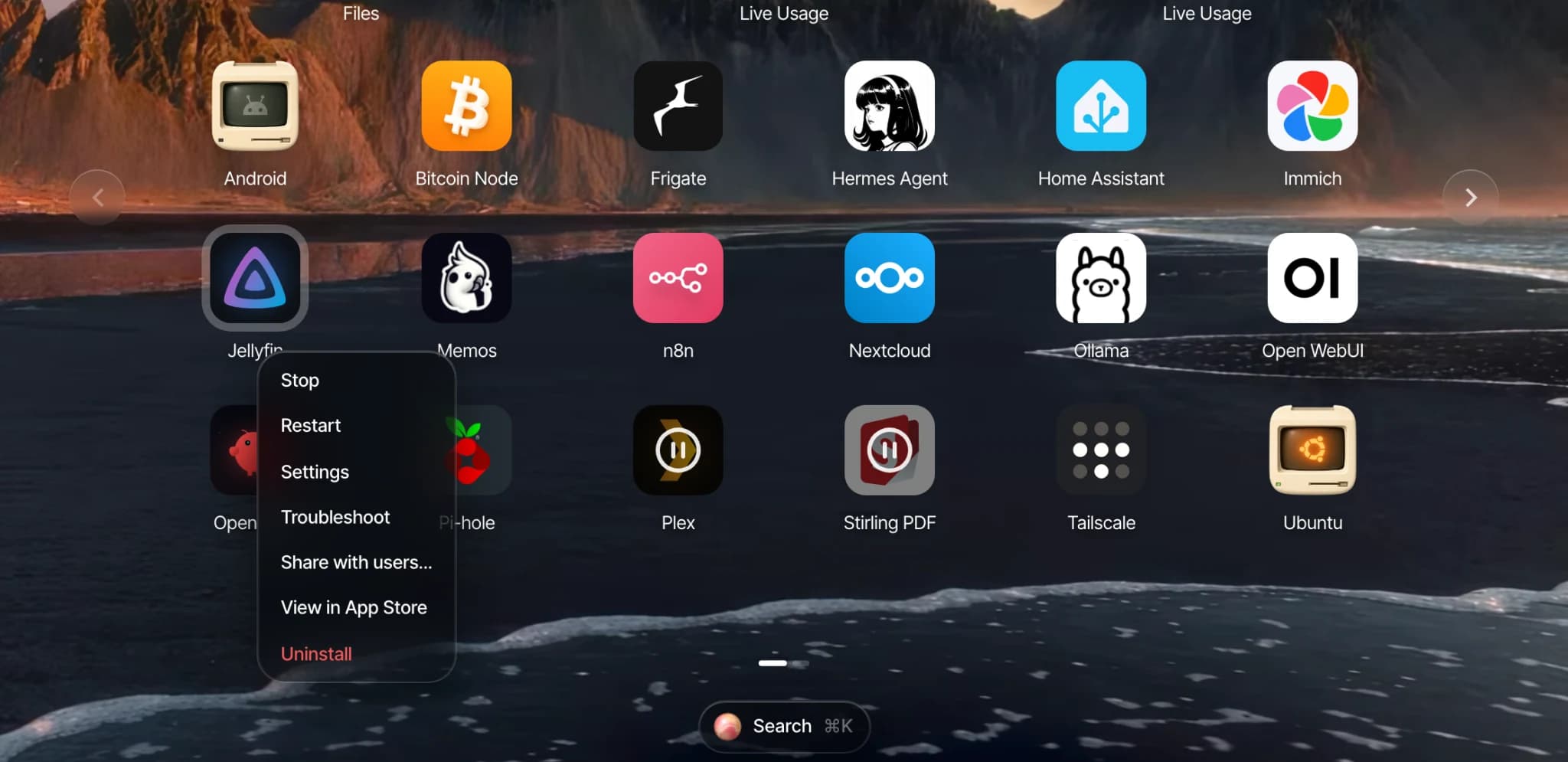
Stop or restart an app
Right-click the app icon on your home screen and select Stop or Restart. When an app is stopped, its icon is dimmed and shows a pause symbol.
Start a stopped app
Click a stopped app's icon on your home screen to start it again.
Prevent an app from auto-starting
There's no separate auto-start setting. Simply stop the app. Stopped apps stay stopped even when you reboot your Umbrel. This makes it easy to keep apps installed without having them use resources in the background. When you're ready to use the app again, just click it to start it.