
Managing active logins
See which devices are logged in to your Umbrel account and log them out
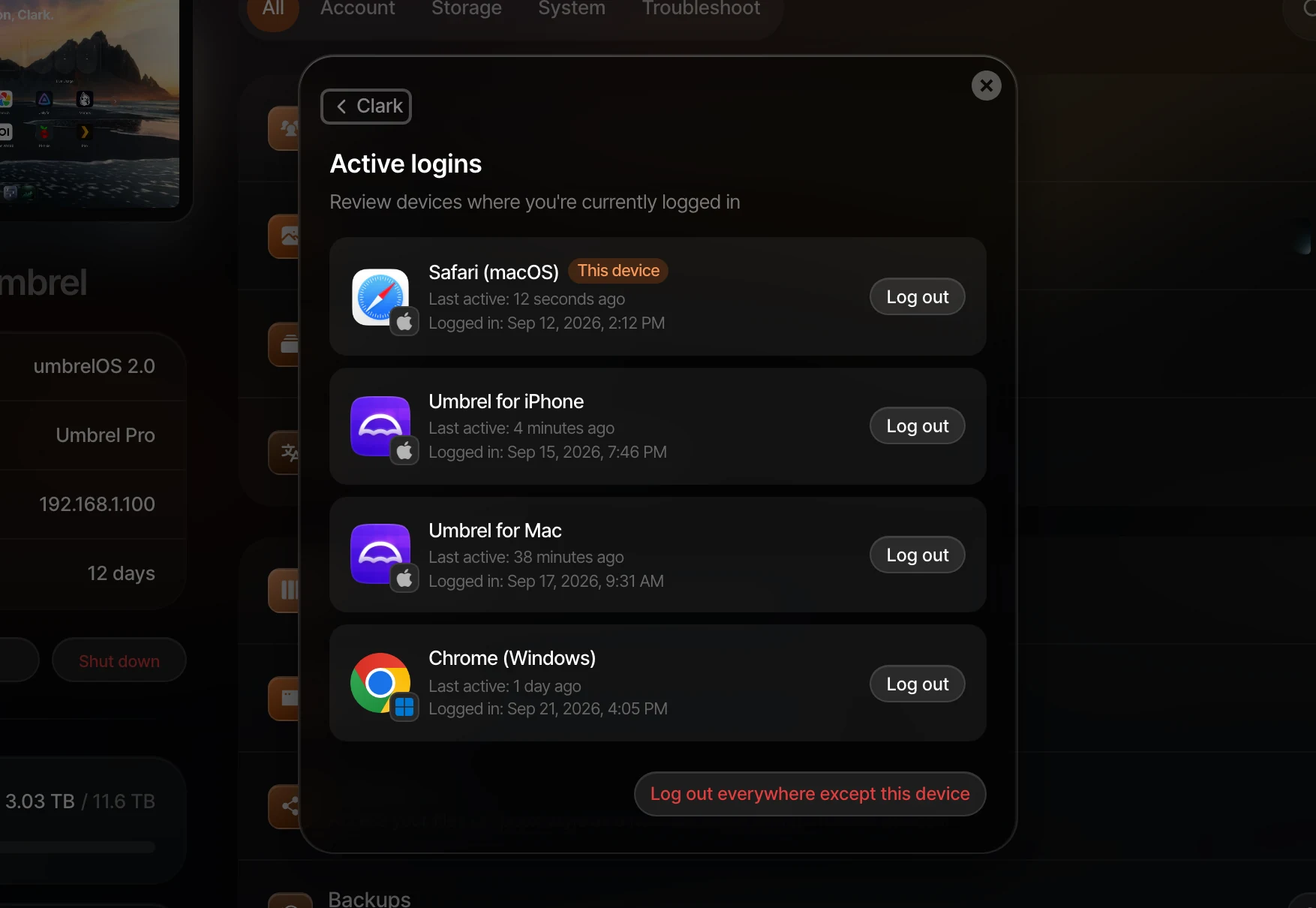
Active logins shows every browser and device that's currently logged in to your Umbrel account, including the Umbrel for iPhone, Umbrel for Android, Umbrel for Mac, and Umbrel for Windows apps. You can log any of them out from here, for example after using a shared computer or losing a device.
Open Active logins
- If you're the owner (the account that set up the Umbrel), go to Settings > Users, click your own account, then click Active logins.
- If you're a member, go to Settings > Active logins.
Each entry shows the device, when it logged in, and when it was last active. The browser you're using right now is marked This device.
Log out devices
- To log out one device, click Log out next to it.
- To log out every device except the one you're using, click Log out everywhere except this device, then confirm with Log out other devices.
Logged-out devices need your password (and 2FA code, if you use it) to log in again.
Changing your password doesn't log out your other devices, so if you think someone else knows your old password, change it and then use Log out other devices.
Log out a member's devices
If you're the owner, go to Settings > Users, click a member, and open Active logins to see and log out the devices where they're logged in. Log out everywhere logs them out of every device at once. This is useful after you reset their password, since resetting it doesn't log them out.