
Remote access
Access your Umbrel from anywhere, not just your local network
By default, your Umbrel is only accessible from your local network. Remote access lets you reach it from anywhere, whether you're at work, traveling, or just away from home. A built-in remote access feature is in the works, but in the meantime, the easiest way is with Tailscale.
Using Tailscale
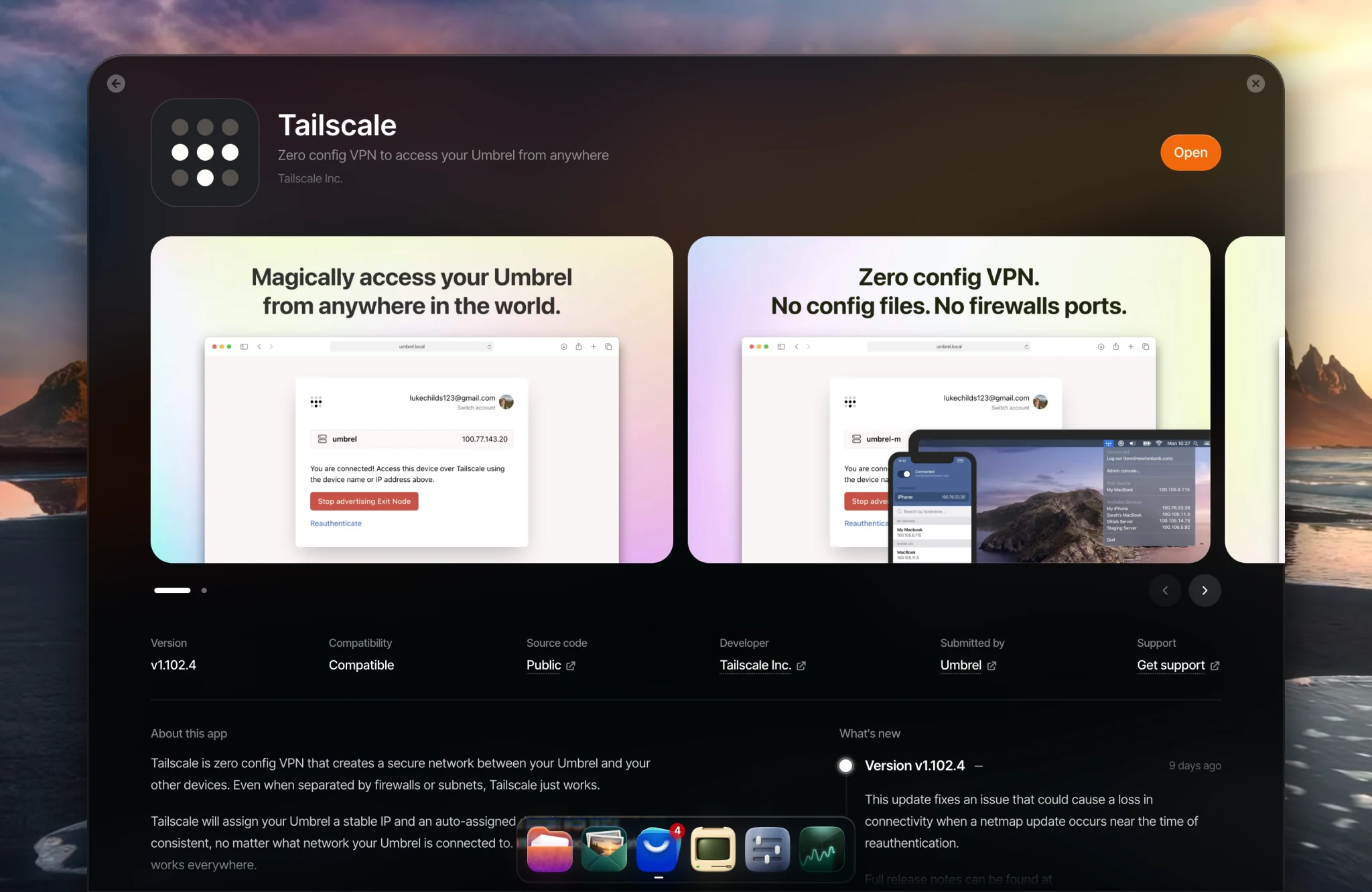
Tailscale is free for personal use and creates a secure private network between your devices. Your Umbrel isn't exposed to the public internet. Only devices you've signed in to your Tailscale account can access it. Once set up, you can access your Umbrel from anywhere as if you were on your local network.
-
Install Tailscale from the Umbrel App Store on your Umbrel.
-
Install Tailscale on any device you want to access your Umbrel from (phone, laptop, etc.) and sign in to the same Tailscale account.
Once both devices are on your Tailscale network, you can access your Umbrel at http://umbrel (via Tailscale's MagicDNS) or using the Tailscale IP address shown in the Tailscale app.
What works over Tailscale
You can use your Tailscale address anywhere you'd normally use umbrel.local or your Umbrel's local IP address:
- umbrelOS. Open your Tailscale address in a browser to access the umbrelOS interface and all your apps from anywhere.
- File sharing. Connect to your shared folders remotely. For example, use
smb://umbrelorsmb://<tailscale-ip>instead of your local address. - Umbrel-to-Umbrel backups. Use another Umbrel as a backup location by connecting to its shared folder over Tailscale.
- App clients. Some apps have companion apps for your phone or computer. Use your Tailscale address as the server address when setting them up. For example, the Immich mobile app can sync your photos to your Umbrel from anywhere by connecting to your Tailscale address.
Using Tor
Tor is built into umbrelOS and lets you access your Umbrel through an encrypted .onion address, with no extra apps or accounts needed. It's designed for anonymous access, routing your connection through multiple layers of encryption so no one can see where the traffic is coming from or going to. The trade-off is that Tor connections are noticeably slower, and the Tor network has a history of outages and DDoS attacks that can make it unreliable. Most users would be better served by something like Tailscale, but Tor is there if you need it.
- Go to Settings > Advanced settings > Remote Tor access and enable it.
- You'll be given a Tor hidden service URL for your Umbrel.
- Use a Tor-compatible browser on your remote device to access that URL.