



Moving from Apple Photos and iCloud
Bring your Apple Photos or iCloud Photos library to your Umbrel
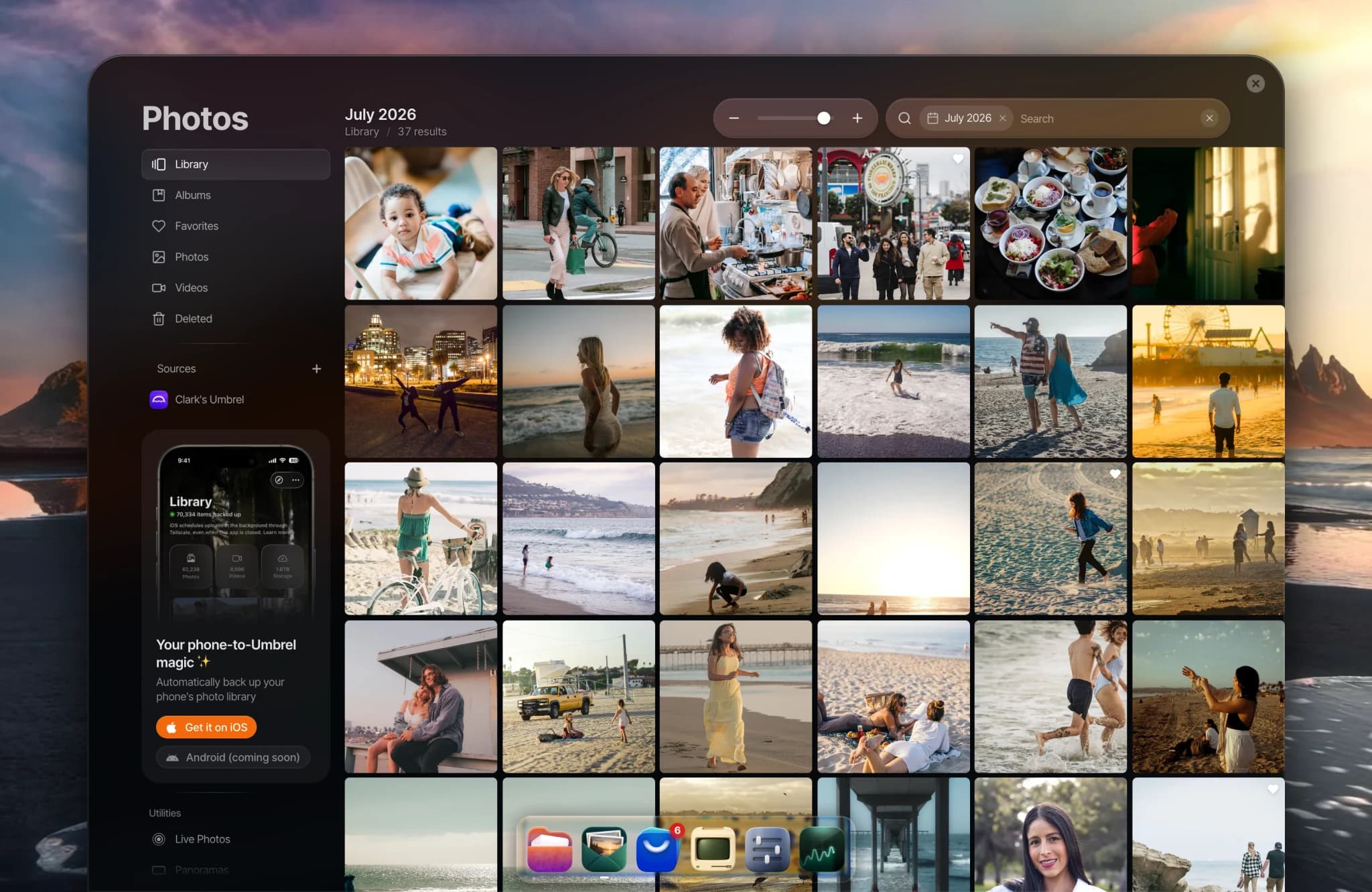
You can move your Apple Photos library to your Umbrel, including everything in iCloud Photos. Once the files are on your Umbrel, they show up in Photos on their own, in the right place on your timeline.
The best way depends on where your photos are:
- Your photos are on your iPhone, or in iCloud Photos on your iPhone: use Umbrel for iPhone. This is the easiest option for most people.
- Your photos are in Photos on your Mac, like an older library that isn't on your iPhone: export them from your Mac.
- You use a Windows PC: download them with iCloud for Windows.
Moving your photos doesn't delete anything from your iPhone, your Mac, or iCloud.
From your iPhone
Umbrel for iPhone backs up your whole photo library to your Umbrel, and keeps backing up new photos afterwards. If you use iCloud Photos with Optimize iPhone Storage, your iPhone downloads the originals from iCloud as it backs them up, so you still get full-quality files.
See Backing up photos from your iPhone to set it up.
From Photos on your Mac
Step 1: Download your originals
If you use iCloud Photos with Optimize Mac Storage, your Mac may only have smaller versions of your photos. To export full-quality originals:
- In Photos, choose Photos > Settings and click iCloud.
- Select Download Originals to this Mac.
- Leave Photos open until it finishes downloading. With a large library, this can take a while.
Step 2: Export your photos
- In Photos, click Library in the sidebar and select the photos you want to move. To select everything, press ⌘ + A.
- Choose File > Export > Export Unmodified Original.
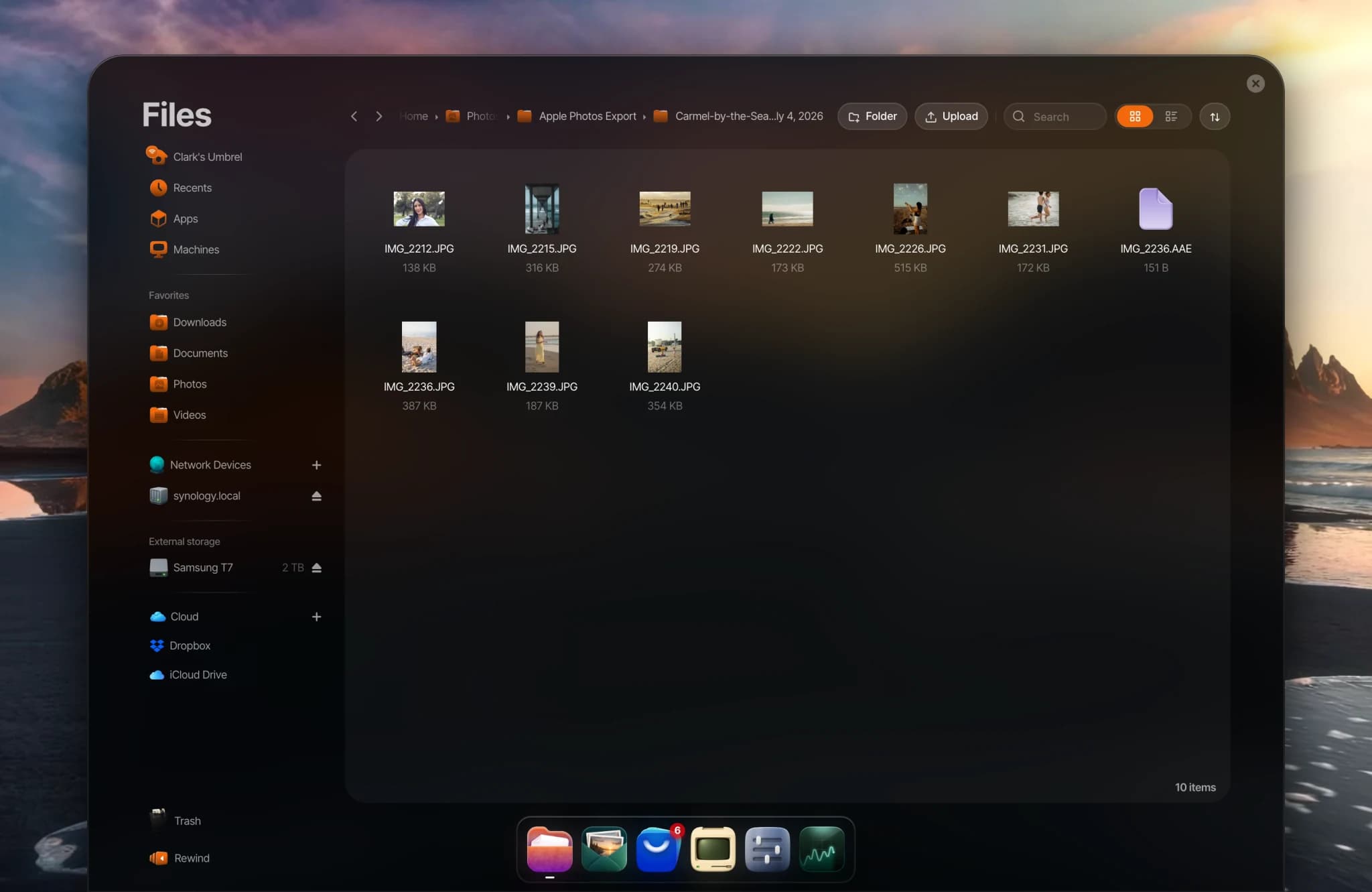
- Set Subfolder Format to Moment Name to get a folder for each day and place, or leave it as None to put everything in one folder.
- Click Export, choose where to save the export, and click Export Originals.
Your Mac needs enough free space for the export. You can export to an external drive if you're short on space.
Step 3: Copy the export to your Umbrel
The easiest way is with Umbrel for Mac, which adds your Umbrel to Finder:
- In Finder, open your Umbrel under Locations and open the Photos folder.
- Drag your export folder into it.
You can also connect to your Umbrel from Finder without the app. See Accessing your files from other devices. For a small batch, you can also drag photos straight onto the Photos window in your browser.
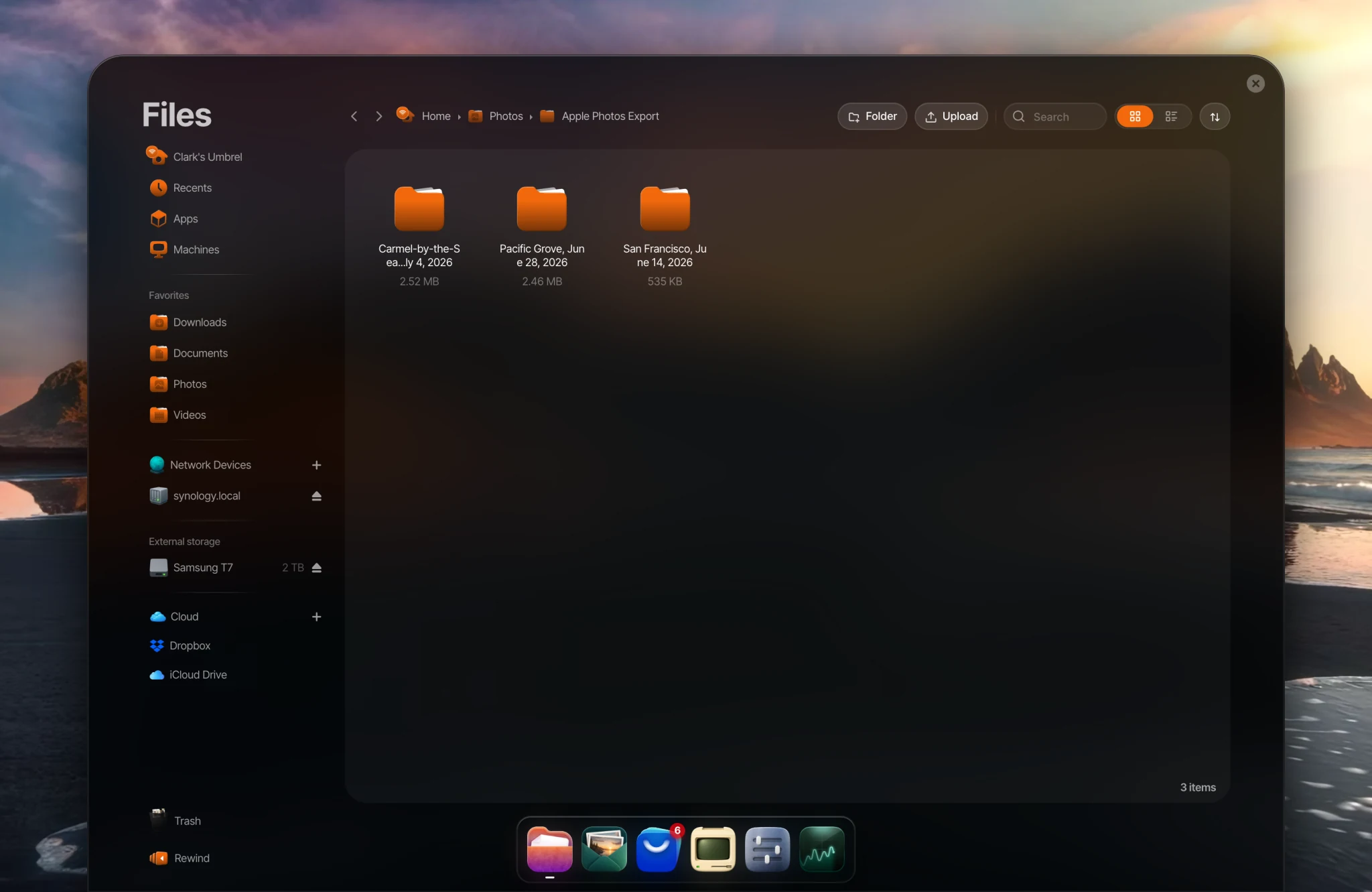
Photos starts preparing the new files as soon as they arrive. With a large library, this can take a while.
From a Windows PC
- Install iCloud for Windows from the Microsoft Store, sign in, and turn on iCloud Photos.
- In File Explorer, open Pictures > iCloud Photos > Photos.
- Right-click the folder and choose Always keep on this device, so Windows downloads the full-quality originals. Wait for the download to finish.
- Copy the photos to your Umbrel's Photos folder over your network. See Accessing your files from other devices.
Copy the photos rather than moving them. iCloud for Windows keeps this folder in sync with iCloud, so moving files out of it can remove them from iCloud.
From iCloud.com
For a small number of photos, you can also download them from iCloud.com. Select up to 1,000 photos at a time, choose to download Unmodified Originals, then copy the download to your Umbrel's Photos folder.
What carries over
- Dates, locations, and camera details carry over, because they're stored inside each photo.
- Live Photos are exported as a photo and a short video. Photos on your Umbrel pairs them back together, and they show a LIVE badge.
- Edits you made in Apple Photos aren't included when you export unmodified originals. To export the edited versions instead, choose File > Export > Export [number] Photos.
- .AAE files may appear next to some photos. They hold Apple Photos' edit settings. Photos on your Umbrel ignores them, so you can delete them.
- Albums aren't carried over. To keep an album together, export it on its own into its own folder, then recreate it with Create album in Photos.
- Favorites, captions, keywords, and people stay in Apple Photos.
- Shared Albums aren't part of your library, so they aren't exported. To include them, save the photos you want to your library first. Photos in older Shared Albums may be at a lower resolution.
If you also back up the same photos with Umbrel for iPhone, Photos shows each identical photo only once, but both copies take up space.