Using Machines
Run Windows, Ubuntu, Debian, Android, and other operating systems inside your Umbrel
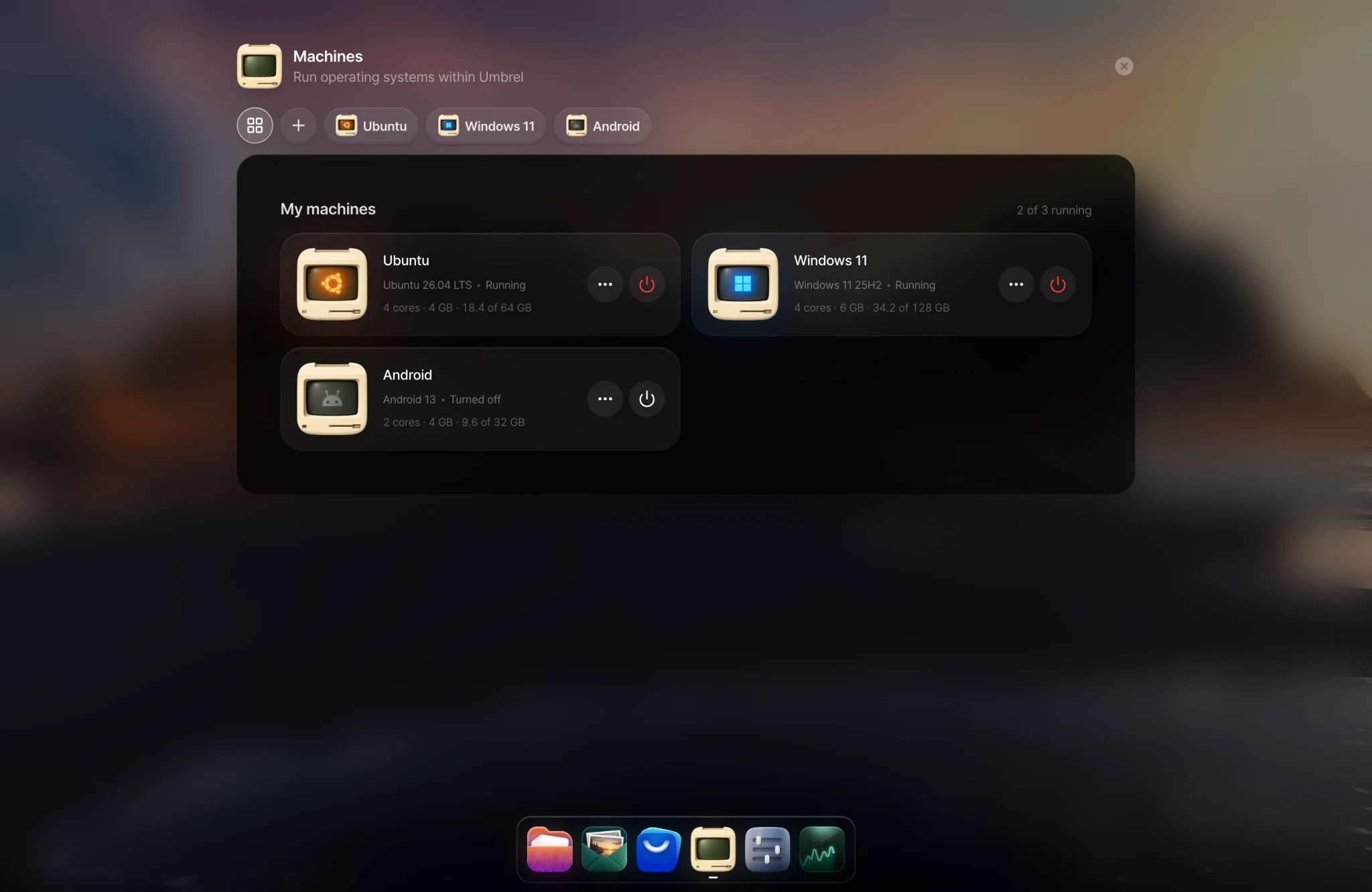
Machines lets you run full operating systems like Windows, Ubuntu, Debian, and Android right inside your Umbrel. Each machine is a virtual machine: a complete computer running in its own isolated space, separate from your apps and files. You use it through a desktop in your browser tab. You can also let an AI agent use it for you.
Only the owner account can use Machines.
Available operating systems
On Umbrel Home, Umbrel Pro, and other Intel or AMD devices:
| Operating system | Version |
|---|---|
| Ubuntu | 26.04 LTS, Desktop or Server |
| Fedora | 44, Desktop or Server |
| Debian | 13, Desktop or Server |
| Alpine | 3.24 |
| Android | 13, with Google apps |
| Omarchy | 4.0 |
| Windows 11 | 25H2 |
| Windows Server | 2025 Evaluation |
| Windows 7 | Enterprise SP1 |
| Windows XP | Professional SP3 (needs your own product key) |
| Windows 98 | Second Edition (needs your own product key) |
On a Raspberry Pi, you can run the ARM versions of Ubuntu, Fedora, Debian, Alpine, Android, and Windows 11.
You can also use your own operating system, from an installer ISO or a preinstalled disk image that you've uploaded to Files.
Windows machines aren't activated. If you want to activate Windows, you'll need your own license.
Create a machine
-
Click Machines in the dock, or open it from Files.
-
Click Create your first machine (or Add machine if you already have one).
-
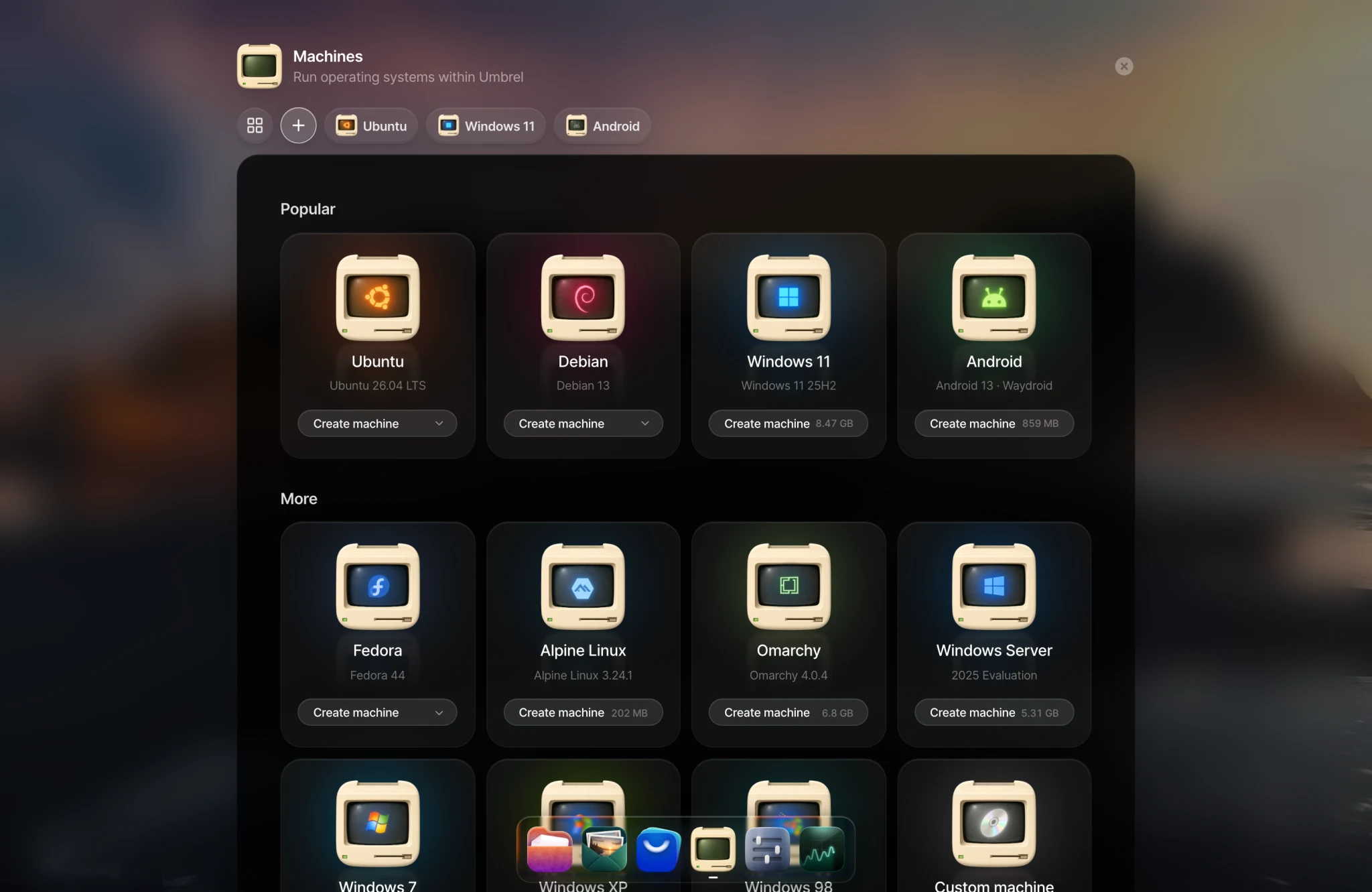
Choose an operating system and click Create machine.
-
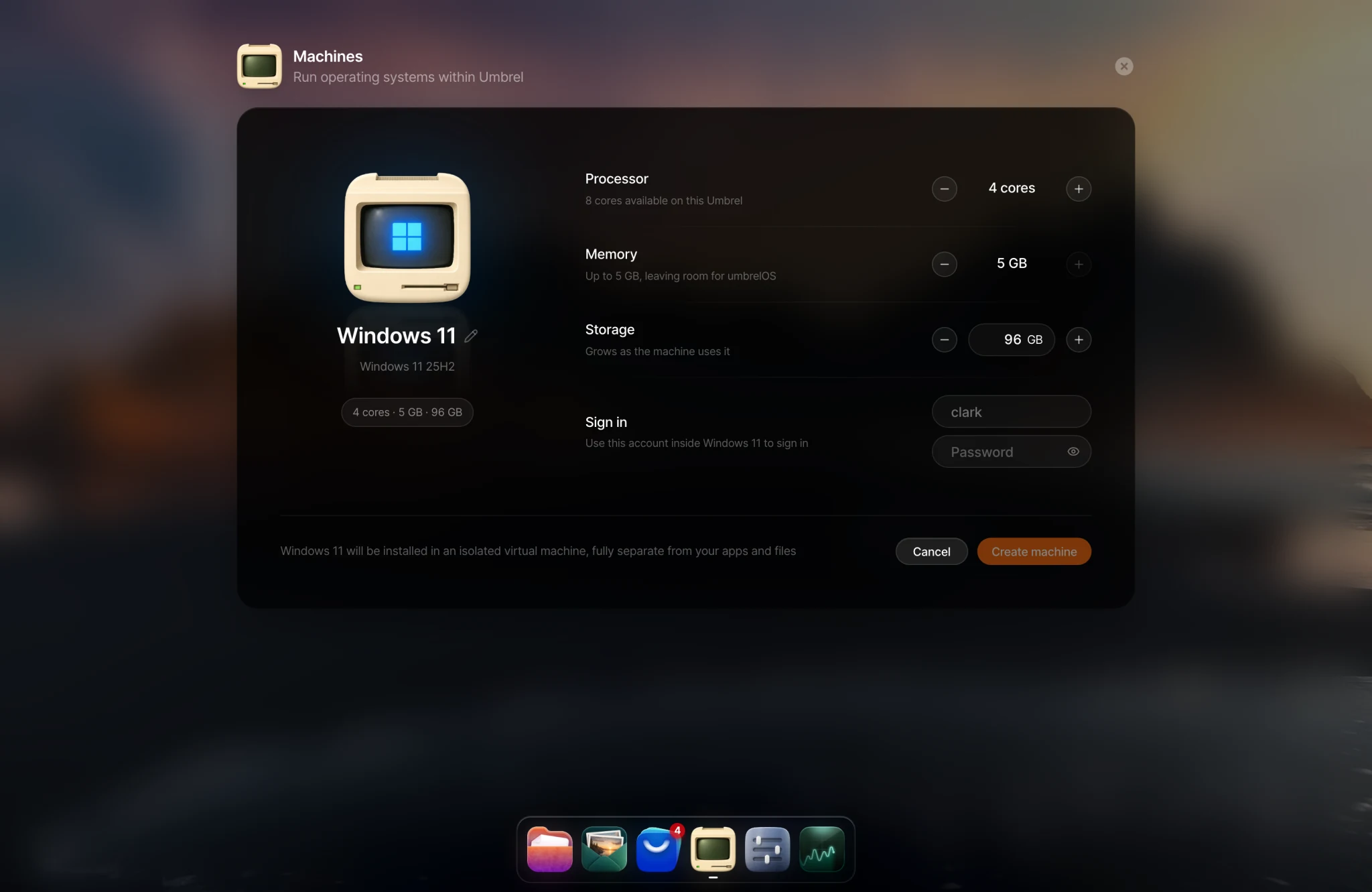
Choose how much processor, memory, and storage to give it. umbrelOS suggests values for each system and leaves enough memory for umbrelOS itself.
-
Enter a username and password for the machine. Save them, because you'll need them to sign in inside the machine. For Windows XP and Windows 98, also enter your product key.
-
Click Create machine.
umbrelOS downloads the operating system and installs it for you. This can take a while depending on your internet connection and the system you chose. Most systems set themselves up automatically with the username and password you entered. Windows 98 needs you to finish setup in the machine console.
Storage grows as the machine uses it, but umbrelOS needs enough free space for the full size you choose, plus the operating system download, before it can create the machine.
Use a machine
Click a machine to open its console, where you can see its screen and use your keyboard and mouse. You can switch to Fullscreen, turn on the machine's audio, and choose Add to homescreen to put the machine on your umbrelOS home screen.
Machines start automatically when your Umbrel starts. You can Shut down, Restart, or Turn on a machine from its Manage menu. Use Force shut down only if the machine stops responding.
Change a machine's settings
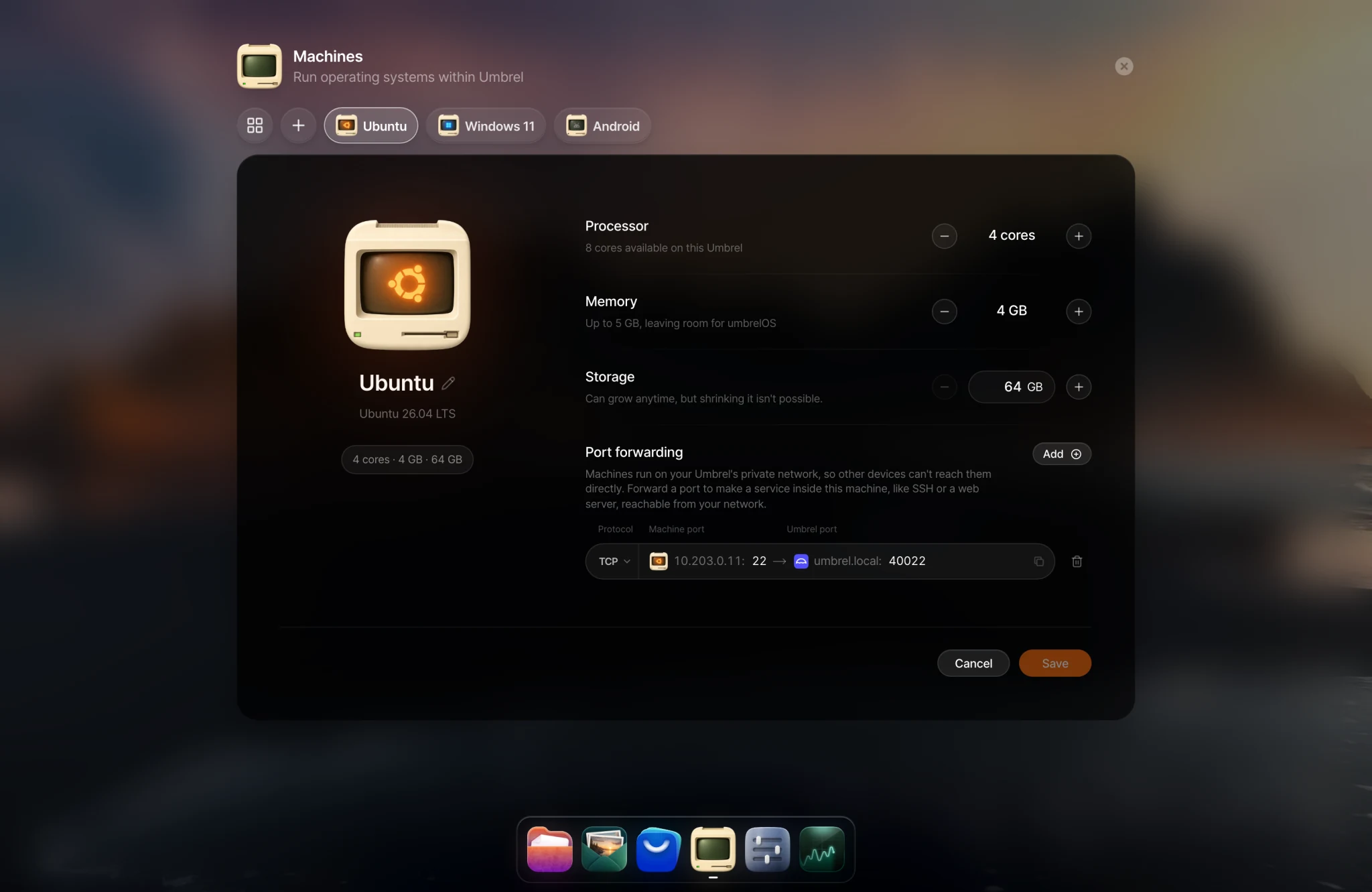
Open the machine's Settings to change its processor, memory, or storage. The machine needs to shut down to apply changes. Storage can grow at any time, but it can't shrink.
Reach a machine from other devices
Machines run on a private network inside your Umbrel. They can reach the internet, but other devices on your network can't reach them directly, and machines can't reach each other.
To reach a service inside a machine, like SSH or a website, use Port forwarding in the machine's settings. Forward a port on your Umbrel (between 40000 and 49999) to a port inside the machine. For example, forward the machine's port 22 to SSH into it from any device on your network. For Windows, turn on Remote Desktop inside Windows and forward port 3389.
Where machines are stored
Machine disks are stored on your Umbrel's internal storage. You can see them in Files under Machines. In the advanced options when creating a machine, you can store its disk on a USB drive or network device instead. That drive must be connected whenever the machine runs.
Machine disks on your internal storage are included in your umbrelOS backups, even while the machine is running. Disks on USB drives or network devices, and downloaded operating system images, aren't.
Uninstall a machine
Choose Uninstall from the machine's Manage menu. This permanently deletes the machine and everything on its disk.
Let an AI agent use a machine
If you've connected an AI agent, you can let it use a machine. Open the machine, click AI agents, and choose Allow access to this machine. The agent can then see the screen and use the keyboard and mouse. You'll see [agent] is controlling this machine in the console. You can keep watching, or click Take over to use it yourself at any time.
Performance
Machines run best on devices with hardware virtualization. Umbrel Home and Umbrel Pro support it. On your own hardware, make sure virtualization (Intel VT-x or AMD-V) is turned on in your BIOS.
If hardware virtualization isn't available, machines still work, but they run through software emulation and are much slower. This happens when:
- umbrelOS itself is running inside a virtual machine without nested virtualization turned on.
- Virtualization is turned off in your computer's BIOS.
- You create a machine for a different processor type than your Umbrel (for example, an ARM system on an Intel device).
Running machines use processor time and memory, so shut down any you aren't using if your Umbrel feels slow. Machines show up in Live Usage with your apps.
Troubleshooting
- "There isn't enough free storage for this machine and its OS image." Free up space, or choose a smaller disk size.
- The install was interrupted. Choose Retry install to continue.
- "Setup is taking longer than expected." Some systems, especially Windows, take a long time to set up. You can keep waiting, or open the console to see what's happening.
- A port forward won't save. The Umbrel port must be between 40000 and 49999 and can't already be used by an app or another machine.