
Using Files
Browse, upload, and manage files on your Umbrel
Files is your Umbrel's built-in file manager. It works like the file browser on your computer, with drag and drop, keyboard shortcuts, right-click menus, and all the usual ways to select and manage files.
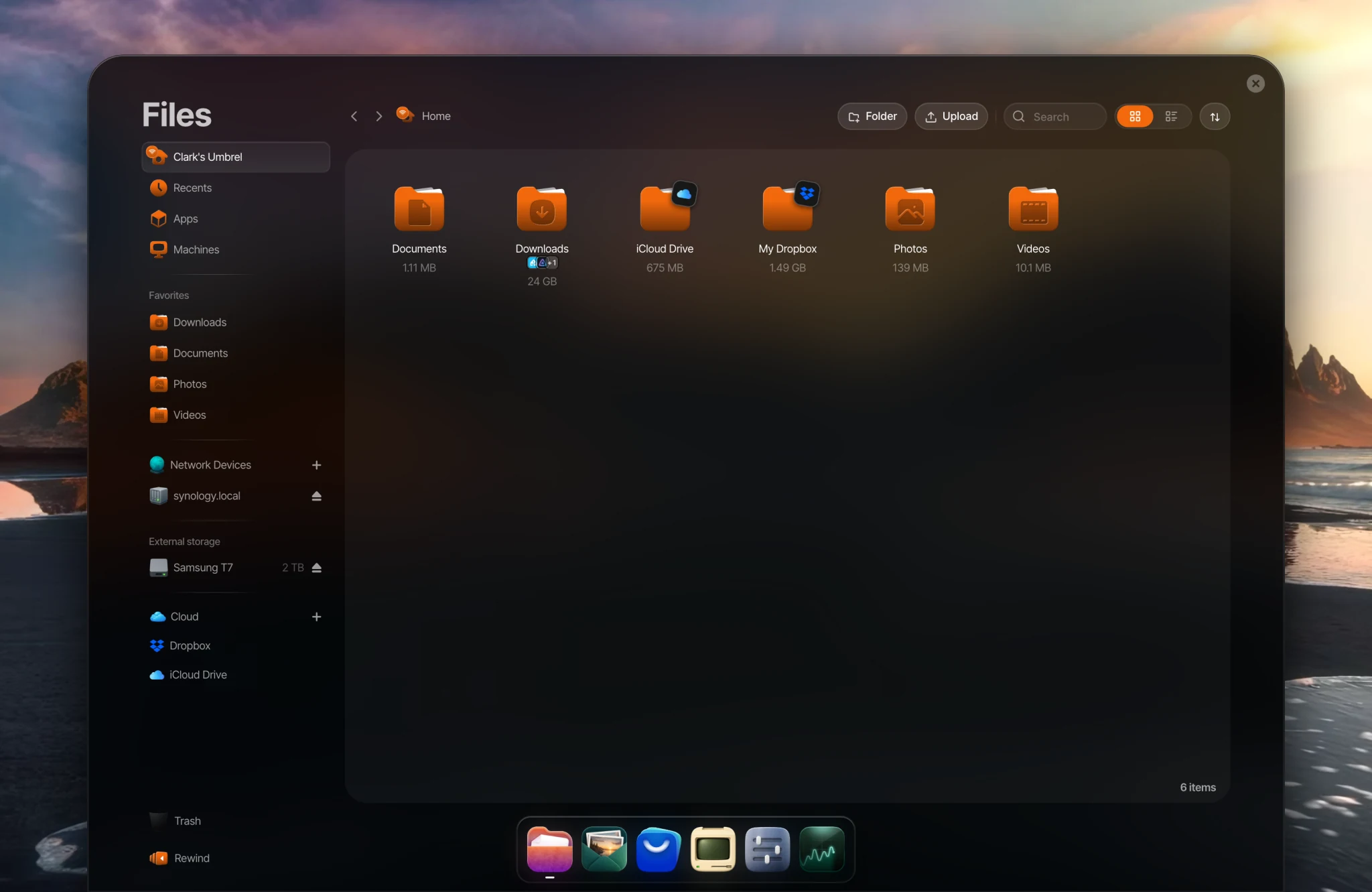
Open Files
Click Files in the dock on your home screen.
The sidebar
The sidebar gives you quick access to:
- Home, shown as your name (for example "Alex's Umbrel"). These are your personal files and folders.
- Recents, the files you've most recently added or changed in your Home folder.
- Apps, where you can browse data stored by your installed apps.
- Machines, where the files for your Machines are stored.
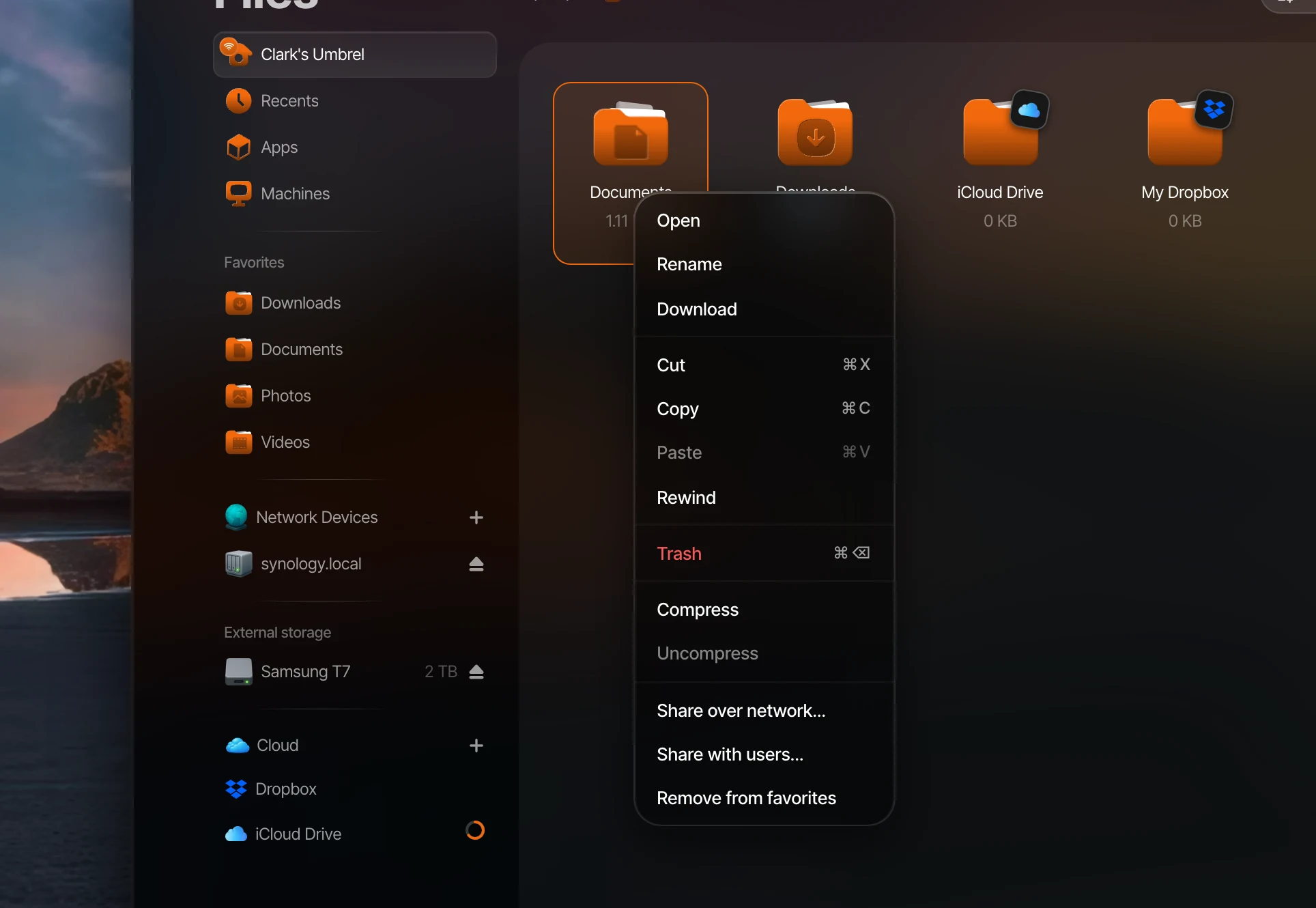
- Favorites, the folders you've pinned for quick access. Right-click any folder and select Add to favorites.
- Shared folders, the folders you're sharing over your local network.
- Network Devices, the Umbrels, NAS devices, or shared drives you've added from your network.
- External storage, for any USB drives connected to your Umbrel.
- Cloud, where you can download your files from Dropbox, OneDrive, iCloud Drive, and other cloud services.
- Trash, which holds deleted files. Items stay in Trash until you restore them or empty the Trash to permanently free up space.
- Rewind, which lets you jump back in time to recover files from past backups.
If you're a member
If your Umbrel has more than one user and you're a member (not the owner), your sidebar is simpler. You'll see your own Home folder, Favorites, Cloud, and Trash. Anything the owner has shared with you shows up too:
- Apps, if the owner has shared apps with you.
- Shared with you, which lists the owner's folders that have been shared with you, under the owner's name.
- Devices, if the owner has given you access to USB drives or network devices.
Your Home folder is private. Other members can't see it, and neither can the owner in Files.
Things to try
- Upload files and folders by dragging them into the Files window, or use the Upload button.
- Download files by right-clicking and selecting Download. You can select multiple files and download them at once.
- Preview images, audio, video, and PDFs directly in Files. Press Space to quickly preview a selected file.
- Edit text, code, Markdown, JSON, shell scripts, and other text files directly in Files.
- Right-click any file or folder to rename, copy, cut, paste, compress, download, trash, and more. Compress creates a
.zipfile, and Uncompress works with .zip, .rar, .7z, .tar, .tar.gz, .tgz, .tar.bz2, and .tar.xz files. - Right-click an empty space in a folder to create a new folder or text file, upload, or paste.
- Drag and drop files to move them onto a folder, a sidebar item, or a folder name in the path bar. Hover over a folder while dragging to open it without letting go.
- Sort by name, date modified, size, or type, and switch between list and icon view.
- Navigate by clicking any folder name in the path bar, or right-click the path bar and select Go to to type a path directly.
- If a file with the same name already exists when moving or copying, you'll be given the option to replace it, keep a copy, or skip it.
Search
Press / or click the search bar to search by file name. Search covers your own Home folder. It doesn't look inside Apps, external drives, or network devices.
Edit text files
Open a supported text file in Files, then click Edit to make changes. Click Save when you're done, or press ⌘/Ctrl + S.
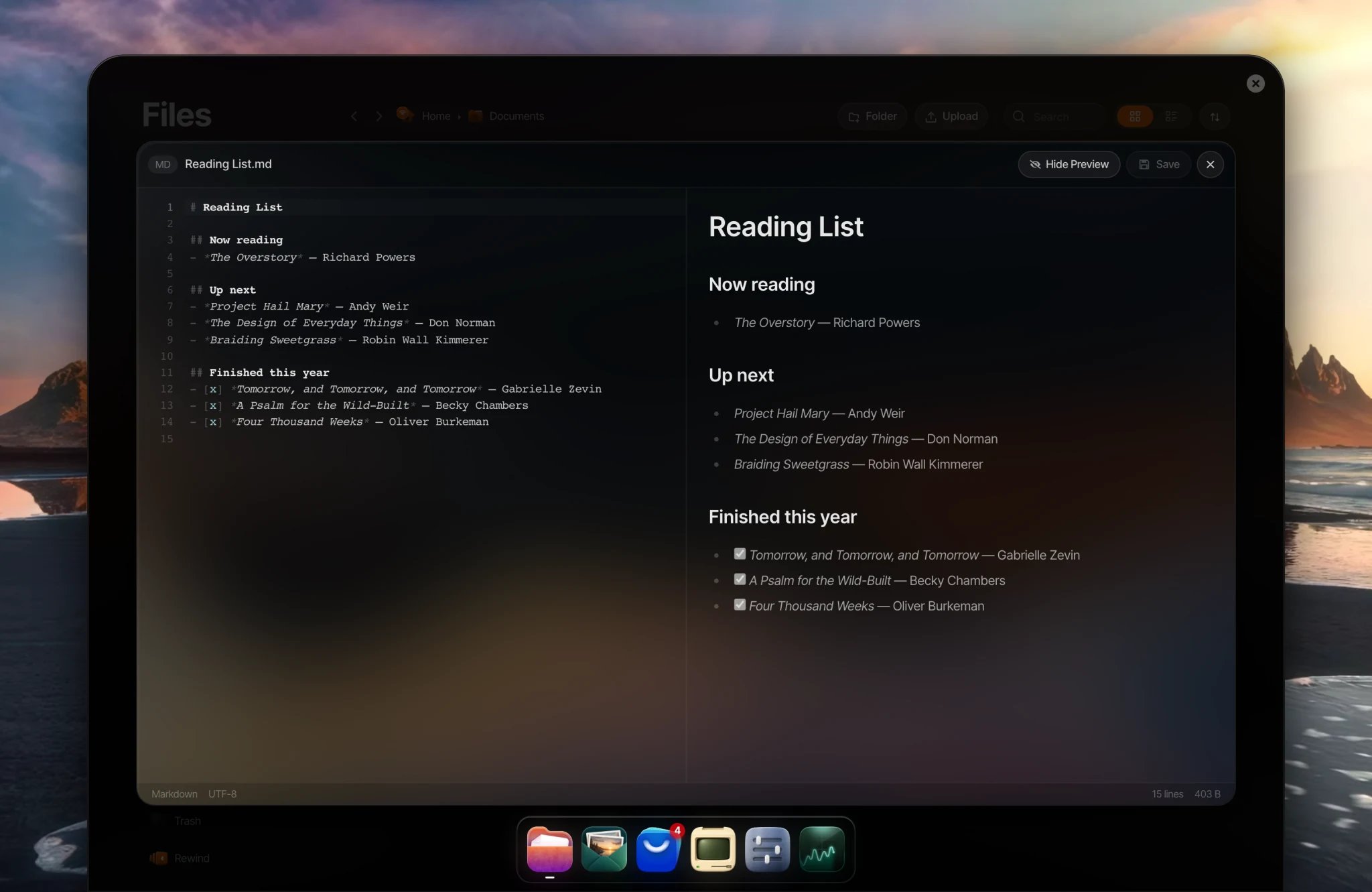
The text editor works with text files up to 50 MB and includes syntax highlighting for common file types, search with ⌘/Ctrl + F, and a Markdown preview for .md and .markdown files. Other file types open in preview mode when supported.
Keyboard shortcuts
These keyboard shortcuts work in Files:
- ⌘/Ctrl + C, ⌘/Ctrl + X, and ⌘/Ctrl + V to copy, cut, and paste
- ⌘/Ctrl + A to select all
- ⌘/Ctrl + Backspace to move the selection to Trash
- ⌘/Ctrl + ↑ to go up a folder
- ⌘/Ctrl + ↓ to open the selected folder
- Shift + click or Shift + arrow keys to select a range of items
- ⌘/Ctrl + click to add individual items to your selection
- / to jump to the search bar
- Space for a quick preview
There is no undo, so double-check before moving or deleting files.
Deleting files
Deleting a file in your Home folder moves it to Trash, where you can restore it later. Some deletions are permanent and skip Trash:
- Files on USB drives and network devices.
- Files a member deletes inside a folder the owner has shared with them.
Files will warn you before deleting anything permanently.
External drives
Plug a USB drive into your Umbrel and it will appear under External storage in the sidebar. You can browse, upload to, and manage files on it just like your internal storage. This works on every device running umbrelOS, including Raspberry Pi.
You can also use USB drives with your apps. In an app's settings, you can give it access to folders on a USB drive, or move the app's data onto a drive formatted as ext4 if the app supports it.
If your drive's format isn't supported, Files will offer to format it as exFAT (for compatibility with Windows, macOS, and Linux) or ext4 (for better performance with umbrelOS). You can also right-click a drive in the sidebar to format it.
For more on external storage, see External storage.
Network devices
You can browse files on other Umbrels, NAS devices, or shared drives on your network. Click the + next to Network Devices in the sidebar to add a device. Devices on your network will be auto-discovered. If yours doesn't show up, you can enter the server details manually.
Apps can use folders on a network device too. Open the app's settings and give it access to a folder on the share. An app's own data can't be moved to a network device.
For more on network devices, see Adding network devices.
Sharing folders
There are two ways to share a folder:
- With other devices on your network. Right-click a folder and select Share over network.... This includes folders on external USB drives. For more details, see Accessing your files from other devices.
- With other people on your Umbrel. Right-click a folder and select Share with users.... The people you choose can view, add, and edit files in that folder. See Sharing your Umbrel with other users.
Rewind
Accidentally deleted or overwrote a file? If you have backups set up, the owner can use Rewind to jump back in time and recover files from past backups. Click Rewind in the sidebar, or right-click any file or folder in Home or Apps and select Rewind.
Files on USB drives and network devices are never included in backups, so Rewind can't bring them back.