



Backing up photos from your iPhone
Automatically back up your iPhone's camera roll to your Umbrel with the Umbrel iPhone app
With the Umbrel for iPhone app, your iPhone's photos and videos back up to your Umbrel automatically. They show up in the Photos app on your Umbrel, and the files are saved in your own Home folder.
Photo Backup keeps working in the background, so you don't need to keep the app open.
Using an Android phone? See Photo Backup in Umbrel for Android.
Before you start
- Install Umbrel for iPhone and sign in to your Umbrel.
- Set up Tailscale on your Umbrel and your iPhone (see below). Photo Backup only uploads through Tailscale, even when your iPhone is at home on the same Wi-Fi as your Umbrel. If Tailscale isn't connected, backup waits until it is.
Set up Tailscale
Tailscale creates a private, encrypted connection between your iPhone and your Umbrel that works from anywhere.
- On your Umbrel, install Tailscale from the App Store, open it, and sign in. See Remote access for more detail. Only the owner can install apps, so members should ask the owner to do this.
- On your iPhone, install the Tailscale app from the App Store and sign in with the same Tailscale account.
- Open Umbrel for iPhone. It checks the Tailscale connection and shows when your iPhone can reach your Umbrel through Tailscale.
If you're a member on someone else's Umbrel, the owner needs to invite you to their Tailscale network. Accept the invitation, then connect Tailscale on your iPhone.
Turn on Photo Backup
- Open the Library tab in Umbrel for iPhone and tap Set up backup.
- When asked, give the app Full Access to your photos. Photo Backup needs Full Access so iOS can find your existing library and notice new photos in the background. With limited access, backup turns off.
- Backup starts with your newest photos and works back through your library.
You can choose what gets backed up in the Profile tab with the Back up photos and Back up videos switches.
Background App Refresh must be turned on for Umbrel in your iPhone's settings. If it's off, the app shows Background App Refresh is off and backup pauses.
What gets backed up
- Your whole photo library. You can't pick individual albums.
- Photos in their original format. HEIC photos stay HEIC.
- Live Photos, with both the photo and the motion clip. Photos on your Umbrel pairs them back together.
- Edited photos and videos. After you edit something, the version you see in your iPhone's Photos app is backed up again. Photo Backup keeps the latest version, not a full history of every edit.
If your photos are stored in iCloud with Optimize iPhone Storage turned on, iOS downloads the originals as part of the backup, which can take longer.
Where your photos are saved
Photos are saved in your Home folder under Photos > iPhone. If you back up a second iPhone, it gets its own folder, like iPhone (2).
Inside that folder, files are grouped in short subfolders and named by a unique code instead of their original name. This is how Photo Backup avoids duplicates. The Photos app shows each item with its original file name. You can move or rename the files in Files without breaking the backup, but the easiest way to browse them is the Photos app.
Each person's backups go to their own Home folder. Other users on your Umbrel can't see them unless you share the folder.
Cellular uploads
Uploads only happen over Wi-Fi by default. To back up over cellular too, turn on Allow cellular uploads in the Profile tab.
Deleting photos
- Deleting a photo on your iPhone doesn't delete it from your Umbrel.
- Deleting a photo on your Umbrel doesn't delete it from your iPhone. Items you delete in Photos on your Umbrel go to the Trash in Files.
Backing up more than one iPhone
Each iPhone backs up to its own folder, and each person backs up to their own Home folder. An iPhone can back up to one Umbrel at a time. To switch, turn off Photo Backup on the first Umbrel before turning it on for the other.
If you get a new iPhone or reinstall the app, it starts a fresh backup into a new folder. Photos on your Umbrel shows each photo once, but the files take up space in both folders.
Stop backing up
- To pause, turn off Back up photos and Back up videos in the Profile tab. Anything already backed up stays on your Umbrel.
- To stop an iPhone from backing up for good, open Photos on your Umbrel, right-click the iPhone under Sources, and choose Remove source. Choose Keep items to keep the backed up photos, or Remove items too to move them to the Trash. Originals on your iPhone are never deleted.
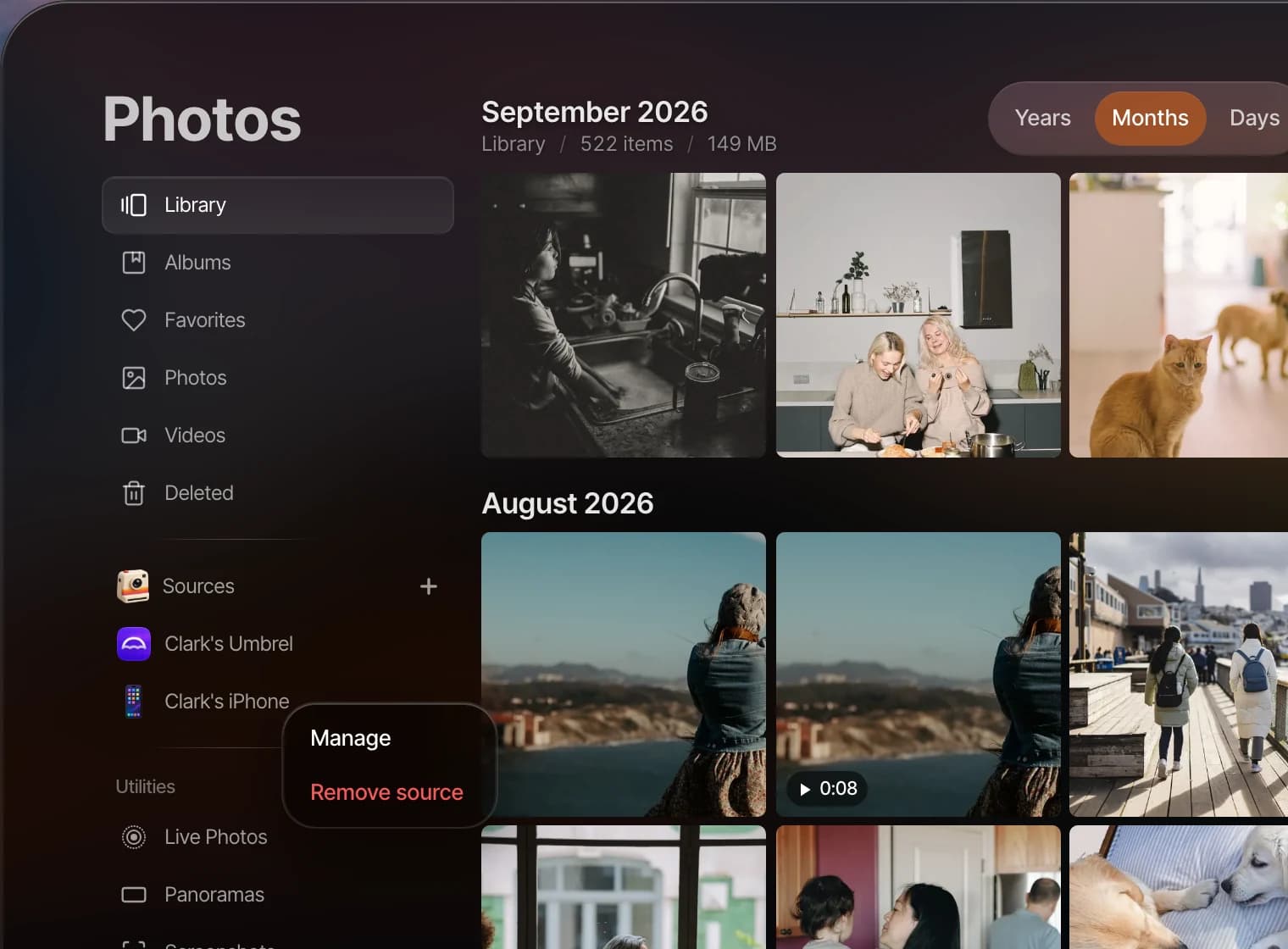
You can also rename an iPhone in Photos from the same place. This only changes the name shown in Photos, not the folder name.
Troubleshooting
- "Waiting for Tailscale" or "Connect to Tailscale." Open the Tailscale app on your iPhone and make sure it's connected, and check that Tailscale is running on your Umbrel. Backup starts automatically once it can connect.
- "Reconnect Photo Backup." Tailscale was reset on your Umbrel, so it has a new address. Tap Reconnect Photo Backup in the app. Your existing backups are safe.
- "Backup paused. Free up storage on your Umbrel, then try again." Your Umbrel is out of space. Free up some space, then tap Try Again in the app. It won't retry on its own.
- "Full Photos access required." Go to your iPhone's Settings > Apps > Umbrel > Photos and choose Full Access, then turn Photo Backup back on in the app.
- "This iPhone can back up to one Umbrel at a time." Turn off Photo Backup on the other Umbrel first.
- Backup is slow or stops for a while. iOS decides when background uploads run, based on things like battery, network, and how you use your phone. Opening the app, charging, and staying on Wi-Fi usually helps.
- "Photo backup needs attention." Contact us and we'll help you get it working.