
Installing umbrelOS on Raspberry Pi
Flash umbrelOS 1.7.4 onto a Raspberry Pi 5 or Pi 4 with an NVMe or USB drive, then update to umbrelOS 2.0
umbrelOS runs on the Raspberry Pi 5 and Raspberry Pi 4. We recommend the Pi 5: it's much faster, more reliable for long-term use, and it works well with USB drives, which can make a Pi 4 crash. It also usually starts umbrelOS without any extra steps. The Pi 4 is fine for tinkering, or if you already have one, but many Pi 4 boards need a bootloader update first. Each has its own umbrelOS image. See Running umbrelOS on your own hardware for what to expect.
For the best experience, install umbrelOS directly onto an NVMe or USB drive rather than a microSD card. Your apps and data are stored on the same drive umbrelOS runs from.
Install umbrelOS 1.7.4 first, then update to 2.0
On Raspberry Pi, umbrelOS 2.0 is currently available as an over-the-air update rather than a fresh install. Install umbrelOS 1.7.4 with the steps below, then update to umbrelOS 2.0 from inside umbrelOS. The update installs in place and keeps your apps, files, and settings.
What you'll need
- Raspberry Pi 5 (recommended) or Raspberry Pi 4
- Official Raspberry Pi power supply
- Ethernet cable
- A drive to install umbrelOS on:
- On a Pi 5, an NVMe drive with a compatible HAT, or a USB drive.
- On a Pi 4, a USB drive. The Pi 4 has no NVMe slot, but an NVMe drive in a USB enclosure works.
- A computer to flash the image
On a Pi 4, update the bootloader first
umbrelOS 2.0 needs a recent bootloader, the firmware that starts your Pi. Many Pi 4 boards still have the one they shipped with and won't start umbrelOS until it's updated. See Updating your Raspberry Pi's bootloader. It takes about five minutes with a spare microSD card.
Install umbrelOS
- Download the umbrelOS 1.7.4 image for your Pi: Raspberry Pi 5 or Raspberry Pi 4.
- Download and install Raspberry Pi Imager or Balena Etcher on your computer.
- Connect your NVMe or USB drive to your computer (use a USB adapter for NVMe drives).
- Open your flashing tool, select the umbrelOS image, select your drive, and flash it.
- Safely eject the drive from your computer.
Boot your Raspberry Pi
- Attach the flashed drive to your Raspberry Pi.
- Remove any microSD cards. Otherwise the Pi may boot from the card instead.
- Connect an ethernet cable to your Pi and your router.
- Connect the official power supply to power on.
- Wait a few minutes for the first boot to complete, then open http://umbrel.local in your browser.
See Connecting to your Umbrel if you need help accessing it.
Update to umbrelOS 2.0
- Create your account. Your Pi is now running umbrelOS 1.7.4.
- Click View on the update notification at the top of your home screen. If you don't see one yet, go to Settings > Software update and click Check for update.
- Review what's new in umbrelOS 2.0, then click Install now.
Do not refresh the page or turn off your Pi while it is updating. It restarts once the update is complete. See Updating umbrelOS for more.
Notes
- Bootloader updates. If your Pi doesn't start umbrelOS, whether from a USB drive, an NVMe drive, or a microSD card, its bootloader may be out of date. This is common on Pi 4 boards and can happen on early Pi 5 boards. See Updating your Raspberry Pi's bootloader.
- NVMe compatibility varies by HAT, so check that your drive is compatible before purchasing.
- Always use the official power supply. Third-party supplies can cause stability issues.
- Storage Manager and FailSafe aren't available on Raspberry Pi. umbrelOS runs from the drive you flashed and stores your apps and data on it. Storage Manager still shows that drive's capacity and health.
- USB drives work as external storage. Any extra USB drive you plug in shows up under External storage in Files. You can use it for files, give apps access to its folders, or move supported apps onto it. See External storage.
- Machines run ARM versions of each operating system. On a Pi, Machines offers Ubuntu, Fedora, Debian, Alpine, Android, and Windows 11 for ARM.
Why not microSD?
You can run umbrelOS from a microSD card, but we don't recommend it. Your apps and data would then live on the card. microSD cards have a limited number of write cycles and degrade faster, leading to lower performance and reliability over time.
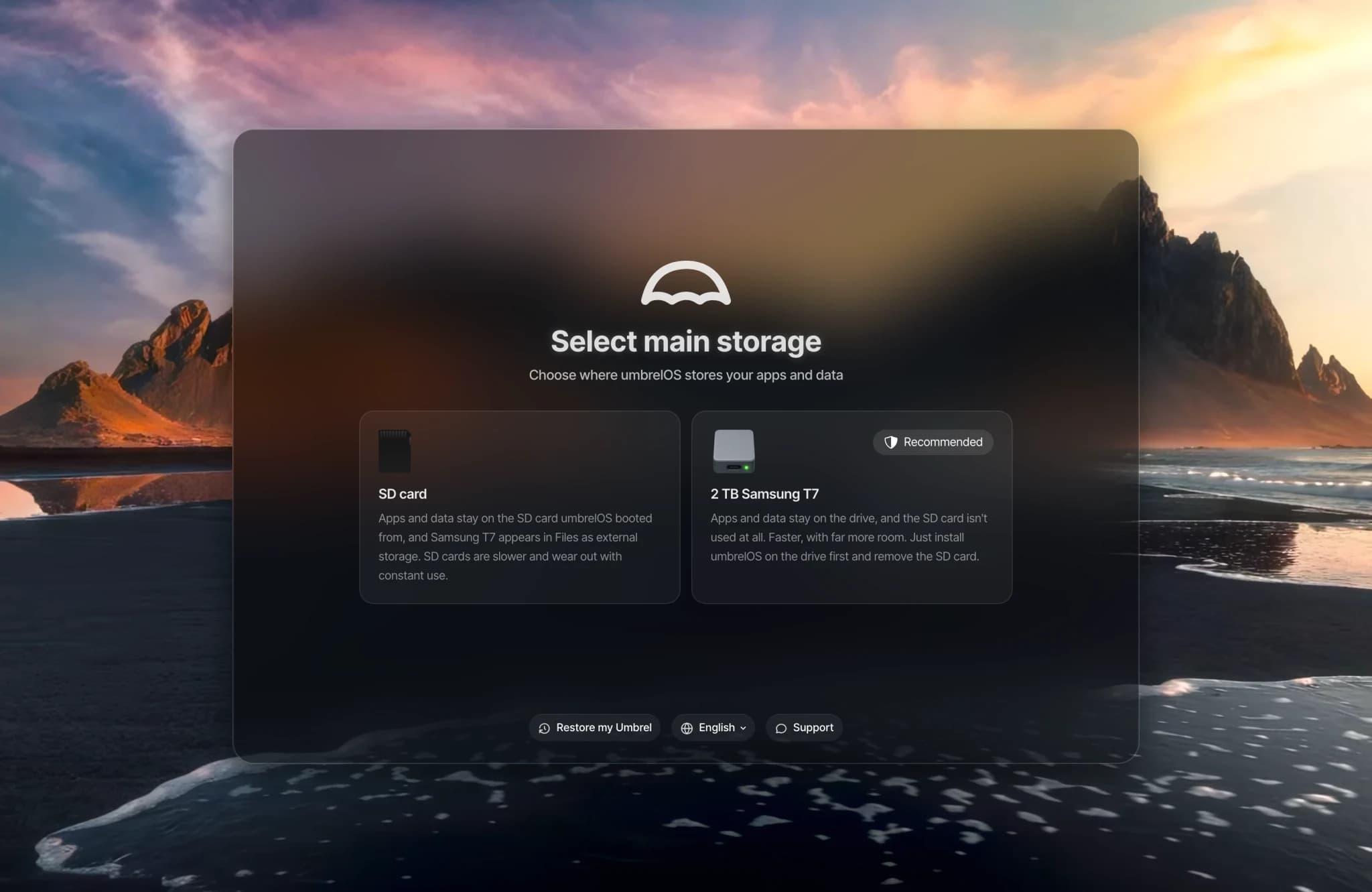
If you boot from a microSD card with a USB or NVMe drive connected, setup asks you to Select main storage:
- SD card keeps your apps and data on the SD card. The drive then shows up in Files as external storage.
- Choosing the drive shows steps to install umbrelOS directly onto it: shut down the Pi, use Raspberry Pi Imager on a computer to flash umbrelOS onto the drive, then remove the SD card and power on with the drive connected.
umbrelOS never formats a connected drive for you during setup. If you set up your Pi before umbrelOS 2.0 with a microSD card and a separate SSD for data, that setup keeps working after you update.